

Table of contents
.avif)
.png)
How to connect your agents to a HubSpot MCP via Claude Code



Jon Gitlin
This guide walks you through connecting AI agents to Merge Agent Handler's HubSpot MCP server with Claude Code.
By the end, you'll have a working MCP configuration that gives your Claude agents direct access to HubSpot's CRM, enabling them to read and update contacts, manage deals, log activities, and more without leaving your terminal.
How it works
Merge Agent Handler bridges Claude Code and HubSpot's CRM API. You install the Merge CLI, authenticate once, and register the connection with a single terminal command. You never expose raw HubSpot credentials to the agent. Merge handles OAuth authentication and enforces the tool-level permissions you've configured.
Here's the command that registers the connection:
Related: A guide to connecting to the HubSpot MCP with Codex
Prerequisites
Before getting started, you'll need the following:
- A Merge Agent Handler account
- Claude Code installed (run
claude --versionto confirm) - pipx installed (run
pipx --versionto confirm, or install viapip install pipx) - A HubSpot account with admin or API access
If you want to connect Merge Agent Handler's HubSpot MCP with internal or customer-facing agentic products, you can follow the steps in our docs.
1. Install the Merge CLI
Install with pipx: pipx install merge-api
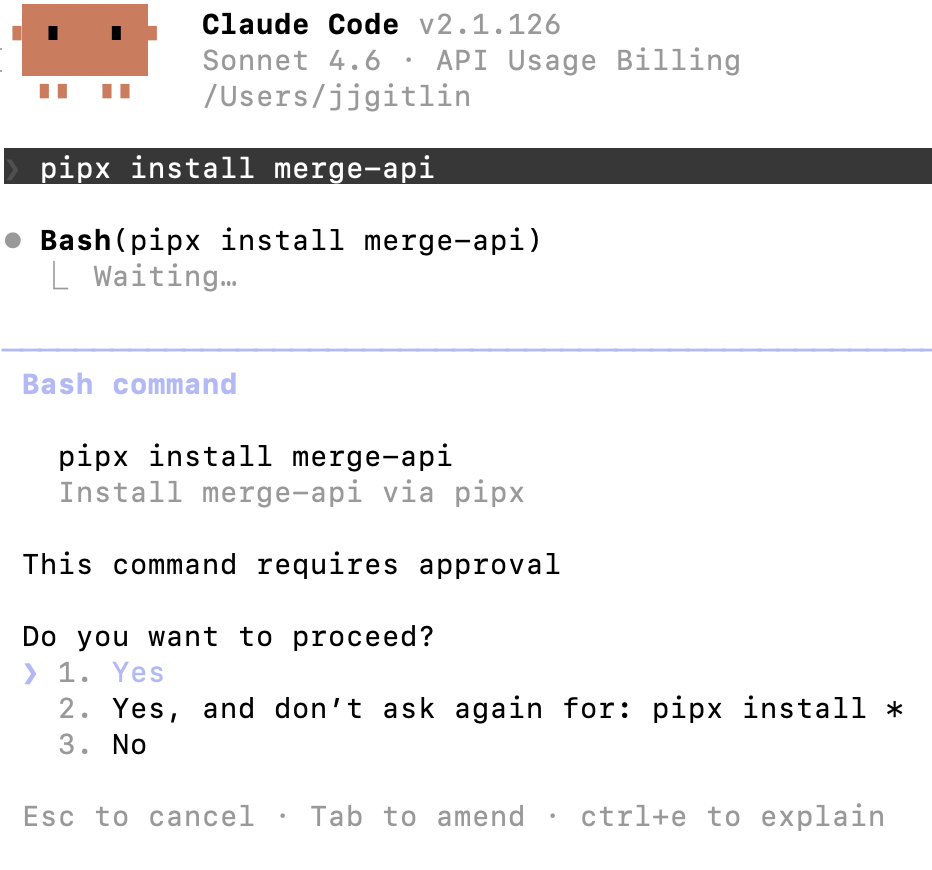
Verify your installation: merge --version
2. Configure the CLI and log in
This links the CLI to your Merge Agent Handler account and authenticates your session: merge login
This starts an authenticated session so the CLI can make authorized requests on your behalf.
3. Add Agent Handler to Claude Code
The simplest way to register the Agent Handler MCP server with Claude Code:
Alternatively, register manually:
Confirm it connected. Open Claude Code and run: /mcp
agent-handler should appear under Local MCPs with a connected status.

Related: 4 steps for connecting a HubSpot MCP with Cursor
4. Authenticate HubSpot
To confirm the connection is working, open a Claude Code session and try: "Pull all open deals in the pipeline and summarize which ones haven't had activity in the last 14 days."
On first use, a Magic Link will appear to finish connector authentication.

{{this-blog-only-cta}}
FAQ on using the HubSpot MCP with Claude Code
In case you have any more questions, we've addressed several more below.
What your Agent can do with a HubSpot MCP server?
Here are just a few impactful use cases:
- Create and update contacts: add new leads from inbound forms, enrich existing records with research findings
- Manage deals: move deals through pipeline stages, update deal values, assign owners
- Log sales activity: record calls, emails, and meetings against CRM records automatically
- Search and retrieve records: look up contacts by email, filter companies by industry or revenue, find open deals by owner
- Create and update companies: maintain company records as agents gather new firmographic data
Why should I use Merge Agent Handler's HubSpot MCP server over other HubSpot MCP servers?
Merge Agent Handler gives you a production-grade MCP interface to HubSpot without building and maintaining your own connector.
Instead of managing OAuth tokens, handling API versioning, or writing tool schemas by hand, you get a fully maintained HubSpot integration out of the box. The Tool Pack and Registered User model also lets you scope exactly what your agent can access, allowing it to (as an example) read contacts without being able to delete deals.
Merge also handles rate limiting, error normalization, and API changes on your behalf.
Why should I use Claude Code to connect to the HubSpot MCP server?
Claude Code is purpose-built for agentic, terminal-native workflows. If your team lives in the command line, Claude Code lets you pull HubSpot context directly into that environment without switching to a browser or a separate tool.
It's especially powerful for sales engineers and RevOps teams who want to script CRM automation, inspect deal data mid-workflow, or build lightweight agents that interleave HubSpot reads with code execution.
What types of tasks can my agents perform with the HubSpot MCP server?
Agents connected to HubSpot via Merge can handle the full spectrum of CRM automation.
On the read side, they can pull contact histories, summarize deal pipelines, identify stale opportunities, or generate account briefings before a sales call.
On the write side, they can log outreach activity, update deal stages based on email sentiment analysis, create follow-up tasks, and enroll leads into nurture sequences.
More sophisticated agents can combine HubSpot data with external signals. For example, reading a LinkedIn profile, enriching a HubSpot contact record, and drafting a personalized outreach email, all in a single agent run.
Jon Gitlin

.png)
.png)

Connect your agents to thousands of tools in minutes
Use Merge Agent Handler’s 150+ connectors (including HubSpot) to power reliable, secure, and powerful agents.


But Merge isn’t just a Unified
API product. Merge is an integration platform to also manage customer integrations. gradient text
But Merge isn’t just a Unified
API product. Merge is an integration platform to also manage customer integrations. gradient text
But Merge isn’t just a Unified
API product. Merge is an integration platform to also manage customer integrations. gradient text
But Merge isn’t just a Unified
API product. Merge is an integration platform to also manage customer integrations. gradient text