

Table of contents
.avif)

How to Connect to the Slack MCP with Claude Code (4 steps)



Jon Gitlin
By connecting to Merge Agent Handler's Slack MCP server via Claude Code, your agents can send Slack messages, search conversations, post updates, and more directly from the terminal.
To help you start using the server in your terminal, we'll cover each implementation step in detail.
How It Works
Merge Agent Handler routes requests from Claude Code to Slack's API. You install the Merge CLI, authenticate once, and register the connection with a single command. Agent Handler manages your Slack OAuth credentials centrally so you never store tokens locally or deal with scope changes yourself.
Here's the command that registers the connection:
Prerequisites
Before getting started, you'll need the following:
- A Merge Agent Handler account
- Claude Code installed (run
claude --versionto confirm) - pipx installed (run
pipx --versionto confirm, or install viapip install pipx) - A Slack workspace with appropriate permissions
If you want to connect Merge Agent Handler's Slack MCP with internal or customer-facing agentic products, you can follow the steps in our docs.
1. Install the Merge CLI
Install with pipx: pipx install merge-api
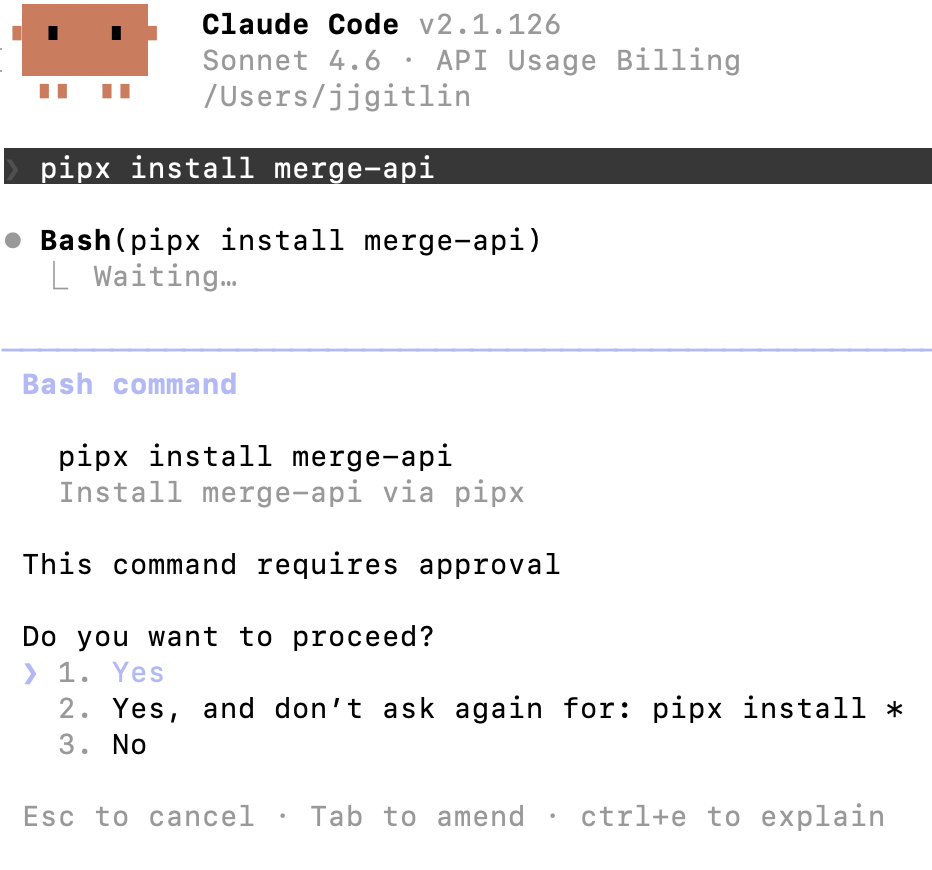
Verify your installation: merge --version
2. Configure the CLI and log in
Run merge login to connect the CLI to your Merge account: merge login
This starts an authenticated session so the CLI can make requests on your behalf.
Related: A guide to using the Slack MCP in Cursor
3. Add Agent Handler to Claude Code
Run the following to register the Agent Handler MCP server with Claude Code:
Or, if you prefer to register manually:
Confirm the connection by opening Claude Code and running: /mcp
agent-handler should appear under Local MCPs with a connected status.

4. Authenticate Slack
Open a Claude Code session and run a test query like: "Search #engineering for any recent discussion about the auth service timeout issue and summarize what the team has already tried."
The first time you invoke a Slack tool, a Magic Link will appear to complete connector authentication.
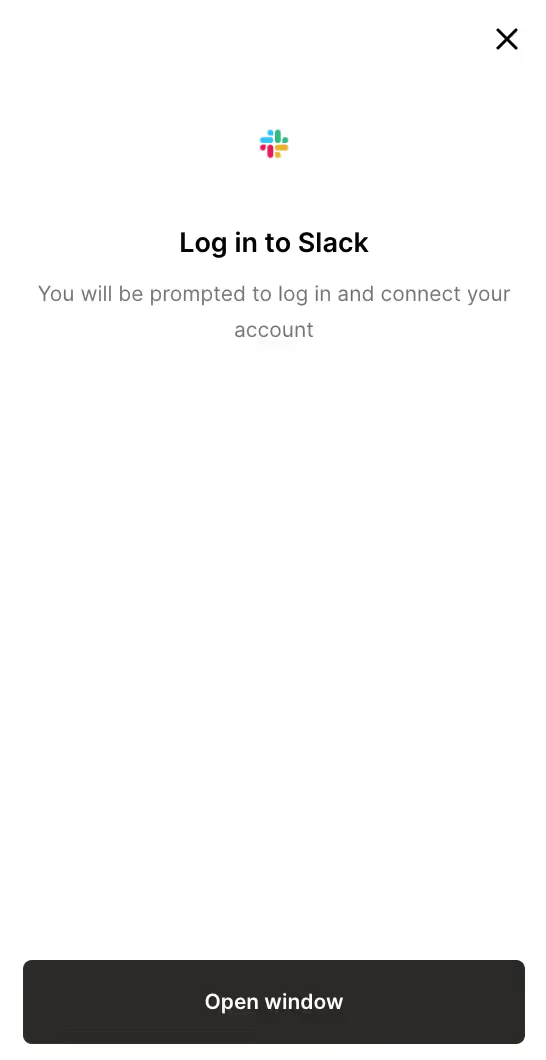
You can then see an output like the following:

{{this-blog-only-cta}}
Slack MCP FAQ
In case you have any more questions on setting up and using a Slack MCP server in Claude Code, we’ve addressed several more questions below.
What can agents do with a Slack MCP server?
Here are just a few common use cases:
- Support triage in shared channels: An agent monitors/reads new posts in #support-style channels, classifies urgency/category, pulls the right SME into the thread, and posts a suggested first response (and/or creates the downstream ticket and drops the link back in-thread)
- Incident comms + stakeholder updates: In an incident channel, an agent aggregates latest context from the thread, produces periodic exec-ready status updates, and posts them to #leadership/#status while keeping a running timeline for the postmortem
- Sales deal desk / approvals in Slack: Reps ask for discount/terms/exception approval in a thread; the agent collects required fields, routes for approval, and once approved posts the final decision + next steps (and records it to the system of record)
- Recruiting coordination: In a hiring channel, an agent pulls candidate context, prompts interviewers for feedback if missing, summarizes feedback for the hiring manager, and posts an “inclined/declined + rationale” recap to keep loops moving
- IT/helpdesk requests via Slack → tracked workflow: An employee requests access/new software in Slack; the agent gathers details, checks policy, creates the request in the appropriate system, and posts status changes back to the original Slack thread until completion
Why should I use Merge Agent Handler's Slack MCP server?
Merge Agent Handler's Slack connector includes 50+ tools with enterprise-grade security controls, data loss prevention, and real-time observability over every tool call.
You can scope exactly which channels and actions your agent can access, and apply custom guardrails so agents never post to the wrong place.
Why connect Slack MCP to Claude Code?
Engineers already live in the terminal. Connecting Slack to Claude Code means your agent can pull conversation context before writing code, post status updates when tasks complete, and surface team knowledge from Slack history, all without leaving your development environment.
Jon Gitlin

.png)
.png)

Connect your agents to thousands of tools in minutes
Use Merge Agent Handler’s 150+ connectors (including Slack) to power reliable, secure, and powerful agents.


But Merge isn’t just a Unified
API product. Merge is an integration platform to also manage customer integrations. gradient text
But Merge isn’t just a Unified
API product. Merge is an integration platform to also manage customer integrations. gradient text
But Merge isn’t just a Unified
API product. Merge is an integration platform to also manage customer integrations. gradient text
But Merge isn’t just a Unified
API product. Merge is an integration platform to also manage customer integrations. gradient text