

Table of contents

How to connect a OneNote MCP to Cursor (4 steps)



Jon Gitlin
Developers building tools that read from OneNote need to understand the API's data model while writing the code.
How are notebooks structured? What does a page object actually contain? What fields does Microsoft Graph return for a section?
Without the MCP connection, answering those questions means leaving Cursor, authenticating against the Graph API separately, running test calls, and copying the response back into the session where the code is being written.
To help your developers inspect OneNote's data model and query real notebook content without leaving Cursor, we'll show you how to connect OneNote with Merge Agent Handler's OneNote MCP server.
How it works
Merge Agent Handler connects Cursor to the OneNote API through the Merge CLI.
Install the CLI, authenticate once, and run a single setup command from your project root.
That command writes a ## Merge CLI section to the project's .cursorrules file, which tells Cursor's agent when to call merge search-tools and merge execute-tool to reach OneNote.
Once connected, Merge handles Microsoft Graph's OAuth token lifecycle and Azure AD authorization flows so you never store tenant credentials in the project or rewire authentication when tokens expire.
Here's the registration command:
Related: The steps for connecting a OneNote MCP with Codex
Prerequisites
Before getting started, you'll need the following:
- A Merge Agent Handler account
- Cursor installed
- pipx installed (run
pipx --versionto confirm, or install viapip install pipx) - A Microsoft 365 account with OneNote access (personal Microsoft accounts and work/school accounts on Business or Enterprise plans both work)
If you want to connect Merge Agent Handler's OneNote MCP with internal or customer-facing agentic products, you can follow the steps in our docs.
1. Install the Merge CLI
Install the Merge CLI with pipx and confirm it's available: pipx install merge-api
Verify your installation: merge --version
2. Log in to Merge
Authenticate the CLI with your Merge Agent Handler account: merge login
This links the CLI to your account so it can make authorized requests to OneNote on your behalf.
3. Connect the CLI to Cursor
Run the following from the root of the project where you want to use Merge tools:
This writes a ## Merge CLI section to .cursorrules so Cursor knows to use the CLI for third-party services. The command is idempotent, so it's safe to re-run if you need to reset.
Related: How to use the OneNote MCP in Claude Code
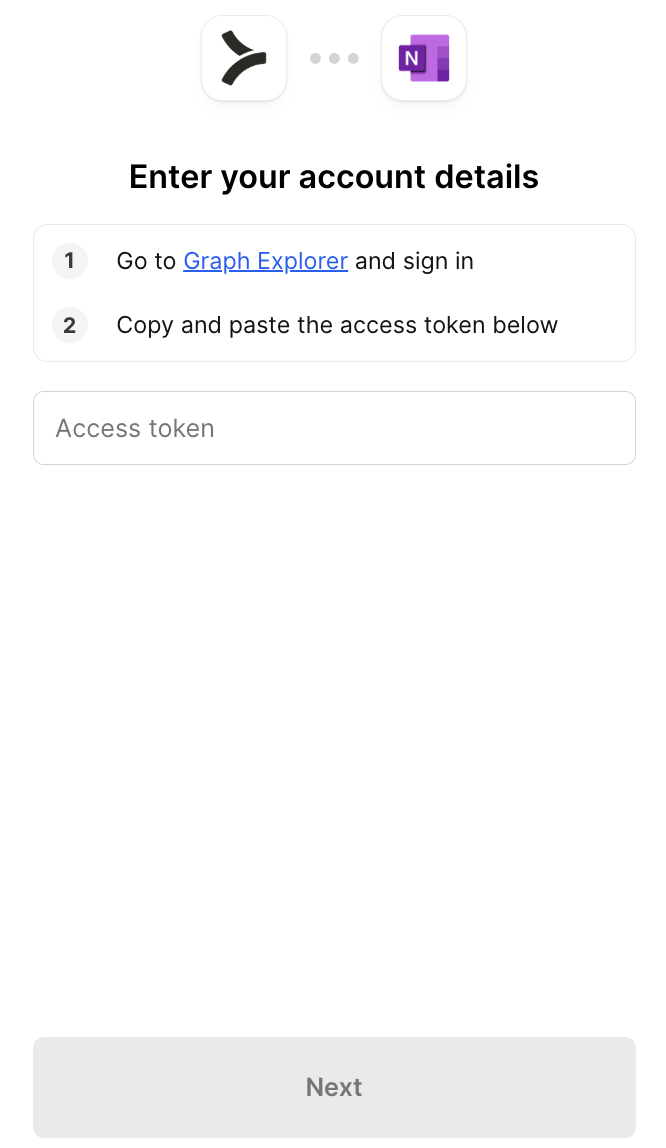
4. Authenticate OneNote
Open a Cursor chat in your project and try a query that connects note content directly to what you're building. For example: "Find the page in my OneNote notebooks that documents the data model or field spec for the payments feature and return the full text so I can write accurate TypeScript interfaces."
The first time you invoke a OneNote tool, a Magic Link will appear to complete connector authentication.
{{this-blog-only-cta}}
OneNote MCP FAQ
In case you have more questions on setting up and using the OneNote MCP in Cursor, we've addressed several more commonly-asked questions below.
What can you do once the OneNote MCP is connected to Cursor?
With OneNote connected, Cursor can:
- Retrieve field specs captured in planning notes before writing type definitions: pull the page where a data model or API contract was sketched out and use its field list to write TypeScript interfaces or Pydantic models that match the intended shape before any API exists to validate against
- Pull error code mappings documented in incident reviews before writing error handling logic: fetch the page where your team catalogued known error states and their expected handling, so the switch statement or error map you write covers the actual codes the system emits
- Fetch authentication flow diagrams or OAuth decision notes before implementing auth logic: retrieve the page that describes how your system's auth flow was designed, including edge cases and session handling decisions, before writing the code that implements it
- Surface API versioning decisions documented in design reviews before writing client code: find the notebook page that records which API version a feature targets and what breaking changes were introduced, so client code uses the correct endpoint signatures from the start
- Locate permission model specs before writing access control logic: pull the page that defines role hierarchies or permission matrices captured during a security review, so the authorization checks you write match the intended model rather than what you remember from the meeting
- Retrieve integration contracts documented by external team handoffs before writing connector code: find pages that describe how a partner API or internal service is expected to behave, including field formats and pagination conventions, before writing the code that calls it
Why use Merge Agent Handler vs. building directly on Microsoft Graph?
You can build a self-hosted MCP server directly on Microsoft Graph.
OneNote's API is part of the Graph surface, the documentation is thorough, and for a single developer working against their own Microsoft account, the initial setup is feasible: register an app in Azure AD, configure the right scopes, complete the OAuth flow, and start reading pages.
The friction compounds at the team level.
Each developer needs to go through a tenant-specific auth flow with scopes that match the app registration. Managing per-user access tokens and refresh tokens adds state that has to live somewhere. Work and school accounts on strict Azure AD tenants may require admin consent before any user can authorize the app, adding an approval step that breaks self-service setup.
Merge Agent Handler handles the Microsoft Graph OAuth lifecycle centrally.
Developers authenticate once through the Merge CLI rather than managing Azure AD tokens individually. You can scope each agent's access to specific OneNote operations: an agent that reads spec pages to inform code generation only gets read access to pages and sections, not write or delete access.
Every tool call is also logged, so when an agent reads a notebook during a code generation session, there's an audit record of which pages were accessed and when.
Why connect OneNote to Cursor?
If you're building something on top of OneNote—a meeting summarizer, a knowledge search tool, an internal assistant that surfaces notebook content, etc.—you need to understand how the API structures its data before the code that parses it can be correct.
What does a page object return? How are sections nested under notebooks? What does the content field actually contain: plain text, HTML, or something else?
Without the MCP connection, answering those questions means leaving the editor, configuring Microsoft Graph auth separately, running test calls, and pasting responses back.
With OneNote connected to Cursor, you can query real notebook structure and page content inline while writing the integration code. When you need to see what a page object looks like before writing a parser, you fetch one. When you need to understand the section hierarchy before writing traversal logic, you inspect it. The data model stays accessible in the same session where the code that depends on it is being written.
Jon Gitlin
.png)
.png)

Connect Cursor to thousands of tools with Merge Agent Handler
Use Merge Agent Handler’s 150+ connectors (including OneNote) to power reliable, secure, and powerful agents.


But Merge isn’t just a Unified
API product. Merge is an integration platform to also manage customer integrations. gradient text
But Merge isn’t just a Unified
API product. Merge is an integration platform to also manage customer integrations. gradient text
But Merge isn’t just a Unified
API product. Merge is an integration platform to also manage customer integrations. gradient text
But Merge isn’t just a Unified
API product. Merge is an integration platform to also manage customer integrations. gradient text