

Table of contents
.avif)
How to connect to the Linear MCP with Claude Code (4 steps)



Jon Gitlin
This guide walks through connecting AI agents to Merge Agent Handler's Linear MCP server via Claude Code.
Once set up, your Claude agents can create issues, update statuses, manage projects, and search across your Linear workspace without leaving the terminal.
How it works
Merge Agent Handler handles the connection between Claude Code and Linear's API. You install the Merge CLI, run a one-time login, and register the MCP server with a single command. Agent Handler manages your Linear OAuth credentials and routes API calls on your behalf so you don't store tokens locally or handle token refresh yourself.
Here's the command that registers the connection:
Prerequisites
Before getting started, you'll need the following:
- A Merge Agent Handler account
- Claude Code installed (run
claude --versionto confirm) - pipx installed (run
pipx --versionto confirm, or install viapip install pipx) - A Linear account with sufficient workspace permissions
If you want to connect Merge Agent Handler's Linear MCP with internal or customer-facing agentic products, you can follow the steps in our docs.
1. Install the Merge CLI
Install with pipx: pipx install merge-api
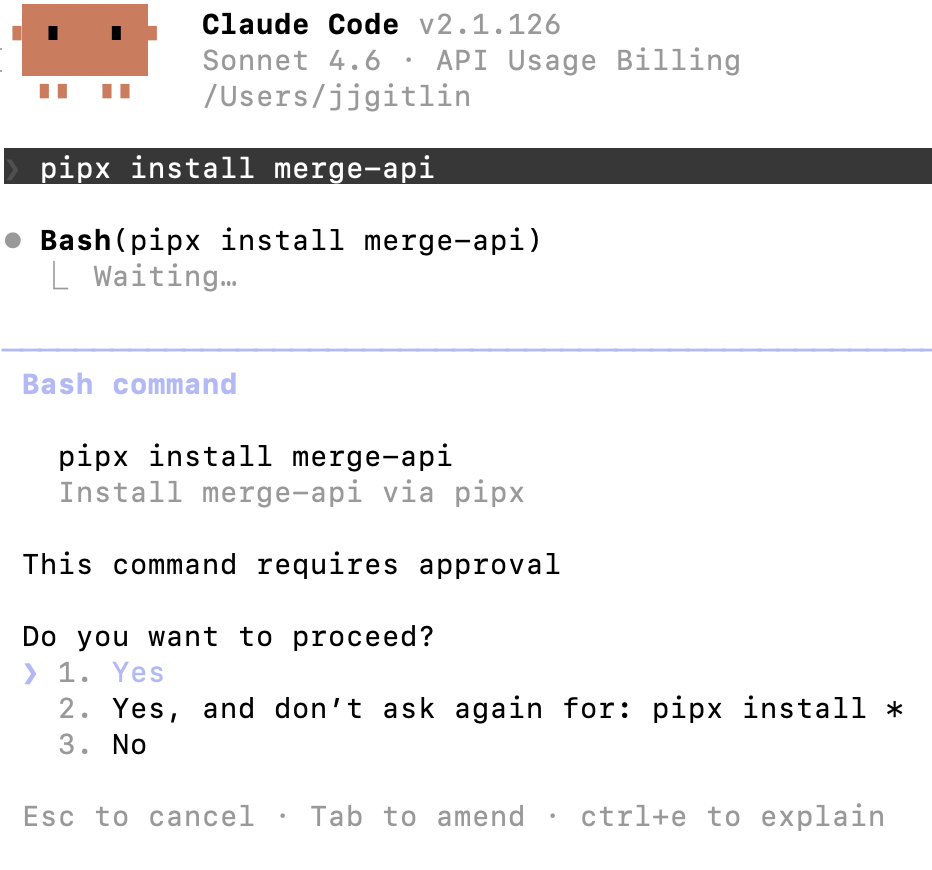
Verify your installation: merge --version
Related: How to use a Linear MCP in Cursor
2. Configure the CLI and log in
Run merge login to authenticate your session and link the CLI to your Merge Agent Handler account: merge login
This authenticates your session so the CLI can make authorized requests on your behalf going forward.
3. Add Agent Handler to Claude Code
Run the following to register the Agent Handler MCP server with Claude Code:
Or, if you prefer to register manually:
Open a new Claude Code session and run: /mcp
agent-handler should appear under Local MCPs with a connected status.

Related: How to start using a Linear MCP in Codex
4. Authenticate Linear
Open a Claude Code session and run a test query like: "Find all unassigned P1 issues in the current sprint and summarize what's blocking each one."
The first time you invoke a Linear tool, a Magic Link will appear to complete connector authentication.

{{this-blog-only-cta}}
Linear MCP FAQ
In case you have any more questions on setting up and using a Linear MCP server in Claude Code, we’ve addressed several more questions below:
What can your agent do with a Linear MCP server?
Here are just a few common use cases:
- Create and update issues: Quickly log new bugs/feature requests and keep them current by updating titles, descriptions, priority, labels, and due dates as work evolves
- Assign issues to team members: Route work to the right owner (or reassign as priorities shift) so accountability and handoffs stay clear
- Move issues through status workflows: Keep execution in sync by transitioning issues across your team’s workflow states (e.g., Triage → In Progress → In Review → Done) as progress happens
- Search issues by project, label, or assignee: Pull up exactly the set of issues you need (e.g., “all P0 bugs in Project X assigned to the on-call”) to unblock planning and execution
- Retrieve cycle (sprint) progress: Summarize what’s on track vs. at risk by checking cycle scope, completed work, and remaining issues at any point in the sprint
- Create and manage projects: Set up projects, update milestones/timelines, and maintain project status so the roadmap reflects reality without manual upkeep
Why should I use Merge Agent Handler's Linear MCP server?
Using the connector’s 30+ tools, your agents can operate autonomously across the entire project management lifecycle.
Here’s additional context:
- Full issue lifecycle: Not just <code class="blog_inline-code">get_issues</code> but create, update, archive, filter by identifier, and paginate. Agents can triage, reassign, reprioritize, and close issues without human intervention
- Project updates are unique: Linear's project update feature (health status, progress notes) is specific to Linear and often overlooked. The connector supports create, update, archive, and unarchive on project updates, meaning agents can automate weekly status reporting
- Cycle support: Agents can read sprint data via <code class="blog_inline-code">list_cycles</code>, which opens up use cases like summarizing sprint progress or flagging overdue issues mid-cycle
- Comment resolution: <code class="blog_inline-code">resolve_comment</code> and <code class="blog_inline-code">unresolve_comment</code> mirror a workflow that engineering teams actually use to track whether feedback was addressed
- Team management: <code class="blog_inline-code">create_team</code> and <code class="blog_inline-code">update_team</code> means agents can do onboarding automation, not just day-to-day task management
Why should I connect to a Linear MCP server with Claude Code?
In simple terms, Linear is where engineering work lives, and Claude Code is where engineers already are. So connecting them means your agent can act on your backlog without your engineers switching contexts.
Jon Gitlin

.png)
.png)

Connect your agents to thousands of tools in minutes
Use Merge Agent Handler’s 150+ connectors (including Linear) to power reliable, secure, and powerful agents.


But Merge isn’t just a Unified
API product. Merge is an integration platform to also manage customer integrations. gradient text
But Merge isn’t just a Unified
API product. Merge is an integration platform to also manage customer integrations. gradient text
But Merge isn’t just a Unified
API product. Merge is an integration platform to also manage customer integrations. gradient text
But Merge isn’t just a Unified
API product. Merge is an integration platform to also manage customer integrations. gradient text