


How to connect a SharePoint MCP with Claude Code (4 steps)



Jon Gitlin
SharePoint holds the internal documentation that engineering and ops teams constantly reference: runbooks, architecture docs, project trackers, policy documents, onboarding materials, etc.
Developers building automations or internal tooling that needs to read or write this content have to work through Microsoft Graph API authentication, Azure AD app registration, and SharePoint-specific concepts like drives, sites, and document libraries before they can retrieve a single file.
To help your developers search documents, manage files, and read list data from the terminal with ease, we'll show you how to connect SharePoint with Merge Agent Handler's SharePoint MCP server.
How it works
Merge Agent Handler connects Claude Code to SharePoint through the Microsoft Graph API, handled via a single CLI setup.
You install the Merge CLI, authenticate once with your Merge Agent Handler account, and register the connection with one command. Merge manages Microsoft OAuth credentials and Graph API calls on your behalf, so you never configure an Azure AD app registration or manage access token refresh yourself.
Here's the command that registers the connection:
Related: A guide to integrating a SharePoint MCP with Codex
Prerequisites
Before getting started, you'll need the following:
- A Merge Agent Handler account
- Claude Code installed (run
claude --versionto confirm) - pipx installed (run
pipx --versionto confirm, or install viapip install pipx) - A Microsoft 365 account with access to the SharePoint sites you want to connect
If you want to connect Merge Agent Handler's SharePoint MCP with internal or customer-facing agentic products, you can follow the steps in our docs.
1. Install the Merge CLI
Run the following to install the Merge CLI: pipx install merge-api
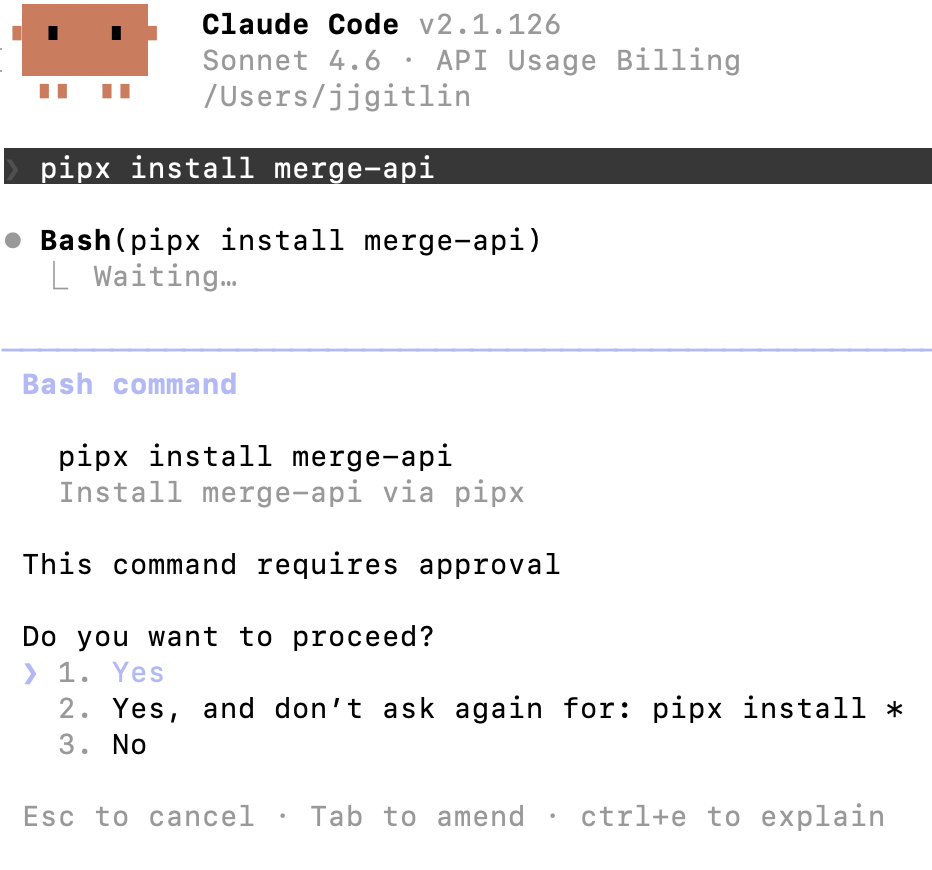
Then verify the installation: merge --version
2. Configure the CLI and log in
This links the CLI to your Merge account and authenticates your session: merge login
Once logged in, the CLI is ready to make authorized requests on your behalf.
3. Add Agent Handler to Claude Code
Run the following to register the Agent Handler MCP server with Claude Code:
Or, if you prefer to register manually:
Open Claude Code and run: /mcp
agent-handler should appear under Local MCPs with a connected status.

Related: How to use a Sharepoint MCP in Cursor
4. Authenticate SharePoint
Open a Claude Code session and run a test query like: "Search all SharePoint document libraries for files related to 'incident response' and list the five most recently modified ones, including the site name, file type, and last modified date."
The first time you invoke a SharePoint tool, a Magic Link will appear to complete connector authentication.

You should then see an output like the following:

{{this-blog-only-cta}}
SharePoint MCP FAQ
In case you have more questions on setting up and using the SharePoint MCP in Claude Code, we've addressed several more commonly-asked questions below.
What can you do once a SharePoint MCP is connected to Claude Code?
With SharePoint connected, Claude Code can:
- Search across document libraries: run full-text searches across a specific drive or the entire SharePoint tenant to locate documents without browsing through sites manually
- Retrieve file metadata: get drive item details including name, path, last modified date, and file type for any document in a connected library
- Create and organize folders: scaffold folder structures in a document library when triggered by an external event, such as a new project or team creation in another system
- Read and write list items: query SharePoint list rows, create new entries, and update existing ones, useful for any list-backed process tracker or intake form
- Manage list schema: create new SharePoint lists within a site and configure columns to support new data structures without opening the SharePoint UI
- Search globally: run cross-site searches across the full SharePoint environment to find documents regardless of which site or library they live in
Why use Merge Agent Handler vs. a self-hosted SharePoint MCP server?
You can build a self-hosted MCP server on top of Microsoft Graph API's SharePoint endpoints. For a developer with an existing Azure AD app registration and a single tenant to work with, the initial setup is workable.
The prerequisite work is non-trivial, though.
Microsoft Graph requires an Azure AD app registration with the correct SharePoint scopes, OAuth 2.0 token management, and a clear understanding of how SharePoint's file and list structure maps to Graph's drive and list resource model. That's all setup you complete before writing a single tool schema, and it needs to be replicated for every developer on the team who needs access.
Microsoft does offer an official Work IQ SharePoint MCP server, but it requires a Microsoft 365 Copilot license per user, which not every team has or wants to provision for this use case. It also operates within Microsoft's tooling ecosystem with limited control over which tools individual agents can access.
Merge Agent Handler handles the Azure AD and OAuth layer so you don't configure it yourself and adds tool-level scoping on top. A document search agent, for example, can access tools like files_search_all and files_get_drive_item but not files_delete_item, list_items_delete, or other destructive operations it has no reason to reach. Every tool call is also logged with the timestamp, tool name, and inputs.
Why connect a SharePoint MCP to Claude Code?
SharePoint is where a significant portion of internal knowledge lives: runbooks, architecture decisions, project plans, compliance documents, onboarding guides. Developers who need to build on that content today have to retrieve it manually, export it, or write a dedicated Microsoft Graph integration.
With the SharePoint MCP connected, Claude Code can search document libraries, retrieve files, and read list data without leaving the terminal.
This matters most when SharePoint content feeds a downstream step: pulling the runbook for an affected system during an incident, checking whether a project site already exists before provisioning a new one, or reading a SharePoint list to get the current state of a process tracker.
Jon Gitlin
.png)
.png)

Connect Claude Code to thousands of tools with Merge Agent Handler
Use Merge Agent Handler’s 150+ connectors (including Sharepoint) to power reliable, secure, and powerful agents.


But Merge isn’t just a Unified
API product. Merge is an integration platform to also manage customer integrations. gradient text
But Merge isn’t just a Unified
API product. Merge is an integration platform to also manage customer integrations. gradient text
But Merge isn’t just a Unified
API product. Merge is an integration platform to also manage customer integrations. gradient text
But Merge isn’t just a Unified
API product. Merge is an integration platform to also manage customer integrations. gradient text