


.avif)
How to connect Google Sheets MCP with Claude Code (4 steps)



Jon Gitlin
Developers end up storing more operational data in Google Sheets than they plan to. Experiment results, API usage logs, feature flag states, cost-per-environment breakdowns, manual QA logs: the list grows because Sheets is fast to set up and easy to share.
But that data is invisible to Claude Code by default.
When your developers are debugging a regression, checking whether an experiment variant hit a threshold, or validating a model output against a reference table, they either open a browser tab or paste the data in manually.
To help your developers read and update spreadsheet data without leaving the terminal, we'll show you how to connect Google Sheets with Merge Agent Handler's Google Sheets MCP server.
How it works
Merge Agent Handler acts as a managed layer between Claude Code and the Google Sheets API. You install the Merge CLI, authenticate once, and register the connection with a single command. Agent Handler handles OAuth token management and API calls to Google Sheets on the backend. Claude Code never touches your Google credentials directly.
Here's the command that registers the connection:
Prerequisites
Before getting started, you'll need the following:
- A Merge Agent Handler account
- Claude Code installed (run
claude --versionto confirm) - pipx installed (run
pipx --versionto confirm, or install viapip install pipx) - A Google account with access to the Sheets you want to connect
If you want to connect Merge Agent Handler's Google Sheets MCP with internal or customer-facing agentic products, you can follow the steps in our docs.
1. Install the Merge CLI
Install with pipx: pipx install merge-api
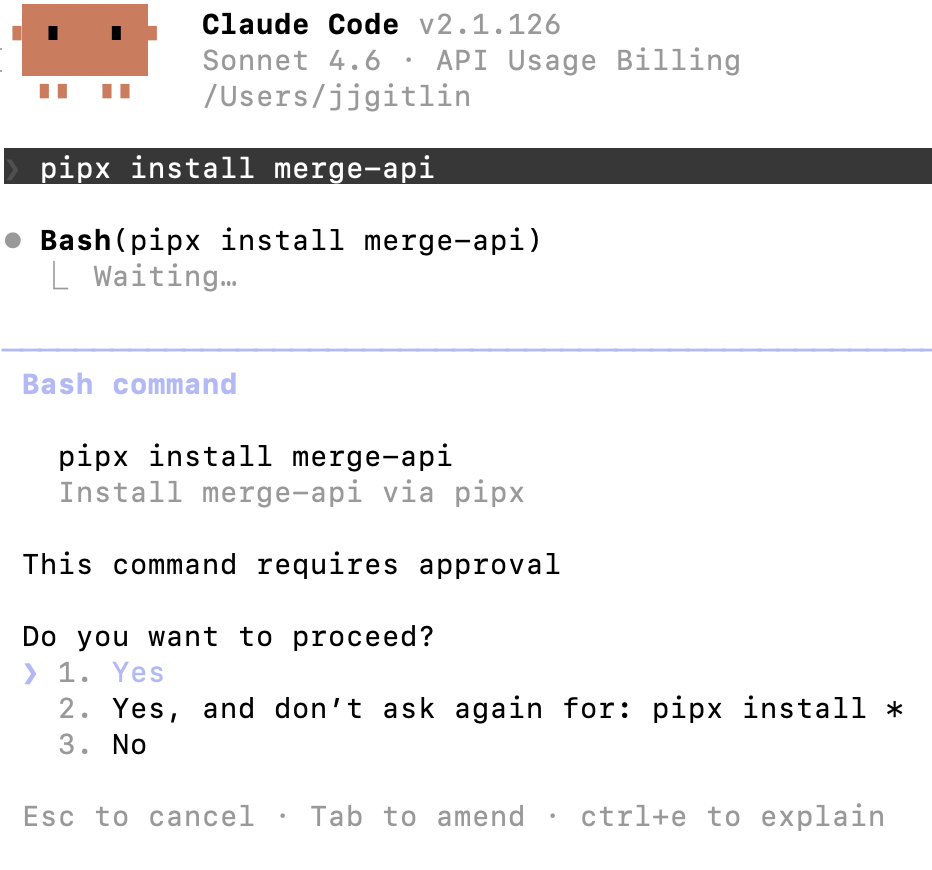
Verify your installation: merge --version
Related: How to use a Google Sheets MCP in Cursor
2. Configure the CLI and log in
This links the CLI to your Merge account and authenticates your session: merge login
Once logged in, the CLI is ready to make authorized requests on your behalf.
3. Add Agent Handler to Claude Code
Register the Agent Handler MCP server with Claude Code:
Or manually:
Verify the connection registered. Open Claude Code and run: /mcp
agent-handler should appear under Local MCPs with a connected status.

Related: The 4 steps for connecting a Google Sheets MCP with Codex
4. Authenticate Google Sheets
Open Claude Code and test the connection with a prompt like: "Pull the data from the 'Results' tab in the Q2 Experiment Tracker sheet and tell me which variant had the highest conversion rate."
A Magic Link will appear on first use to complete connector authentication.

Your output can then look something as follows:

{{this-blog-only-cta}}
Google Sheets MCP FAQ
In case you have more questions on setting up and using the Google Sheets MCP in Claude Code, we've addressed several more commonly-asked questions below.
What can you do once the Google Sheets MCP is connected to Claude Code?
With Google Sheets connected, Claude Code can:
- Read rows and cell ranges: retrieve data from any tab in a spreadsheet without opening a browser or copy-pasting values into context
- Search across sheets: find the right spreadsheet by name or content when you're not sure of the exact file
- List sheets and tabs: browse available spreadsheets and their tabs to understand structure before querying specific data
- Append and update rows: write results, log entries, or generated output directly back to a spreadsheet (if write tools are enabled in your Tool Pack)
- Cross-reference live data while coding: ground Claude's analysis in current spreadsheet values rather than stale exports or hardcoded fixtures
- Query structured data in plain language: ask questions like "which rows in the metrics sheet have a p-value below 0.05?" and get answers without writing a formula or script
Why use Merge Agent Handler vs. a self-hosted Google Sheets MCP server?
You can run a self-hosted MCP server that calls the Google Sheets API directly. For a solo developer working against one spreadsheet, that works: store your OAuth credentials, write tool schemas for the ranges you need, and connect it to Claude Code.
The problem surfaces when more than one person needs access, or when your spreadsheets contain sensitive data. Google OAuth credentials stored locally carry access to everything the account can reach, not just the sheets you intend. There are no tool-level controls to restrict an agent to read-only access or to block it from specific tabs. And there's no audit trail showing what data the agent retrieved.
Merge Agent Handler adds a control layer on top. You define exactly which tools each Tool Pack exposes, so a read-only analysis agent never gets update_cells. Each developer gets their own Registered User with isolated credentials, so revoking one person's access doesn't affect anyone else's setup. And every tool call is logged with the tool name, inputs, and response metadata.
In short, for teams where spreadsheets hold operational or financial data and multiple people run agents against them, the access controls and audit trails are worth the setup.
Why connect Google Sheets to Claude Code?
Sheets is how a lot of teams track the state of their systems. Not because it's the ideal database, but because it's fast to set up, easy to share, and flexible enough to hold anything: experiment results, bug counts by priority, API cost breakdowns, deployment checklists, or quarterly planning data. That data influences engineering decisions constantly, but it's disconnected from the terminal.
Connecting Google Sheets via MCP closes that gap.
Developers can ask Claude Code to pull a specific range, evaluate whether a metric crossed a threshold, append a new row with generated output, and more without a context switch. For teams running A/B tests, building internal tooling, or maintaining operational spreadsheets alongside their codebase, that means fewer browser tabs and fewer manual data-to-context handoffs mid-session.
Jon Gitlin



Connect your agents to thousands of tools in minutes
Use Merge Agent Handler’s 150+ connectors (including Google Sheets) to power reliable, secure, and powerful agents.


But Merge isn’t just a Unified
API product. Merge is an integration platform to also manage customer integrations. gradient text
But Merge isn’t just a Unified
API product. Merge is an integration platform to also manage customer integrations. gradient text
But Merge isn’t just a Unified
API product. Merge is an integration platform to also manage customer integrations. gradient text
But Merge isn’t just a Unified
API product. Merge is an integration platform to also manage customer integrations. gradient text