

Table of contents
.avif)
.png)
How to connect to the Google Drive MCP with Claude Code (4 steps)



Jon Gitlin
Developers store a surprising amount of the context they need to write good code in Google Drive: API specs, architecture diagrams, onboarding docs, sprint briefs, product requirements, etc.
To help your developers access this context within a terminal like Claude Code, you can connect the AI coding tool with the Google Drive MCP.
We’ll help you do just that via Merge Agent Handler's Google Drive MCP server.
How it works
Merge Agent Handler connects Claude Code to Google Drive through a single CLI setup. You install the Merge CLI, authenticate once, and register the connection with one command. Agent Handler handles OAuth token management and API calls to Google Drive on the backend. You don't manage Google OAuth tokens in your local environment or wire up Drive credentials into your codebase.
Here's the command that registers the connection:
Related: How to use a Google Drive MCP in Cursor
Prerequisites
Before getting started, you'll need the following:
- A Merge Agent Handler account
- Claude Code installed (run
claude --versionto confirm) - pipx installed (run
pipx --versionto confirm, or install viapip install pipx) - A Google account with access to the Drive you want to connect
If you want to connect Merge Agent Handler's Google Drive MCP with internal or customer-facing agentic products, you can follow the steps in our docs.
1. Install the Merge CLI
Install with pipx: pipx install merge-api
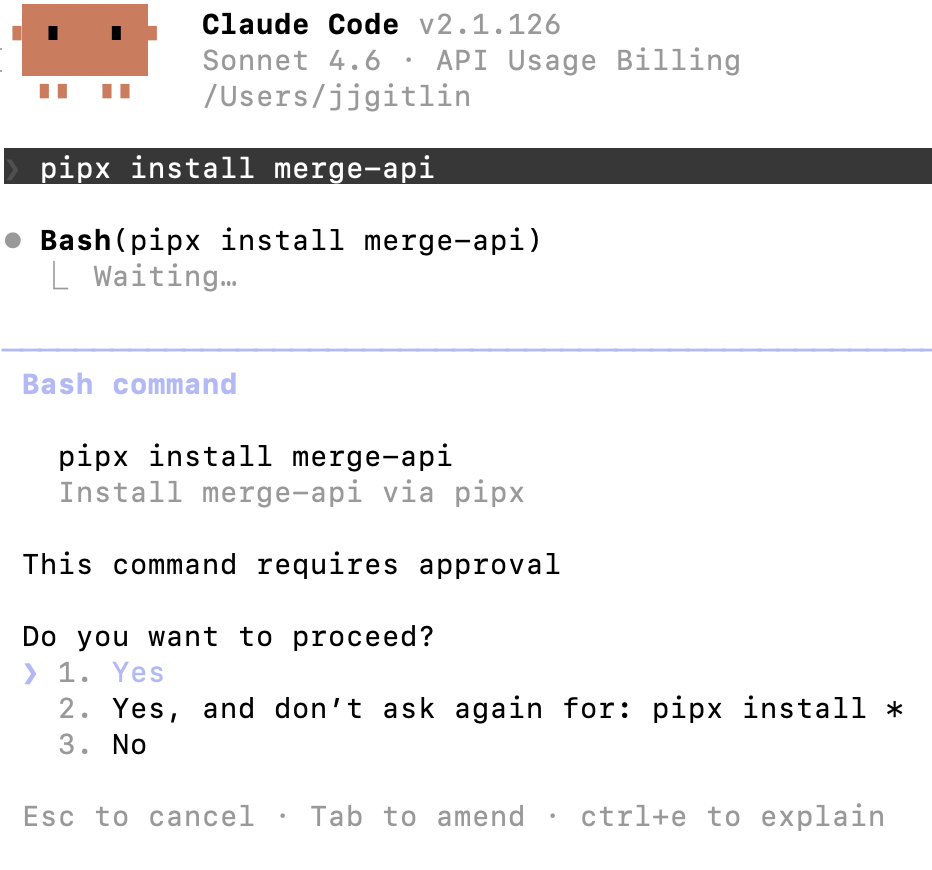
Verify your installation: merge --version
2. Configure the CLI and log in
This links the CLI to your Merge account and authenticates your session: merge login
Once logged in, the CLI is ready to make authorized requests on your behalf.
3. Add Agent Handler to Claude Code
Run the following to register the Agent Handler MCP server with Claude Code:
Or, if you prefer to register manually:
Verify it registered correctly. Open Claude Code and run: /mcp
agent-handler should appear under Local MCPs with a connected status.

Related: 4 steps to integrate a Google Drive MCP with Codex
4. Authenticate Google Drive
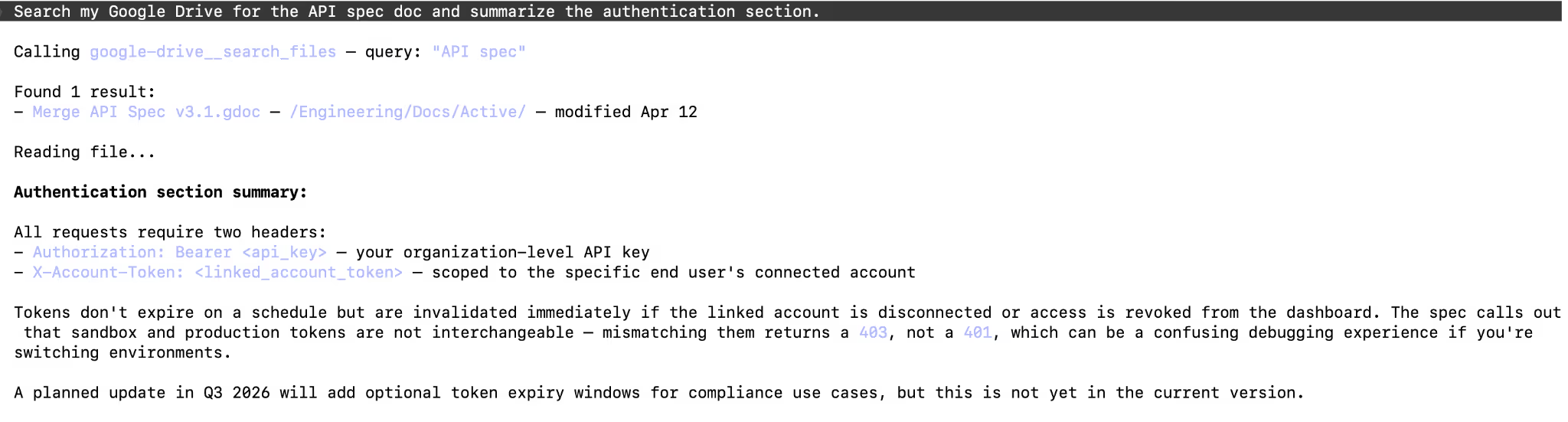
Open a Claude Code session and run a test query like: "Search my Google Drive for the API spec doc and summarize the authentication section."
The first time you invoke a Google Drive tool, a Magic Link will appear to complete connector authentication.
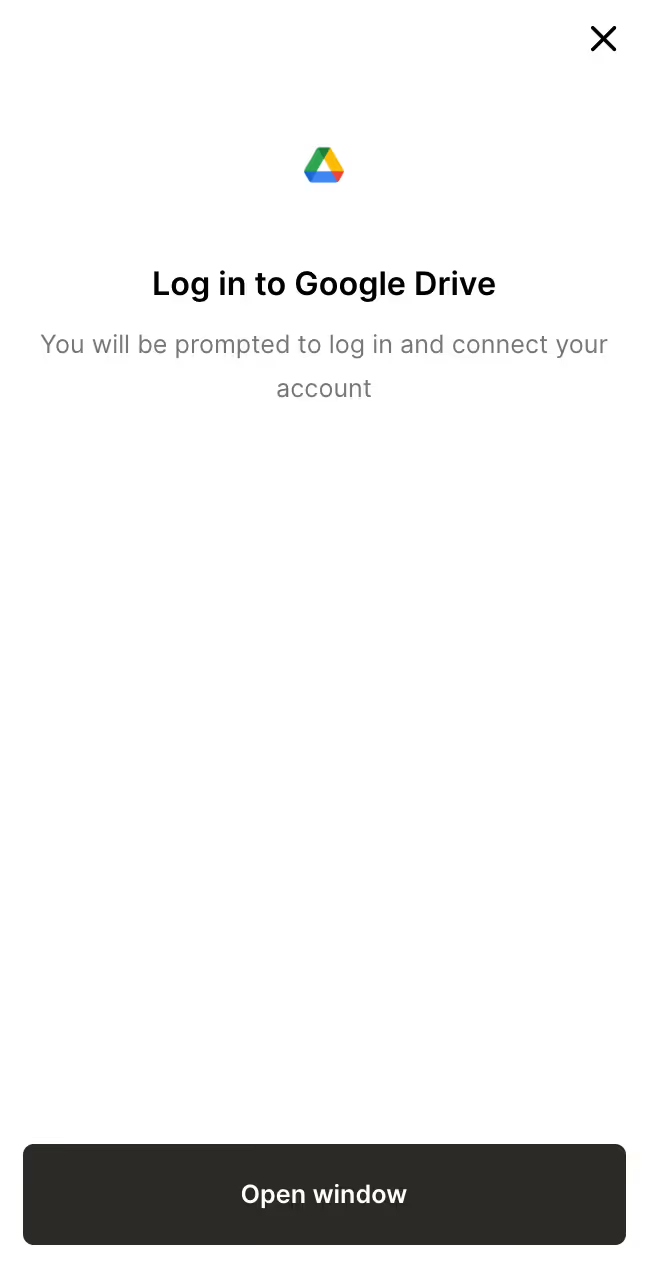
You should then see something like the following:
{{this-blog-only-cta}}
Google Drive MCP FAQ
In case you have any more questions on connecting and using the Google Drive MCP in Claude Code, we’ve addressed several more below.
What can you do once the Google Drive MCP is connected to Claude Code?
With Google Drive connected, Claude Code can:
- Search and retrieve documents: pull up specs, READMEs, architecture docs, or any Drive file by name or content without leaving the terminal
- Read file contents: have Claude summarize, extract, or reason over the contents of Docs, PDFs, and other files stored in Drive
- List folder contents: browse project folders to find the right file when you're not sure of the exact name
- Create and update files: write code output, summaries, or generated content directly to Drive (if write tools are enabled in your Tool Pack)
- Cross-reference docs while coding: ground Claude's suggestions in your team's actual documentation rather than generic training data
This is particularly useful on teams where product requirements, API contracts, or architecture decisions live in Shared Drives. Instead of asking "what does this endpoint do?" and waiting for a teammate to respond, Claude Code can look it up in the source doc directly.
Why use Merge Agent Handler vs. a self-hosted MCP server?
You can self-host a Google Drive MCP server using community packages like @modelcontextprotocol/server-gdrive. That works, but it requires you to manage OAuth credentials locally, handle token refresh, and maintain the server yourself.
Merge Agent Handler takes a different approach: it's a managed MCP layer that adds enterprise-grade security controls, real-time observability, and multi-user support on top of the integration.
You can scope exactly which files and folders each Registered User can access, monitor what your agents are reading and writing, and swap in other connectors (Slack, Jira, GitHub, and more) without touching your Claude Code configuration.
Why is it important to connect a Google Drive MCP to Claude Code?
Google Drive is where teams store the context that makes code meaningful: API specs, architecture decisions, product requirements, onboarding docs, sprint briefs.
That content exists in Drive but is invisible to Claude Code by default; your developers either context-switch to a browser to find it or paste it in manually.
Connecting Google Drive via MCP closes that gap.
Claude Code can search, read, and reference Drive files directly in the terminal, grounding its suggestions in your team's actual documentation rather than generic assumptions. Instead of asking a teammate what an endpoint does or what the agreed-upon data model is, Claude can look it up in the source doc and answer immediately.
This translates to faster code reviews that reference the actual spec, onboarding that pulls real internal docs rather than hallucinated ones, and agent workflows that can read from Drive and write back without leaving the terminal.
Jon Gitlin
.png)
.png)

Connect your agents to thousands of tools in minutes
Use Merge Agent Handler’s 150+ connectors (including Google Drive) to power reliable, secure, and powerful agents.


But Merge isn’t just a Unified
API product. Merge is an integration platform to also manage customer integrations. gradient text
But Merge isn’t just a Unified
API product. Merge is an integration platform to also manage customer integrations. gradient text
But Merge isn’t just a Unified
API product. Merge is an integration platform to also manage customer integrations. gradient text
But Merge isn’t just a Unified
API product. Merge is an integration platform to also manage customer integrations. gradient text