

Table of contents
.avif)

How to connect to the Figma MCP with Claude Code (4 steps)



Jon Gitlin
With Merge Agent Handler's Figma MCP server connected to Claude Code, your agents can read design files, pull component specs, retrieve styles, and post comments directly from the terminal.
This guide walks through connecting Claude Code to Figma via Merge Agent Handler in five steps.
How it works
Merge Agent Handler connects Claude Code to the Figma API through a single CLI setup. You install the Merge CLI, authenticate once, and register the connection with one command. Agent Handler manages OAuth credentials and routes every API call to Figma so you don't store tokens locally or handle refresh yourself.
Here's the command that registers the connection:
Prerequisites
Before getting started, you'll need the following:
- A Merge Agent Handler account
- Claude Code installed (run
claude --versionto confirm) - pipx installed (run
pipx --versionto confirm, or install viapip install pipx) - A Figma account with appropriate file permissions
If you want to connect Merge Agent Handler's Figma MCP with internal or customer-facing agentic products, you can follow the steps in our docs.
1. Install the Merge CLI
Run the following to install the Merge CLI: pipx install merge-api
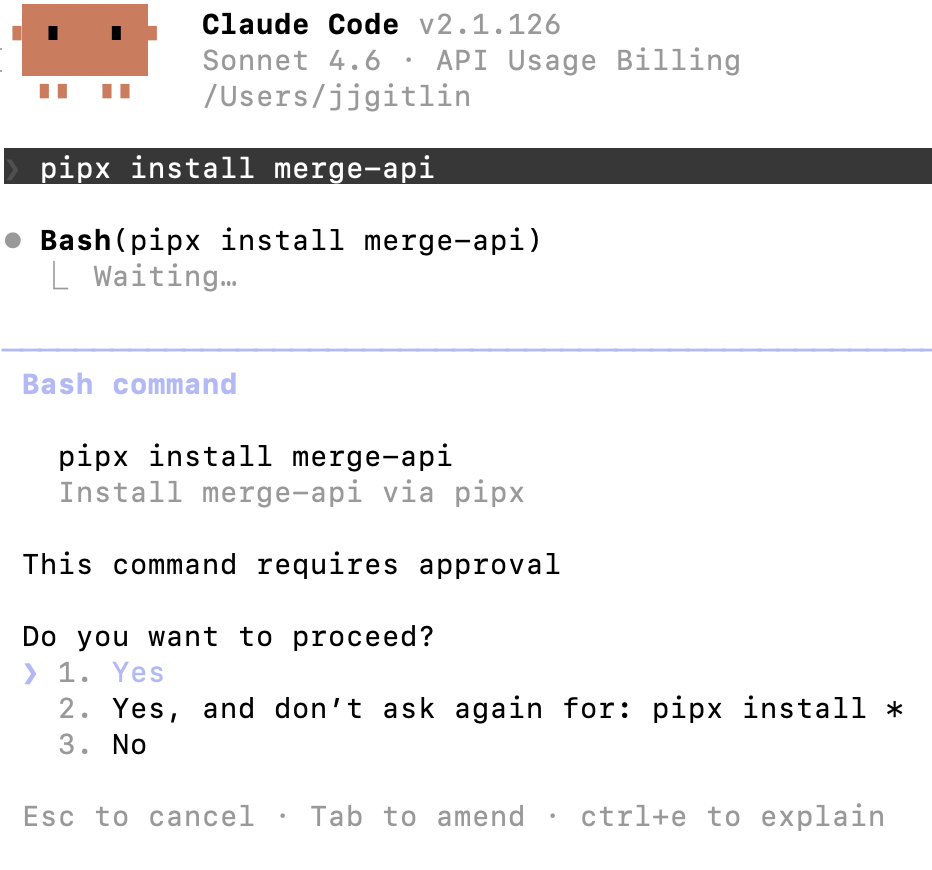
Verify your installation: merge --version
Related: A guide to connecting a Lucidchart MCP with Claude Code
2. Configure the CLI and log in
Run the interactive setup: merge configure
This walks you through linking the CLI to your Merge account by prompting for your API key and setting your default preferences.
Then log in: merge login
This authenticates your session so the CLI can make authorized requests on your behalf going forward.
3. Add Agent Handler to Claude Code
Register the Agent Handler MCP server with Claude Code:
Or manually:
Open Claude Code and run: /mcp
agent-handler should appear under Local MCPs with a connected status.

4. Authenticate Figma
Open Claude Code and test the connection with a prompt like: "Get all the components from the design file and list their names, descriptions, and any associated styles so I can start building them out."
A Magic Link will appear on first use to complete connector authentication.

You can now see an output like the following:
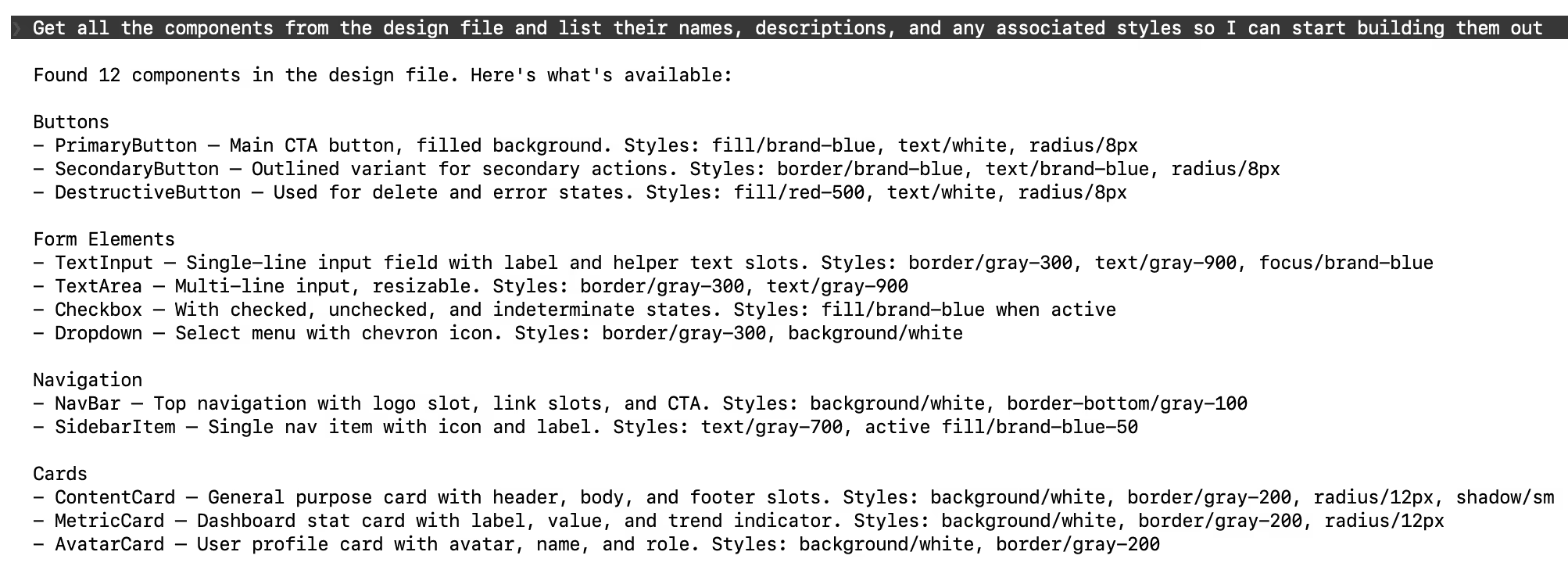
Or you can take actions in Figma. For instance: "Post a comment on the checkout flow file flagging that the button spacing doesn't match what's in the component library."

{{this-blog-only-cta}}
Figma MCP FAQ
In case you have any more questions on setting up and using the Figma MCP in Claude Code, here are a few commonly-asked questions answered.
What can agents do with a Figma MCP server?
- Product & UX research ops: Link new research insights to impacted frames/components and maintain traceability from “user problem → PRD → Figma → shipped release”
- Structured variant generation: Duplicate frames and generate controlled layout/copy variants (e.g., density levels, CTA placements) for exploration and experiments
- A/B asset sets: Produce standardized A/B/C creative packs with consistent naming, sizing, and export presets
- Localization at the design layer: Insert approved translations into text nodes, flag overflow/truncation, and run pseudo-localization to stress-test layouts
- Marketing asset pipelines: Generate multi-channel size variants (LinkedIn/X/blog/email/ads) from a master frame and export to the correct folders automatically
Why use Merge Agent Handler's Figma MCP server?
Merge Agent Handler's Figma connector includes enterprise-grade security controls, data loss prevention, and real-time observability over every tool call. You can scope exactly which files and teams your agent can access, and set custom guardrails so agents only interact with the assets they need.
Why connect Figma MCP to Claude Code?
Developers spend time switching between Figma and their editor to check specs, extract styles, and track design feedback. Connecting Figma to Claude Code brings that context directly into the terminal, so your agent can reference the latest designs while writing and reviewing code without context switching.
Jon Gitlin
.png)
.png)

Connect your agents to thousands of tools in minutes
Use Merge Agent Handler’s 150+ connectors (including Figma) to power reliable, secure, and powerful agents.


But Merge isn’t just a Unified
API product. Merge is an integration platform to also manage customer integrations. gradient text
But Merge isn’t just a Unified
API product. Merge is an integration platform to also manage customer integrations. gradient text
But Merge isn’t just a Unified
API product. Merge is an integration platform to also manage customer integrations. gradient text
But Merge isn’t just a Unified
API product. Merge is an integration platform to also manage customer integrations. gradient text