

.avif)
How to connect to the Jira MCP with Claude Code (4 steps)



Jon Gitlin
Engineers spend more time in Jira than they should while coding: looking up ticket details, checking acceptance criteria, logging bugs, updating issues’ statuses, and more.
Each visit to the browser breaks the flow of work happening in the terminal.
To help your developers search, create, and update Jira issues without leaving their coding session, we'll show you how to connect Jira with Merge Agent Handler's Jira MCP server.
How it works
Merge Agent Handler routes requests from Claude Code to Jira's API. You install the Merge CLI, authenticate once, and register the connection with one command. Agent Handler manages your Atlassian OAuth credentials and handles token refresh so you don't store them locally or deal with credential state yourself.
Here's the command that registers the connection:
Related: A guide to using a Jira MCP in Cursor
Prerequisites
Before getting started, you'll need the following:
- A Merge Agent Handler account
- Claude Code installed (run
claude --versionto confirm) - pipx installed (run
pipx --versionto confirm, or install viapip install pipx) - A Jira account with access to the projects you want to connect
If you want to connect Merge Agent Handler's Jira MCP with internal or customer-facing agentic products, you can follow the steps in our docs.
1. Install the Merge CLI
Install with pipx: pipx install merge-api
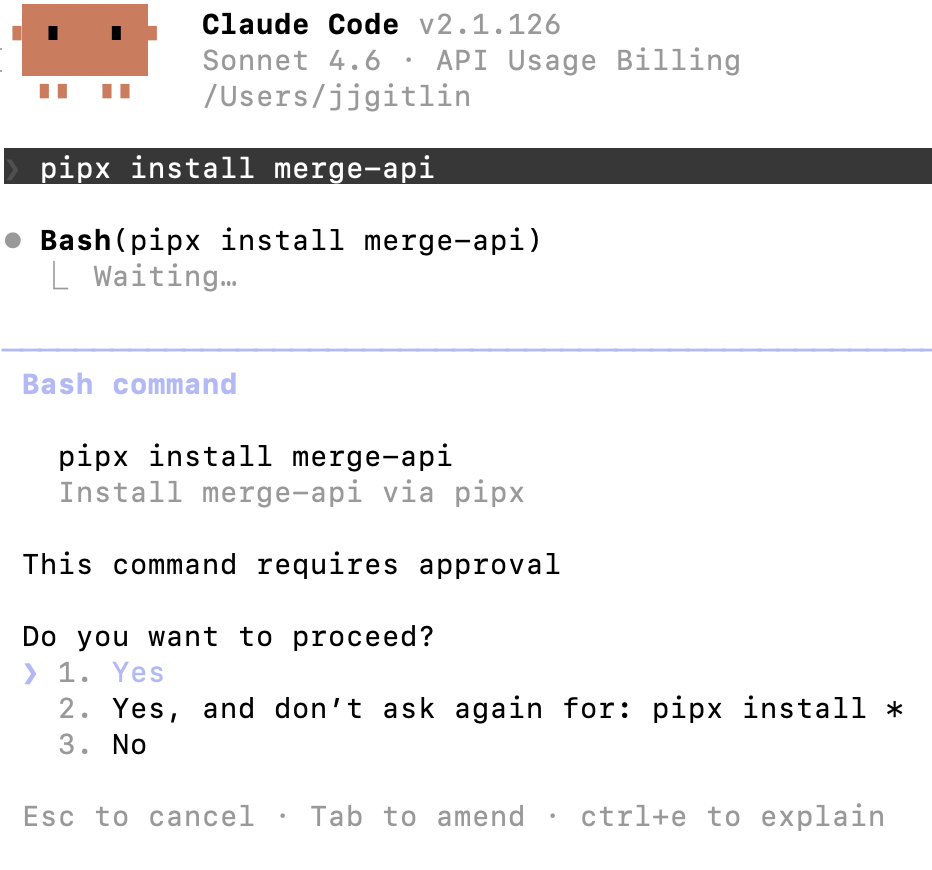
Verify your installation: merge --version
2. Configure the CLI and log in
Run merge login to connect the CLI to your Merge account: merge login
This starts an authenticated session so the CLI can make requests on your behalf.
3. Add Agent Handler to Claude Code
Register the Agent Handler MCP server with Claude Code:
Or manually:
Verify the connection registered. Open Claude Code and run: /mcp
agent-handler should appear under Local MCPs with a connected status.

Related: The steps to integrating a Jira MCP with Codex
4. Authenticate Jira
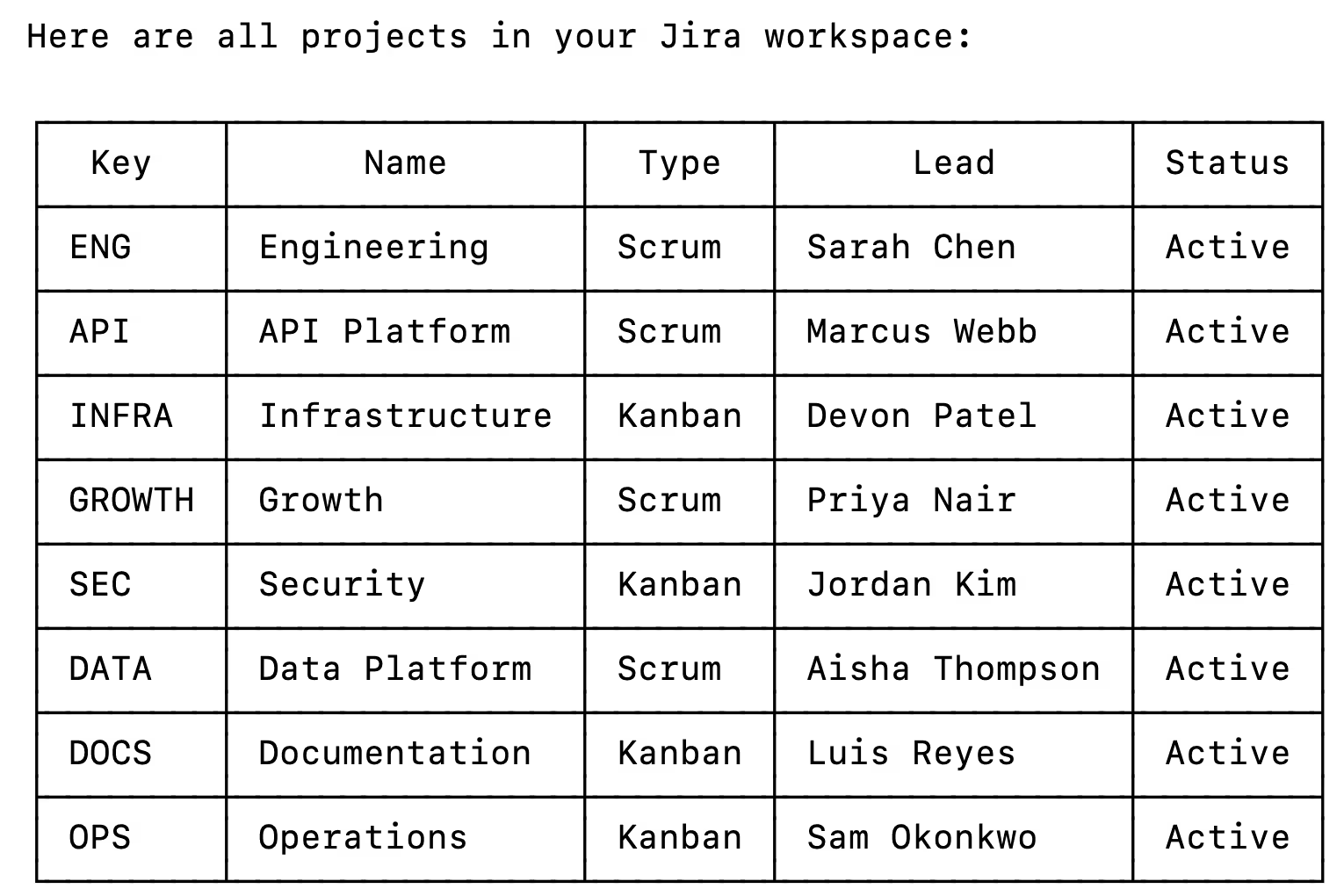
Open Claude Code and test the connection with a prompt like: "Show me all open bugs assigned to me in the current sprint and summarize the highest priority one."
A Magic Link will appear on first use to complete connector authentication.
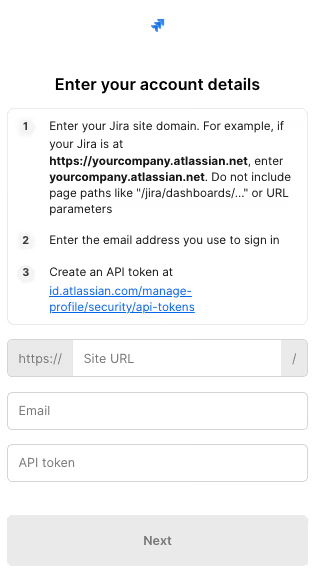
You should then see an output that looks something like the following:
{{this-blog-only-cta}}
Jira MCP FAQ
In case you have more questions on setting up and using the Jira MCP in Claude Code, we've addressed several more commonly-asked questions below.
What can you do once the Jira MCP is connected to Claude Code?
With Jira connected, Claude Code can:
- Search and retrieve issues: pull up bugs, stories, or tasks by project, assignee, sprint, or status without leaving the terminal
- Read issue detail: fetch the full description, acceptance criteria, comments, and attachments for any ticket
- List sprint contents: surface everything in the current sprint so you can prioritize before starting a coding session
- Create issues: log a new bug or task directly from Claude Code, pre-filled with context from your current work
- Update issue status: move a ticket through the workflow (in progress, in review, done) without opening a browser
- Add comments: post progress updates or questions to a ticket from the terminal
Why use Merge Agent Handler vs. a self-hosted Jira MCP server?
You can build a self-hosted MCP server that calls Jira's API directly. For a solo developer connecting to a single Jira workspace, that approach is straightforward enough.
It breaks down at the team level. Self-hosting means each developer manages their own Atlassian OAuth token, you have no central visibility into what agents are reading or writing in Jira, and you're responsible for keeping the server running as Jira's API evolves. Token rotation when someone offboards becomes a manual process.
Merge Agent Handler is a managed MCP layer.
It centralizes authentication, scopes access per Tool Pack and Registered User so each agent only touches the projects you explicitly allow, and logs every tool call. When you need to audit what an agent created or updated in Jira, the record is there. For teams building agents that interact with production project management data, Merge Agent Handler removes the per-developer credential problem and adds the observability that matters in shared environments.
Why connect Jira to Claude Code?
Jira is where engineering work is defined. Claude Code is where it gets done. The gap between those two tools is a constant source of friction: developers check the ticket for requirements, switch back to code, realize they have a question, switch back to Jira, and repeat.
With the Jira MCP connected, Claude Code can retrieve issue details, check sprint status, and create or update tickets without leaving the terminal. That means you can ask Claude to pull the acceptance criteria for the ticket you're working on, write the implementation, log a comment when you're done, and move the issue to review, all in a single session.
Jon Gitlin



Connect your agents to thousands of tools in minutes
Use Merge Agent Handler’s 150+ connectors (including Jira) to power reliable, secure, and powerful agents.


But Merge isn’t just a Unified
API product. Merge is an integration platform to also manage customer integrations. gradient text
But Merge isn’t just a Unified
API product. Merge is an integration platform to also manage customer integrations. gradient text
But Merge isn’t just a Unified
API product. Merge is an integration platform to also manage customer integrations. gradient text
But Merge isn’t just a Unified
API product. Merge is an integration platform to also manage customer integrations. gradient text