

Table of contents
.png)
.png)
How to connect a GitHub MCP to Cursor (4 steps)



Jon Gitlin
Developers building GitHub integrations in Cursor already have the repository open in one tab and the API docs in another.
The PR diff structure, issue field schema, and repository permission model only reveal themselves in real API responses, and the code that parses or generates them can only be correct once you've seen what the API actually returns.
Getting there means leaving Cursor, configuring OAuth separately, running test calls, and copying JSON back into the session where the integration is being built.
To help your developers inspect repository data, pull request structures, and issue schemas without leaving Cursor, we'll show you how to connect GitHub with Merge Agent Handler's GitHub MCP server.
How it works
Merge Agent Handler connects Cursor to the GitHub API through the Merge CLI.
Install the CLI, authenticate once, and run a single setup command from your project root.
That command writes a ## Merge CLI section to the project's .cursorrules file, which tells Cursor's agent when to call merge search-tools and merge execute-tool to reach GitHub.
One authentication is successfully completed, Merge handles GitHub OAuth credentials and token rotation so you never store a personal access token locally or configure auth state in the project.
Here's the registration command:
Related: The steps for connecting a GitHub MCP with Codex
Prerequisites
Before getting started, you'll need the following:
- A Merge Agent Handler account
- Cursor installed
- pipx installed (run
pipx --versionto confirm, or install viapip install pipx) - A GitHub account with appropriate repository permissions
If you want to connect Merge Agent Handler's GitHub MCP with internal or customer-facing agentic products, you can follow the steps in our docs.
1. Install the Merge CLI
Run the following to install the Merge CLI and confirm it's available: pipx install merge-api
Verify your installation: merge --version
2. Log in to Merge
Authenticate the CLI with your Merge Agent Handler account: merge login
This links the CLI to your account so it can make authorized requests to GitHub on your behalf.
3. Connect the CLI to Cursor
Run the following from the root of the project where you want to use Merge tools:
This writes a ## Merge CLI section to .cursorrules so Cursor knows to use the CLI for third-party services. The command is idempotent, safe to re-run if you need to reset.
Related: How to use a GitHub MCP in Claude Code
4. Authenticate GitHub
Open a Cursor chat in your project and start with a query that reflects real development work.
For example: "Fetch the last 5 open pull requests from my repo and return the full JSON for each, including all fields, review status, labels, and file change data, so I can write accurate TypeScript interfaces for my PR analysis tool."
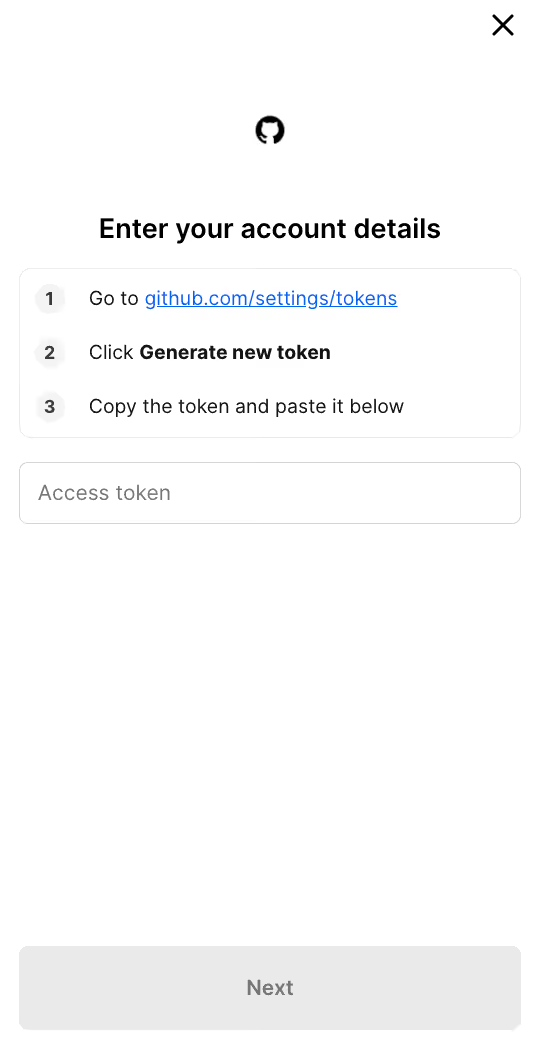
The first time you invoke a GitHub tool, a Magic Link will appear to complete connector authentication.
{{this-blog-only-cta}}
GitHub MCP FAQ
In case you have more questions on setting up and using the GitHub MCP in Cursor, we've addressed several more commonly-asked questions below.
What can you do once the GitHub MCP is connected to Cursor?
With GitHub connected, Cursor can:
- Inspect pull request diff structures while writing code review automation: fetch a real PR with file changes, hunk data, and review thread objects to see exactly what your parser needs to handle before writing the logic that processes it
- Pull issue field schemas while writing data models: retrieve real issue objects including label arrays, milestone references, assignees, and timeline events to validate your type definitions against the actual API response before writing unit tests
- Fetch repository permission structures while building access control logic: query a repository's collaborator list with role and permission fields to understand what your authorization logic needs to evaluate before coding it
- Check commit metadata formats while implementing changelog generators: pull commit records with author identity, message body, and associated PR references to confirm the fields your changelog template depends on before writing the extraction logic
- Retrieve workflow run data while coding CI status integrations: fetch pipeline run results including job-level step outcomes and log URLs to understand the response shape your status handler needs to parse before writing it
- Look up label and milestone IDs while coding issue triage automation: query a repository's full label set and open milestones with their IDs before writing assignment logic, so the identifiers in your code match the repository's actual configuration
Why use Merge Agent Handler vs. a self-hosted GitHub MCP server?
You can build a self-hosted MCP server on top of GitHub's REST or GraphQL API. GitHub's documentation is thorough, personal access tokens are quick to generate, and for a single developer working against their own repositories the setup takes minutes.
The challenge is shared deployment.
GitHub personal access tokens carry access to everything the account can reach. A self-hosted MCP server backed by a shared token gives all connected agents the same access level with no per-agent controls on which repositories or operations each one can reach. When the token expires or needs rotation, every agent that depends on it goes down at the same time.
GitHub does publish an official MCP server, but it doesn't include the access control or audit logging layer that enterprise teams need when agents are reading or writing against production repositories.
Merge Agent Handler handles GitHub authentication centrally.
You can control exactly which GitHub operations each agent is allowed to call: an agent that monitors pull request review lag can, for example, list and read pull requests, but never reaches write operations like merge or delete unless those are explicitly included.
Every call is also logged with the timestamp, tool name, and inputs.
For teams running agents against repositories that contain production code, that combination of scoped access and audit logging is the difference between a controlled deployment and an ungoverned one.
Why connect GitHub to Cursor?
GitHub contains the live state of a software project: pull requests in review, open issues with labels and assignees, recent commit history, and workflow run results.
Developers writing integration code that depends on any of that state need access to real data to write code that works against it.
With the GitHub MCP connected, Cursor can pull that data inline during a coding session.
Jon Gitlin
.png)
.png)

Connect Cursor to thousands of tools with Merge Agent Handler
Use Merge Agent Handler’s 150+ connectors (including GitHub) to power reliable, secure, and powerful agents.


But Merge isn’t just a Unified
API product. Merge is an integration platform to also manage customer integrations. gradient text
But Merge isn’t just a Unified
API product. Merge is an integration platform to also manage customer integrations. gradient text
But Merge isn’t just a Unified
API product. Merge is an integration platform to also manage customer integrations. gradient text
But Merge isn’t just a Unified
API product. Merge is an integration platform to also manage customer integrations. gradient text