

Table of contents


How to connect a Dropbox MCP with Claude Code (4 steps)



Jon Gitlin
Developers building automations or agentic workflows that need to read, organize, or write files in Dropbox have to navigate OAuth app registration, Dropbox's namespace model (personal, team, and app folders behave differently), and token refresh before writing a single tool call.
To help your developers search files, manage folders, and retrieve shared content more easily and from their terminal, we'll show you how to connect Dropbox with Merge Agent Handler's Dropbox MCP server.
How it works
Merge Agent Handler connects Claude Code to the Dropbox API through a single CLI setup.
You install the Merge CLI, authenticate once with your Merge Agent Handler account, and register the connection with one command.
Merge handles Dropbox OAuth credentials and token refresh on your behalf, so you never configure an app registration or manage access tokens across environments.
Here's the command that registers the connection:
Related: A guide to using a Dropbox MCP in Codex
Prerequisites
Before getting started, you'll need the following:
- A Merge Agent Handler account
- Claude Code installed (run
claude --versionto confirm) - pipx installed (run
pipx --versionto confirm, or install viapip install pipx) - A Dropbox account with access to the files and folders you want to connect
If you want to connect Merge Agent Handler's Dropbox MCP with internal or customer-facing agentic products, you can follow the steps in our docs.
1. Install the Merge CLI
Run the following to install the Merge CLI: pipx install merge-api
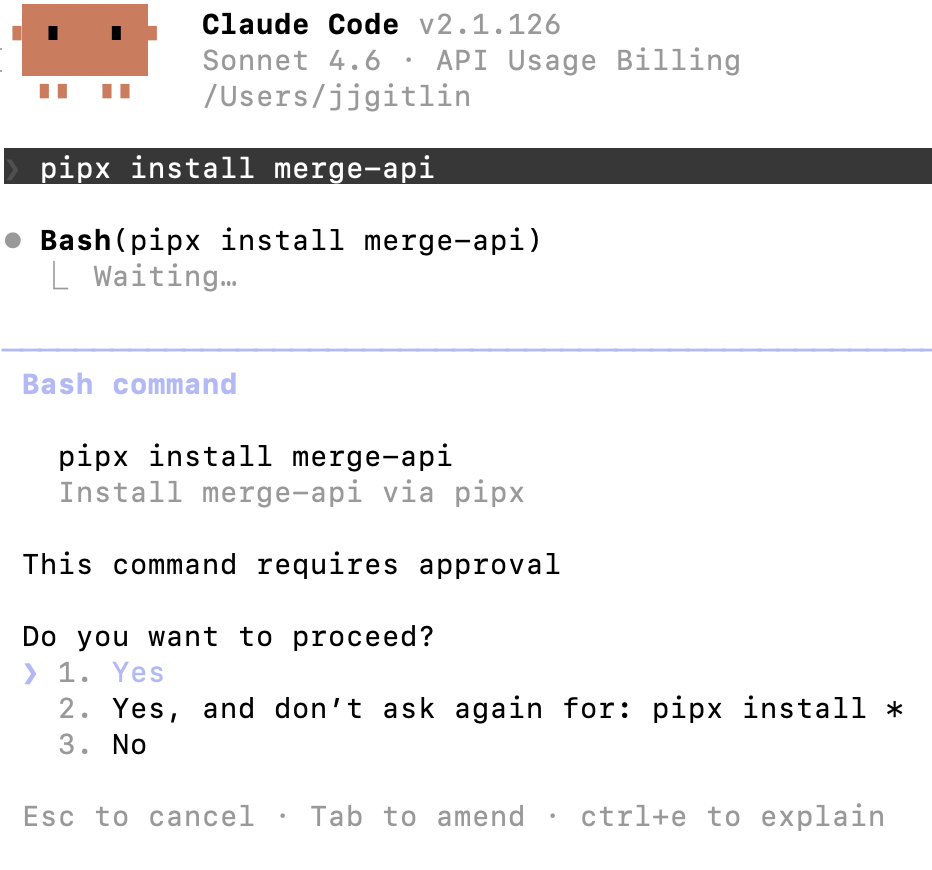
Then verify the installation: merge --version
2. Configure the CLI and log in
Log in to connect the CLI to your Merge Agent Handler account: merge login
The CLI is now authenticated and ready to make authorized requests on your behalf.
Related: A guide to integrating a Dropbox MCP with Cursor
3. Add Agent Handler to Claude Code
Register the Agent Handler MCP server with Claude Code:
Or manually:
Open Claude Code and run: /mcp
agent-handler should appear under Local MCPs with a connected status.

4. Authenticate Dropbox
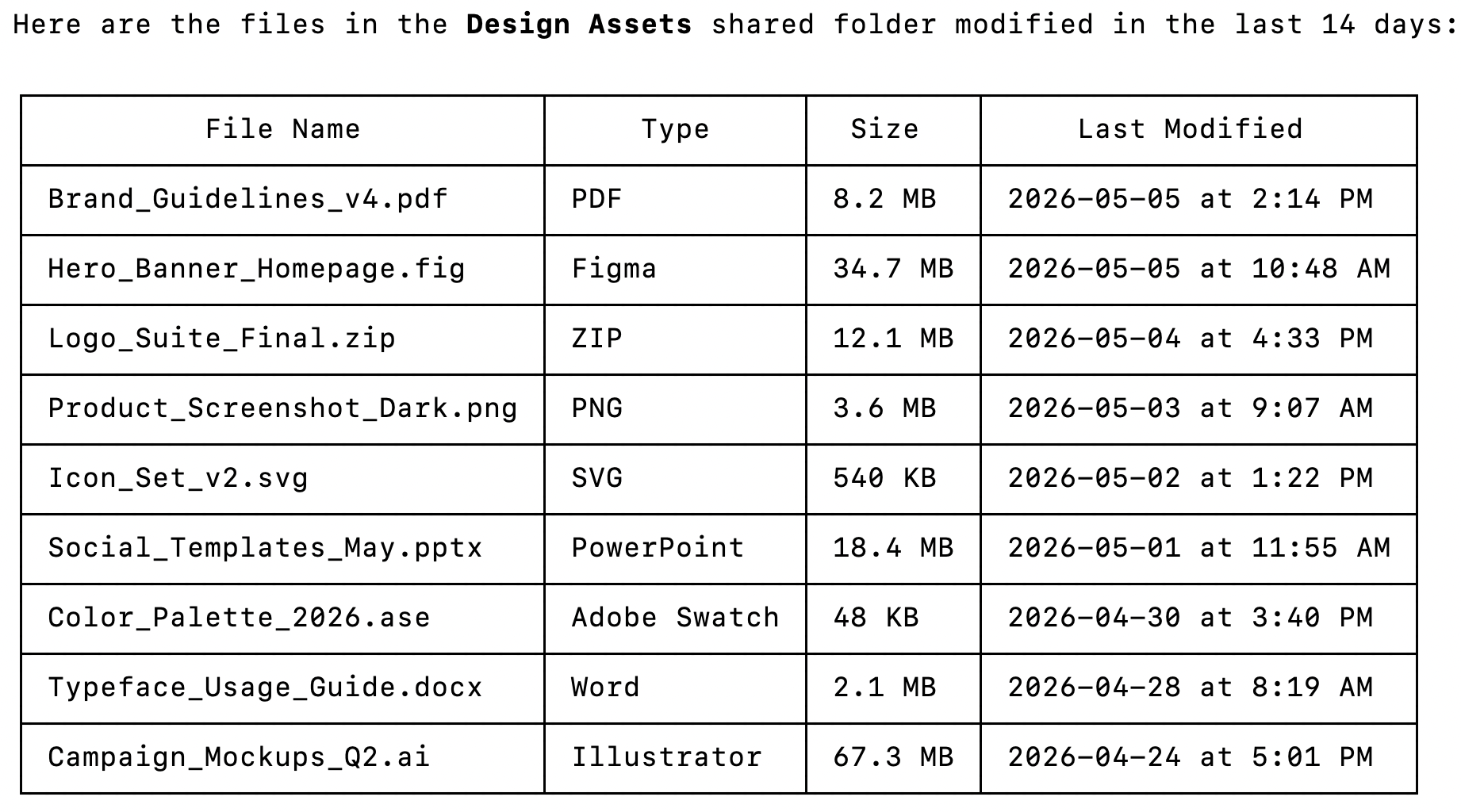
Open Claude Code and test the connection with a prompt like: "List all files in my Dropbox shared folder called 'Design Assets' that were modified in the last 14 days, including the file name, type, and size."
A Magic Link will appear on first use to complete connector authentication.

You should then see an output like the following:
{{this-blog-only-cta}}
Dropbox MCP FAQ
In case you have more questions on setting up and using the Dropbox MCP in Claude Code, we've addressed several more commonly-asked questions below.
What can you do once the Dropbox MCP is connected to Claude Code?
With Dropbox connected, Claude Code can:
- List and navigate folders: retrieve the contents of any folder in a connected Dropbox account, including shared folders and team folders, without opening the Dropbox UI
- Search files: run full-text or metadata searches across Dropbox to locate files by name, type, or modification date
- Upload files: write files directly to a Dropbox folder from the terminal, useful when an agent generates output that needs to land in a shared location
- Download and read files: retrieve file contents for processing, summarization, or use in downstream workflow steps
- Create and delete folders: scaffold folder structures programmatically when triggered by an external event, such as a new project kickoff or client onboarding
- Generate shared links: create shareable URLs for specific files, enabling agents to surface content to external stakeholders without manual sharing steps
Why use Merge Agent Handler vs. a self-hosted Dropbox MCP server?
You can build a self-hosted MCP server on top of Dropbox's file API. For a developer working with a single personal Dropbox account and a narrow use case, the initial setup is manageable: register an app in the Dropbox App Console, configure the OAuth redirect URI, obtain a refresh token, and write tool schemas for the endpoints you need.
The complexity compounds at team scale.
Dropbox's namespace model distinguishes between personal namespaces, team namespaces, and app folders, and the correct namespace to target depends on whether the account is a Dropbox Business account, what folder the file lives in, and how the app was registered. Getting this wrong silently returns empty results rather than a clear failure.
Dropbox also offers an official MCP server through Dropbox Dash, but it's built around Dash's enterprise search product rather than the full Dropbox file API. Teams without a Dash subscription or those who need file write operations, such as uploading, creating folders, and generating shared links, won't find what they need there.
Merge Agent Handler abstracts the namespace logic and OAuth layer, and adds tool-level scoping on top for any action you want to take with Box.
An agent that reads design files gets access to files_list_folder and files_download. It doesn't reach files_delete or sharing_remove_member unless those tools are explicitly scoped. Every call is also logged with the timestamp, tool name, and inputs, giving teams an audit trail without any custom instrumentation.
Why connect Dropbox to Claude Code?
Dropbox holds the shared files that teams reference constantly: design assets, exported reports, client deliverables, and project documentation. Developers who need to build on that content currently have to retrieve it manually or write a dedicated Dropbox API integration for each workflow that needs access.
With the Dropbox MCP connected, Claude Code can search folders, retrieve files, and create or organize content without leaving the terminal.
This matters most when Dropbox content feeds a downstream step: pulling the latest design spec before generating a summary, checking whether a deliverable was uploaded before triggering a notification, or writing a generated report directly to a shared project folder.
Jon Gitlin
.png)
.png)

Connect Claude Code to thousands of tools with Merge Agent Handler
Use Merge Agent Handler’s 150+ connectors (including Dropbox) to power reliable, secure, and powerful agents.


But Merge isn’t just a Unified
API product. Merge is an integration platform to also manage customer integrations. gradient text
But Merge isn’t just a Unified
API product. Merge is an integration platform to also manage customer integrations. gradient text
But Merge isn’t just a Unified
API product. Merge is an integration platform to also manage customer integrations. gradient text
But Merge isn’t just a Unified
API product. Merge is an integration platform to also manage customer integrations. gradient text