

Table of contents
.avif)
.png)
How to connect a Coda MCP with Claude Code (4 steps)



Jon Gitlin
Developers building agents that need to read from or write to Coda tables, retrieve page content, or update rows based on external events have to navigate Coda's doc-page-table hierarchy, manage OAuth token storage, and wire up API calls before a single tool can be invoked.
To help your developers query documents, read and update table data, and surface structured Coda content from the terminal with ease, we'll show you how to connect Coda with Merge Agent Handler's Coda MCP server.
How it works
Merge Agent Handler connects Claude Code to the Coda API through a single CLI setup.
You install the Merge CLI, authenticate once with your Merge Agent Handler account, and register the connection with one command.
Merge handles Coda's OAuth credentials on your behalf, so you never store API tokens locally or manage credential rotation across environments.
Here's the command that registers the connection:
Prerequisites
Before getting started, you'll need the following:
- A Merge Agent Handler account
- Claude Code installed (run
claude --versionto confirm) - pipx installed (run
pipx --versionto confirm, or install viapip install pipx) - A Coda account with access to the docs and tables you want to connect
If you want to connect Merge Agent Handler's Coda MCP with internal or customer-facing agentic products, you can follow the steps in our docs.
1. Install the Merge CLI
Install with pipx: pipx install merge-api
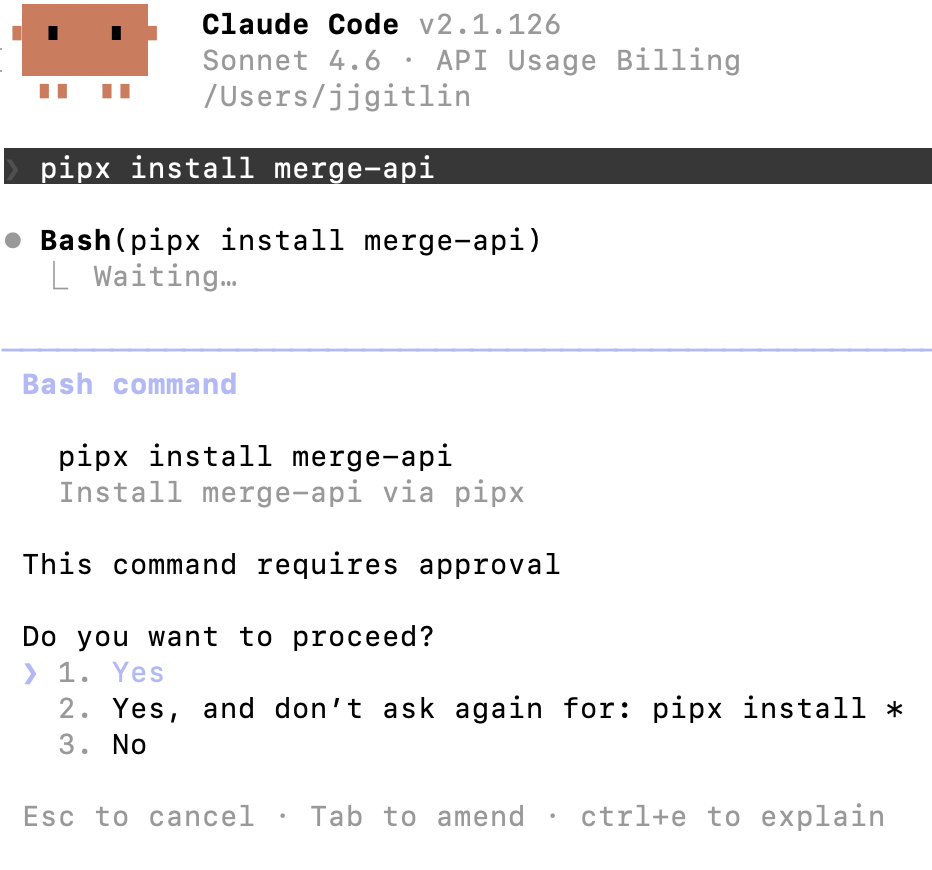
Then confirm the installation: merge --version
Related: How to use a Trello MCP in Claude Code
2. Configure the CLI and log in
Authenticate the CLI with your Merge Agent Handler account: merge login
Once complete, the CLI can make authorized API requests on your behalf.
3. Add Agent Handler to Claude Code
The simplest way to register Agent Handler with Claude Code:
Alternatively, register manually:
Open Claude Code and run: /mcp
agent-handler should appear under Local MCPs with a connected status.

4. Authenticate Coda
To confirm the connection is working, open a Claude Code session and try: "List all rows in my 'Q3 OKRs' table in Coda, including the owner, status, and progress percentage for each row."
On first use, a Magic Link will appear to finish connector authentication.

You should then see an output like the following:

{{this-blog-only-cta}}
Coda MCP FAQ
In case you have more questions on setting up and using the Coda MCP in Claude Code, we've addressed several more commonly-asked questions below.
What can you do once the Coda MCP is connected to Claude Code?
With Coda connected, Claude Code can:
- List and search docs: retrieve all docs accessible to the authenticated account and search across them by name or keyword, without opening the Coda UI
- Read page content: pull the text content of any page in a doc, useful for agents that need to summarize internal documentation or extract context before taking action
- Query table rows: retrieve rows from any Coda table with filtering by column value, enabling agents to read structured data the same way they would from a database
- Create and update rows: insert new rows into a table or update existing ones when triggered by an external event, such as a new entry in a form or a status change in another system
- List table columns: retrieve the column schema for any table, useful for agents that need to understand the data model before reading or writing rows
- Delete rows: remove rows from a table programmatically, enabling agents to clean up stale records or process items as part of a larger workflow
Why use Merge Agent Handler vs. a self-hosted Coda MCP server?
You can build a self-hosted MCP server on top of Coda's REST API. Coda's API is well-documented, and for a developer with a single workspace and a specific table in mind, the initial setup is manageable: generate an API token from your Coda account settings, define tool schemas for the endpoints you need, and connect it to Claude Code.
The problem is that Coda API tokens carry broad access across every doc and table the user can reach.
A self-hosted setup has no mechanism to restrict an agent to specific docs or tables, no way to prevent a read-only summarization agent from also writing or deleting rows, and no record of what it accessed. As the number of agents or users grows, that lack of scoping becomes a real operational risk.
Merge Agent Handler addresses this by adding tool-level scoping on top of Coda's API.
An agent that generates weekly summaries from a tracker table, for example, can use tools like rows_list and docs_list. But it can be blocked from invoking tools like rows_delete or rows_upsert.
Agent Handler also logs every tool call with the timestamp, tool name, and inputs, giving teams a full audit trail without any custom instrumentation.
Why connect Coda to Claude Code?
Coda holds two kinds of data that agents frequently need: structured table data that functions like a lightweight database, and prose documentation that provides context for decisions. Developers who need agents to read from or write to either of those currently have to build and maintain a dedicated Coda integration for each workflow.
With the Coda MCP connected, Claude Code can query tables, retrieve page content, and update rows without leaving the terminal.
This matters most when Coda data drives a downstream step: pulling the current status of every project in a tracker before generating a stakeholder update, writing a new row when a form is submitted, reading a runbook page for context before executing a fix, and more.
Jon Gitlin
.png)
.png)

Connect Claude Code to thousands of tools with Merge Agent Handler
Use Merge Agent Handler’s 150+ connectors (including Coda) to power reliable, secure, and powerful agents.


But Merge isn’t just a Unified
API product. Merge is an integration platform to also manage customer integrations. gradient text
But Merge isn’t just a Unified
API product. Merge is an integration platform to also manage customer integrations. gradient text
But Merge isn’t just a Unified
API product. Merge is an integration platform to also manage customer integrations. gradient text
But Merge isn’t just a Unified
API product. Merge is an integration platform to also manage customer integrations. gradient text