

Table of contents
.png)
.jpg)
How to connect a Google Drive MCP with Codex (4 steps)



Jon Gitlin
When developers create a Codex task, they summarize what they need. But a summary of a spec isn't the same as the spec.
Codex writes code against what the developer described, not against what the document actually says. The result is implementation that's directionally right but wrong on the details that matter.
Connecting Google Drive gives Codex direct access to the source material. When a task requires context from Drive, Codex pulls the actual doc rather than relying on a developer's summary of it.
To give Codex direct access to Google Drive as it works through your coding tasks, we'll show you how to connect Google Drive with Merge Agent Handler's Google Drive MCP server.
How it works
Merge Agent Handler connects Codex to the Google Drive API through the Merge CLI. You install the CLI, authenticate once, and run a single setup command from your project root.
That command writes a Merge CLI section to your project's AGENTS.md file, which tells Codex when to call merge search-tools and merge execute-tool to reach Google Drive.
Once connected, Merge handles OAuth token storage and refresh on your behalf, so you never embed credentials in your repo or manage rotation yourself.
Related: How to use the Google Drive MCP in Claude Code
Prerequisites
Before getting started, you'll need the following:
- A Merge Agent Handler account
- Codex access (via OpenAI)
- pipx installed (run
pipx --versionto confirm, or install viapip install pipx) - A Google account with access to the Drive you want Codex to query
If you want to connect Merge Agent Handler's Google Drive MCP with internal or customer-facing agentic products, you can follow the steps in our docs.
1. Install the Merge CLI
Install the CLI with pipx: pipx install merge-api
Verify it installed correctly: merge --version
2. Log in to Merge
Authenticate the CLI with your Merge Agent Handler account: merge login
This links the CLI to your Merge account and stores your session credentials locally.
3. Add Agent Handler to Codex
From the root of the project where you want Codex to have access to Google Drive, run:
This writes a Merge CLI section to your project's AGENTS.md file so Codex knows to use the CLI when a task requires Drive operations. The command is idempotent, safe to re-run if you need to reset the configuration.
Commit the updated AGENTS.md so every developer and CI environment that runs Codex gets the same tool configuration.
Related: A guide to integrating the Google Drive MCP with Cursor
4. Authenticate Google Drive
Create a Codex task that requires live Drive data. This can be something like: "Write a Go function that lists all files in a given Google Drive folder, handles pagination, and returns a typed slice of file metadata structs."
The first time Codex invokes a Google Drive tool, a Magic Link will appear to complete connector authentication.
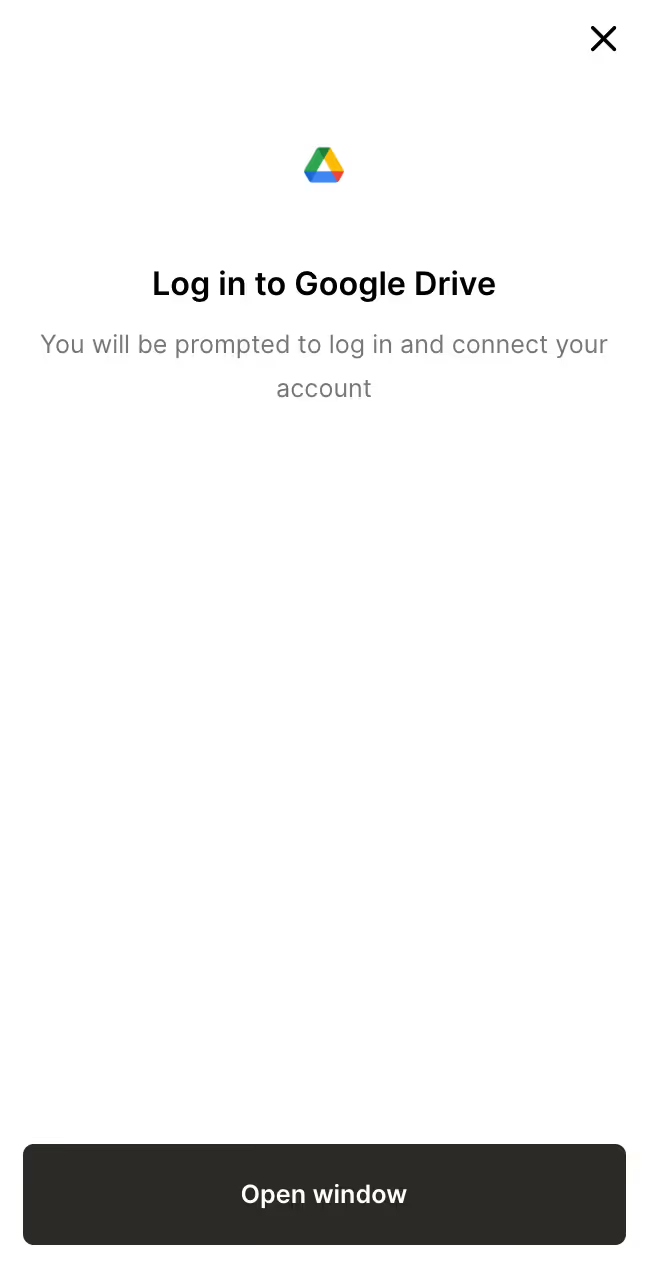
Once authenticated, Codex has access to your Drive through Merge for all subsequent tasks in this project.
{{this-blog-only-cta}}
Google Drive MCP FAQ
In case you have more questions on setting up and using the Google Drive MCP with Codex, we've addressed several more commonly-asked questions below.
What can you do once the Google Drive MCP is connected to Codex?
With Google Drive connected, Codex can:
- Read a feature spec before scaffolding the implementation: pull the actual requirements doc from Drive at the start of a task so the generated code reflects what the spec says, not what the developer summarized in the task description
- Pull a CSV or data file to write an accurate parser: retrieve a real data file from Drive and use its actual structure—column names, data types, encoding quirks—to generate a parser that handles the real format rather than an assumed one
- Check an architecture doc before adding a new module: read the relevant architecture decision record or design doc from Drive so the new module follows the patterns already established in the codebase
- Read a data dictionary before generating type definitions: pull the authoritative field definitions from Drive to produce type definitions with the correct names, types, and nullability — rather than inferring them from partial information in the task description
- Pull a requirements doc to generate accurate test cases: read the acceptance criteria or QA doc from Drive and generate test cases that cover the specific behaviors the requirements document calls out
When Codex has access to the documents that inform a task, it stops writing against assumptions. The difference shows up in how much the output needs to be corrected after generation—and for tasks grounded in Drive documents, that correction step often disappears entirely.
Why use Merge Agent Handler vs. a self-hosted Google Drive MCP server?
You can set up a self-hosted Google Drive MCP server and point Codex at it. That means creating a Google Cloud project, enabling the Drive API, configuring OAuth credentials, and running a local or hosted MCP process.
Where it breaks down is at the team level. Each developer needs their own credential setup, or you share a service account with credentials that are hard to rotate and impossible to attribute to a specific user.
There is no per-user access control in a self-hosted setup. If the service account can read a folder, every Codex task that uses the integration can read that folder.
Merge Agent Handler adds a managed layer on top: credential storage and OAuth refresh handled by Merge, per-user access scoping so each developer authenticates with their own identity, and full audit logging on every tool call. For teams using Codex on production codebases, that observability matters.
Knowing that a generation task read a specific spec doc at a specific time is meaningfully different from having no record of what context the agent used.
Why connect Google Drive to Codex?
Most engineering teams store the documents that inform their code in Google Drive: feature specs, data dictionaries, architecture docs, QA checklists, API contracts. Codex doesn't have access to any of that unless a developer manually copies it into the task.
That manual step is always lossy. Developers summarize, paraphrase, and leave things out. Codex writes against the summary, not the source.
Connecting Google Drive gives Codex the ability to pull source documents directly when a task requires them. The spec for the feature being implemented, the data dictionary for the schema being modeled, the requirements doc for the tests being written — Codex reads the original rather than the developer's interpretation of it.
The output reflects what the documents actually say. That closes the gap between what was specified and what gets built.
Can I use Merge's Google Drive MCP with my employees?
Yes, Merge for Workforce is built to help organizations provision, secure, and govern how employees connect AI tools like Codex to file storage systems like Google Drive.
Common patterns include:
- Provisioning and access control via SCIM with identity providers like Okta and Microsoft Entra ID, so IT can manage which employees can access which Shared Drives, folders, and file types by role or team
- DLP and policy enforcement on tool calls, so admins can block Codex tasks from reading files outside their designated project scope or prevent retrieval of confidential documents before they reach the agent's context
- User-level audit logging so security teams can review which files were accessed, which folders were listed, and which content was read, by which employee identity, and during which Codex task
The result is that employees can use the Google Drive MCP within Codex to generate Drive integrations, reference live file structures during code generation, and build against real API data, while IT keeps centralized control over which files and folders each developer's agent can reach.
Jon Gitlin


Connect Codex to thousands of tools with Merge Agent Handler
Use Merge Agent Handler’s 150+ connectors (including Google Drive) to power reliable, secure, and powerful agents.


But Merge isn’t just a Unified
API product. Merge is an integration platform to also manage customer integrations. gradient text
But Merge isn’t just a Unified
API product. Merge is an integration platform to also manage customer integrations. gradient text
But Merge isn’t just a Unified
API product. Merge is an integration platform to also manage customer integrations. gradient text
But Merge isn’t just a Unified
API product. Merge is an integration platform to also manage customer integrations. gradient text