

Table of contents
.jpg)
.png)
How to connect a Dropbox MCP with Cursor (4 steps)



Jon Gitlin
You already write and reason about your code in Cursor.
But the moment you start building something that integrates with Dropbox, a file sync, a content pipeline, a folder-provisioning tool, you need details that only live in the API's responses.
How does the cursor-based pagination on list_folder actually behave? What's the difference between path_lower, path_display, and id on a file entry? What does a shared-link response return?
Without the MCP connection, answering those questions means leaving the editor, authenticating against Dropbox's API separately, running test calls, and pasting responses back into the session where the integration code is being written.
To help your developers inspect Dropbox's data model and query real files without leaving Cursor, we'll show you how to connect Dropbox with Merge Agent Handler's Dropbox MCP server.
How it works
Merge Agent Handler connects Cursor to the Dropbox API through the Merge CLI.
You install the CLI, authenticate once, and run a single setup command from your project root. That command writes a ## Merge CLI section to the project's .cursorrules file, which tells Cursor's agent when to call merge search-tools and merge execute-tool to reach Dropbox.
Once connected, Merge handles Dropbox's OAuth token lifecycle so you never store credentials locally or rewire auth when tokens change.
Prerequisites
Before getting started, you'll need the following:
- A Merge Agent Handler account
- Cursor installed
- pipx installed (run
pipx --versionto confirm, or install viapip install pipx) - A Dropbox account with access to the folders you want to query
If you want to connect Merge Agent Handler's Dropbox MCP with internal or customer-facing agentic products, you can follow the steps in our docs.
1. Install the Merge CLI
Run the following to install the Merge CLI: pipx install merge-api
Verify your installation: merge --version
Related: How to use the Dropbox MCP in Claude Code
2. Log in to Merge
Authenticate the CLI with your Merge Agent Handler account:
merge login
This links the CLI to your account so it can make authorized requests to Dropbox on your behalf.
3. Connect the CLI to Cursor
Run the following from the root of the project where you want to use Merge tools:
This writes a ## Merge CLI section to .cursorrules so Cursor knows to use the CLI for third-party services. The command is idempotent, safe to re-run if you need to reset.
Related: How to integrate a Dropbox MCP with Codex
4. Authenticate Dropbox
Open a Cursor chat in your project and try a prompt like:
List the contents of the /exports folder and fetch one file's metadata so I can see the cursor pagination and the path and id fields before I write the sync loop.
The first time you invoke a Dropbox tool, a Magic Link will appear to complete connector authentication.

{{this-blog-only-cta}}
Dropbox MCP FAQ
In case you have more questions on setting up and using the Dropbox MCP in Cursor, we've addressed several more commonly-asked questions below.
What can you do once the Dropbox MCP is connected to Cursor?
With Dropbox connected, Cursor can:
- Inspect the folder-listing response before writing a sync loop: fetch a real
list_folderresult to see how thecursorandhas_morefields behave so the pagination loop you write terminates correctly
- Check file entry fields before writing path-handling code: pull a real file entry to see how
path_lower,path_display, andiddiffer before you decide which one to key your code on
- Inspect a file's metadata shape before writing a parser: retrieve a real file's metadata so the deserialization code you write matches the fields the API actually returns
- Confirm the shared-link response structure before writing sharing code: fetch a real shared link to see the exact response shape before writing the code that creates or resolves links
- Distinguish folder vs file entries before writing traversal logic: pull a mixed folder listing to see the
.tagdiscriminator on each entry so the branching in your traversal code is correct
- Validate how shared and team folders appear before writing access logic: fetch a listing that includes shared or team folders so the code you write handles their entry structure rather than assuming a flat personal namespace
Why use Merge Agent Handler vs. a self-hosted Dropbox MCP server?
You can connect directly to Dropbox's API using your own OAuth app. The API is documented, app creation is straightforward, and for a single developer building against one account the setup is fast.
The access control problem appears when you scale beyond one developer or one agent.
A Dropbox token carries the access of the account that generated it, so sharing it across agents or teammates means every agent operates with that same reach, with no way to restrict which operations a given agent can call. Rotating the token means updating every system that holds it at once.
Merge Agent Handler handles Dropbox authentication centrally.
You define exactly which Dropbox operations each agent can call: an agent that inspects file and folder structure for code generation can read that data without reaching write operations like uploading or deleting files. Every call is logged with the timestamp, tool, and inputs, so you have a full record of what each agent read or changed.
For teams running multiple agents against a shared Dropbox account, that combination of scoped access and central logging is the difference between a controlled deployment and a shared credential problem.
Why connect Dropbox to Cursor?
Dropbox's API data, folder-listing responses, file entry fields, shared-link structures, isn't something you can accurately reconstruct from documentation alone.
These specifics are real-response details: the cursor pagination has a particular contract, file entries expose several path representations plus an id, and shared and team folders surface differently than a flat personal namespace.
Connecting Dropbox to Cursor puts that discovery step inside the editor.
When you're writing a sync loop and need to see how the cursor behaves, you fetch a listing. When you're writing path-handling code and need to choose between path_lower and id, you pull a real entry. When you're writing sharing code and need the shared-link shape, you fetch one.
The data that makes the integration code correct stays in the same session where the code is being written, instead of forcing a separate API exploration phase before development can start.
Can I use Merge's Dropbox MCP with my employees?
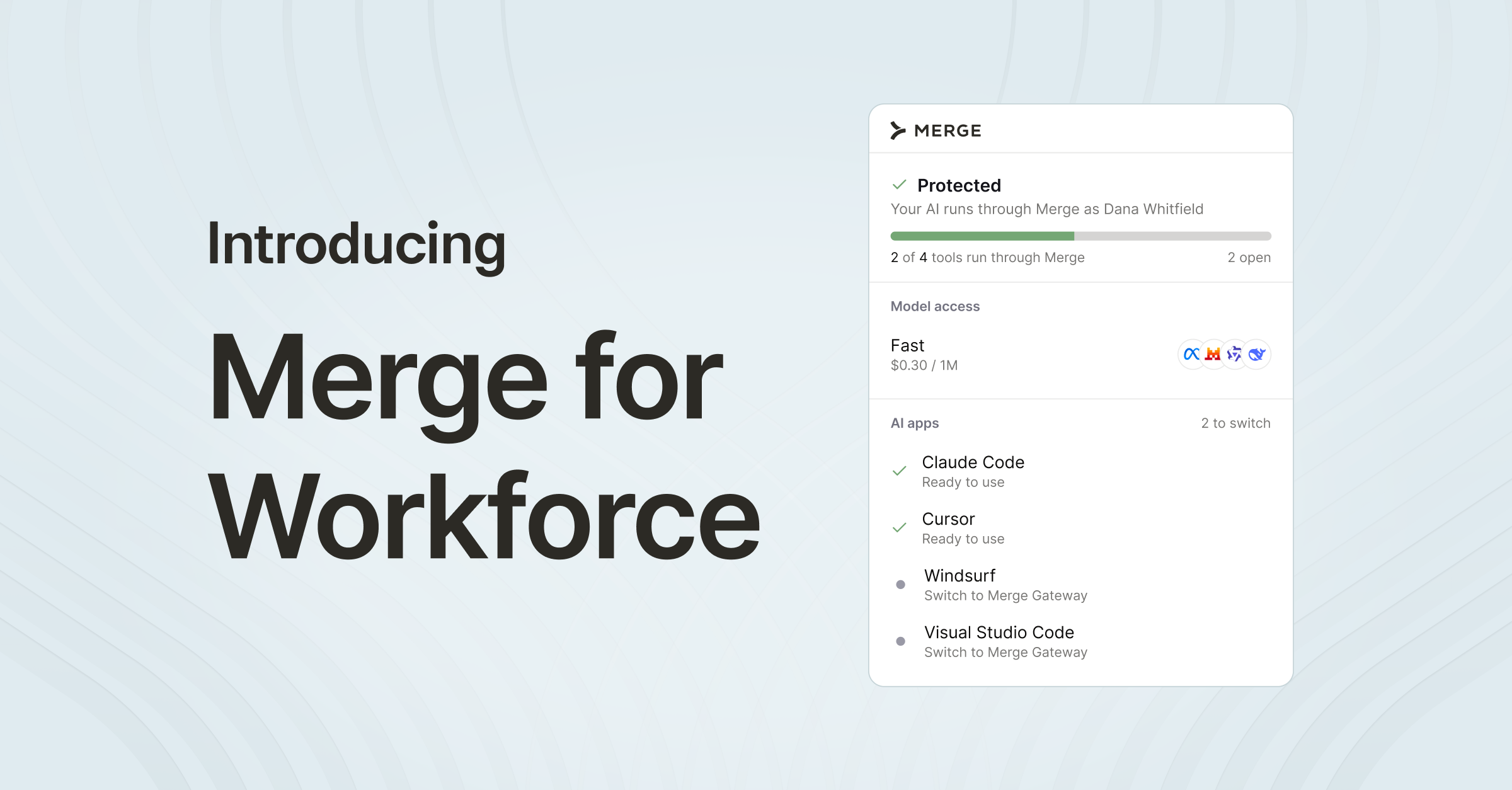
Yes, Merge for Workforce is built to help organizations provision, secure, and govern how employees connect AI tools like Cursor to systems like Dropbox.
Common patterns include:
- Provisioning and access control via SCIM with identity providers like Okta and Microsoft Entra ID, so IT can manage which folders an employee's agent can reach by role or team
- DLP and policy enforcement on tool calls, so admins can block retrieval of sensitive documents before results reach the editor session
- User-level audit logging so security and IT teams can review which files and folders were accessed, by which employee identity, and when
The result is that employees can use the Dropbox MCP to write sync loops against the real pagination contract, build parsers grounded in actual file metadata, write traversal code that handles shared and team folders, and more. And IT keeps centralized control over which folders each agent can reach.
Jon Gitlin
.png)
.png)

Connect Cursor to thousands of tools with Merge Agent Handler
Use Merge Agent Handler’s 150+ connectors (including Dropbox) to power reliable, secure, and powerful agents.


But Merge isn’t just a Unified
API product. Merge is an integration platform to also manage customer integrations. gradient text
But Merge isn’t just a Unified
API product. Merge is an integration platform to also manage customer integrations. gradient text
But Merge isn’t just a Unified
API product. Merge is an integration platform to also manage customer integrations. gradient text
But Merge isn’t just a Unified
API product. Merge is an integration platform to also manage customer integrations. gradient text