

Table of contents
Just for you
No items found.
How to connect a Zendesk MCP to Cursor (4 steps)



Jon Gitlin
Developers building customer support features or Zendesk integrations hit a consistent problem: Zendesk's data model is not obvious until you've made real API calls.
What does a ticket object actually look like? Which field holds an internal note versus a public reply? What are the valid status transitions?
Those questions come up constantly while writing integration code, and the answers live in Zendesk's UI or documentation, not in the editor where the code is being written.
To help your developers query real Zendesk data in Cursor with ease, we'll show you how to connect Zendesk with Merge Agent Handler's Zendesk MCP server.
How it works
Merge Agent Handler connects Cursor to Zendesk's API through the Merge CLI.
You install the CLI, authenticate once, and run a single setup command from your project root.
That command writes a ## Merge CLI section to your project's .cursorrules file, which tells Cursor's agent when to call merge search-tools and merge execute-tool to reach Zendesk.
Once connected, Merge manages your Zendesk OAuth credentials so you never store tokens locally or configure auth state in your project.
Here's the command that registers the connection:
Related: A guide to connecting a Zendesk MCP with Codex
Prerequisites
Before getting started, you'll need the following:
- A Merge Agent Handler account
- Cursor installed
- pipx installed (run
pipx --versionto confirm, or install viapip install pipx) - A Zendesk account with permission to authenticate the connector
If you want to connect Merge Agent Handler's Zendesk MCP with internal or customer-facing agentic products, you can follow the steps in our docs.
1. Install the Merge CLI
Install with pipx: pipx install merge-api
Verify your installation: merge --version
2. Log in to Merge
Run merge login to authenticate your session and link the CLI to your Merge Agent Handler account: merge login
This authenticates your session so the CLI can make authorized requests on your behalf.
3. Connect the CLI to Cursor
Run the following from the root of the project where you want to use Merge tools:
This writes a ## Merge CLI section to .cursorrules so Cursor knows to use the CLI for third-party services. The command is idempotent and safe to re-run if you need to reset.
Related: How to use a Zendesk MCP in Claude Code
4. Authenticate Zendesk
Open a Cursor chat in your project and try: "Show me a real ticket record from Zendesk with all fields populated, including any custom fields, so I can see the full data shape before I write the mapping logic."
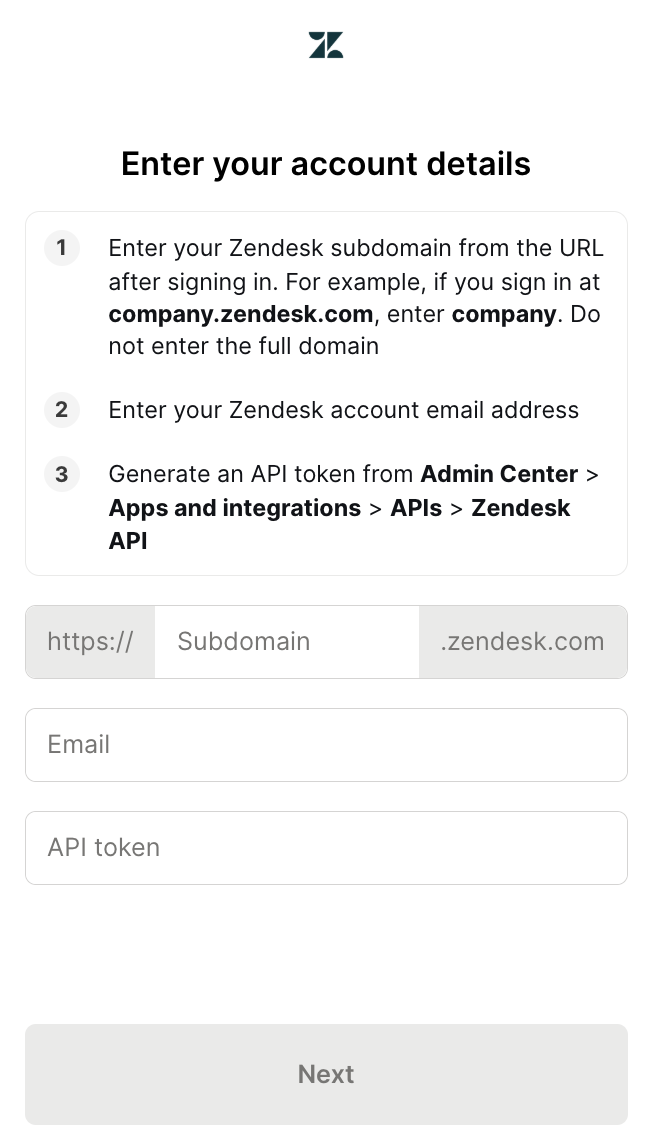
The first time you invoke a Zendesk tool, a Magic Link will appear to complete connector authentication.
{{this-blog-only-cta}}
Zendesk MCP FAQ
In case you have more questions on setting up and using the Zendesk MCP in Cursor, we've addressed several more commonly-asked questions below.
What can you do once the Zendesk MCP is connected to Cursor?
With Zendesk connected, Cursor can:
- Inspect the full ticket field schema: retrieve all fields on a ticket record, including custom fields and their types, so you know exactly what your integration code needs to read or set
- Pull a live ticket to validate parsing logic: fetch a real ticket and its comment thread to confirm your response parsing handles the actual data shape, including edge cases like internal notes and side conversations
- List valid status and priority enumerations: get the full set of accepted values for status, priority, and ticket type fields so you can write accurate validation logic without hardcoding values you'd need to verify separately
- Look up user, group, and organization IDs: find the IDs for specific agents, teams, or organizations needed to write routing and assignment logic without guessing at values
- Retrieve custom field definitions: fetch your account's custom ticket field configurations so you can map them correctly in your data models and avoid field-not-found errors at runtime
Why use Merge Agent Handler vs. a self-hosted Zendesk MCP server?
You can build a self-hosted Zendesk MCP server that calls Zendesk's REST API directly. For a single developer working against one Zendesk account, that's workable: generate an API token, write tool schemas for the endpoints you need, and wire it into Cursor.
The self-hosted path breaks down at the team level.
Zendesk API tokens are per-user, which means every developer who needs agent access through Cursor manages their own token. There's no central place to scope which ticket fields or operations an agent is allowed to touch, no audit trail of what the agent queried or modified, and no clean revocation path when someone leaves the team.
Merge Agent Handler centralizes authentication and lets you define which Zendesk operations each agent can perform. Every tool call is also logged with a full audit trail.
For teams where Zendesk data includes customer PII, billing details, or internal notes, the combination of scoped access and observability is table stakes for production deployment.
Why connect Zendesk to Cursor?
Developers writing Zendesk integrations need to understand the API before they can write correct code against it.
What fields does a ticket expose? What does a comment thread look like in a real response? What custom fields has your org configured and what are their IDs?
All of that information lives in Zendesk, and retrieving it currently means navigating the admin UI or making manual API calls outside the editor.
With the Zendesk MCP connected, Cursor can answer those questions inline.
You can pull a live ticket record to see the exact data shape your parsing code will receive, look up a custom field ID before referencing it in your mapping logic, or confirm which status values are valid before writing a state machine.
The lookup and the code that depends on it are in the same session, which removes the round-trip to Zendesk's UI entirely.
Jon Gitlin
.png)
.png)

Connect Cursor to thousands of tools with Merge Agent Handler
Use Merge Agent Handler’s 150+ connectors (including Zendesk) to power reliable, secure, and powerful agents.


But Merge isn’t just a Unified
API product. Merge is an integration platform to also manage customer integrations. gradient text
But Merge isn’t just a Unified
API product. Merge is an integration platform to also manage customer integrations. gradient text
But Merge isn’t just a Unified
API product. Merge is an integration platform to also manage customer integrations. gradient text
But Merge isn’t just a Unified
API product. Merge is an integration platform to also manage customer integrations. gradient text