


Oracle Sales Cloud
Merge lets you securely connect your agents to Oracle Sales Cloud and thousands of tools instantly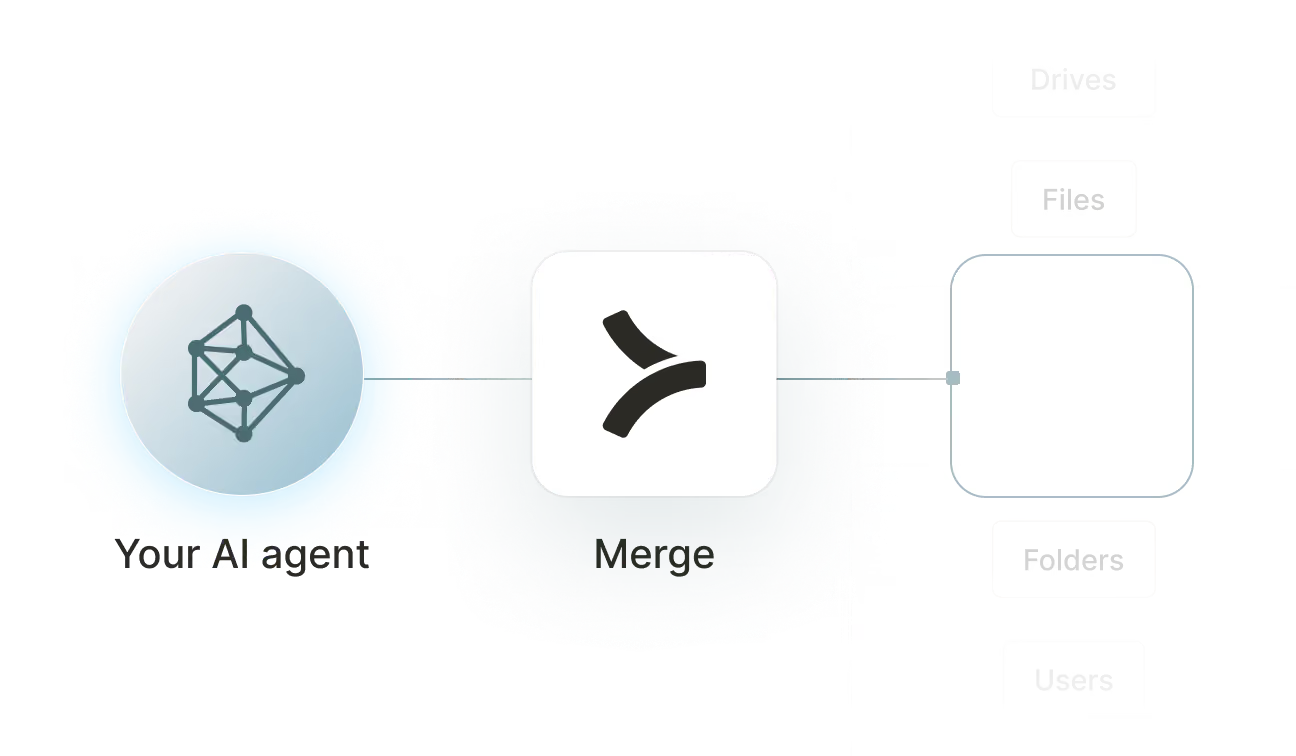

Available tools

How to set upMerge Agent Handler
In an mcp.json file, add the configuration below, and restart Cursor.
Learn more in the official documentation ↗
1{
2  "mcpServers": {
3    "agent-handler": {
4      "url": "https://ah-api-develop.merge.dev/api/v1/tool-packs/{TOOL_PACK_ID}/registered-users/{REGISTERED_USER_ID}/mcp",
5      "headers": {
6        "Authorization": "Bearer yMt*****"
7      }
8    }
9  }
10}
Copy Code
Open your Claude Desktop configuration file and add the server configuration below. You'll also need to restart the application for the changes to take effect.
Make sure Claude is using the Node v20+.
Learn more in the official documentation ↗
1{
2  "mcpServers": {
3    "agent-handler": {
4      "command": "npx",
5      "args": [
6        "-y",
7        "mcp-remote@latest",
8        "https://ah-api-develop.merge.dev/api/v1/tool-packs/{TOOL_PACK_ID}/registered-users/{REGISTERED_USER_ID}/mcp",
9        "--header",
10        "Authorization: Bearer ${AUTH_TOKEN}"
11      ],
12      "env": {
13        "AUTH_TOKEN": "yMt*****"
14      }
15    }
16  }
17}
Copy Code
Open your Windsurf MCP configuration file and add the server configuration below.
Click on the refresh button in the top right of the Manage MCP server page or in the top right of the chat box in the box icon.
Learn more in the official documentation ↗
1{
2    "mcpServers": {
3      "agent-handler": {
4        "command": "npx",
5        "args": [
6          "-y",
7          "mcp-remote@latest",
8          "https://ah-api.merge.dev/api/v1/tool-packs/<tool-pack-id>/registered-users/<registered-user-id>/mcp",
9          "--header",
10          "Authorization: Bearer ${AUTH_TOKEN}"
11        ],
12        "env": {
13          "AUTH_TOKEN": "<ah-production-access-key>"
14        }
15      }
16    }
17  }
Copy Code
In Command Palette (Cmd+Shift+P on macOS, Ctrl+Shift+P on Windows), run "MCP: Open User Configuration".
You can then add the configuration below and press "start" right under servers. Enter the auth token when prompted.
Learn more in the official documentation ↗
1{
2  "inputs": [
3    {
4      "type": "promptString",
5      "id": "agent-handler-auth",
6      "description": "Agent Handler AUTH_TOKEN", // "yMt*****" when prompt
7      "password": true
8    }
9  ],
10  "servers": {
11    "agent-handler": {
12      "type": "stdio",
13      "command": "npx",
14      "args": [
15        "-y",
16        "mcp-remote@latest",
17        "https://ah-api-develop.merge.dev/api/v1/tool-packs/{TOOL_PACK_ID}/registered-users/{REGISTERED_USER_ID}/mcp",
18        "--header",
19        "Authorization: Bearer ${input:agent-handler-auth}"
20      ]
21    }
22  }
23}
Copy Code
FAQ on integrating with Google Drive’s API
Heading

What is an Oracle Sales Cloud MCP?
It's an MCP server that gives your agents access to Oracle Sales Cloud's CRM and pipeline data via tools. Your agents can invoke these tools to query accounts and contacts, manage opportunities, log sales activities, create leads, and more.
Oracle doesn't offer an MCP server purpose built for Oracle Sales Cloud, but you can use one from a third-party platform, like Merge Agent Handler.
How can I use the Oracle Sales Cloud MCP server?
The use cases naturally depend on the agent you've built, but here are a few common ones:
- Opportunity stage updates from Slack: An agent listens for deal update commands in a Slack sales channel and updates the corresponding Oracle Sales Cloud opportunity stage, close date, or amount without requiring reps to open the CRM
- Automated activity logging: An agent detects completed calls or emails in a communication tool like Outreach or Salesloft and logs the corresponding activity against the right contact and account in Oracle Sales Cloud
- Account enrichment: An agent pulls firmographic data from an external source like ZoomInfo or Clearbit and updates Oracle Sales Cloud account records with the latest revenue, headcount, and industry fields
- Pipeline reporting: An agent queries open opportunities filtered by stage and close date and generates a formatted pipeline summary delivered to sales leadership via email or a Google Slides deck
What are popular tools for Oracle Sales Cloud's MCP server?
Here are some of the most commonly used tools:
list_opportunities: retrieves sales opportunities with filters for stage, owner, close date, or account. Useful for agents that need to build pipeline reports or identify deals requiring attention based on inactivity
update_opportunity: modifies fields on an existing opportunity such as stage, amount, or close date. Call this when an agent is processing deal updates from a communication tool or external workflow trigger
list_accounts: fetches accounts with optional filters by industry, region, or owner. Good for workflows that need to segment the customer base before running an enrichment or outreach campaign
create_lead: creates a new lead record with contact and company details. Use this when an agent captures a new prospect from a marketing form, event list, or third-party data source
create_activity: logs a sales activity such as a call, email, or meeting against a contact or account. Helpful when an agent needs to maintain an accurate engagement history without requiring manual CRM entry from reps
list_contacts: retrieves contacts associated with an account or opportunity. Call this when an agent needs to identify the right stakeholders before drafting outreach or routing a support escalation
What makes Merge Agent Handler's Oracle Sales Cloud MCP server better than alternative Oracle Sales Cloud MCP servers?
Merge Agent Handler's Oracle Sales Cloud MCP server stands out from alternatives in a few important ways:
- Enterprise-grade security and DLP: Merge Agent Handler includes built-in data loss prevention controls that let you block or redact sensitive fields before they reach an agent. For Oracle Sales Cloud, this means you can prevent deal values, account revenue figures, or contact personal details from being exposed even when the agent has broad read access
- Managed authentication and credentials: Merge stores and refreshes Oracle Sales Cloud credentials on your behalf. You never expose raw API keys or OAuth tokens to an agent or manage token rotation manually
- Real-time observability and audit trail: Every tool call made against Oracle Sales Cloud is logged with timestamp, tool name, input parameters, and response metadata. You can audit exactly what an agent read or wrote without instrumenting anything yourself
- Tool Packs and controlled access: Tool Packs let you bundle specific Oracle Sales Cloud tools with tools from other connectors into a single MCP endpoint, scoped to a specific use case. An agent gets exactly the tools it needs, nothing more
How can I start using Merge Agent Handler's Oracle Sales Cloud MCP server?
You can take the following steps:
1. Create or log into your Merge Agent Handler account.
2. Install the Merge CLI by running pipx install merge-api, then run merge configure to link the CLI to your Merge account and merge login to authenticate your session.
3. Register the Agent Handler MCP server with Claude Code by running claude mcp add --transport http agent-handler https://ah-api.merge.dev/mcp, then open Claude Code and run /mcp to confirm agent-handler appears with a connected status.
4. Select agent-handler from the MCP list. This opens a browser window where you select which integrations to authenticate. Choose Oracle Sales Cloud and complete the auth flow. Merge stores and manages the credentials going forward.
5. Open a Claude Code session and start querying Oracle Sales Cloud data directly. The first time you use an Oracle Sales Cloud tool, a Magic Link may appear to complete connector authentication.
If you want to connect Merge Agent Handler's Oracle Sales Cloud MCP with internal or customer-facing agentic products, you can follow the steps in our docs.


























Ready to try it out?
Whether you're an engineer experimenting with agents or a product manager looking to add tools, you can get started for free now
