


HiBob
Merge lets you securely connect your agents to HiBob and thousands of tools instantly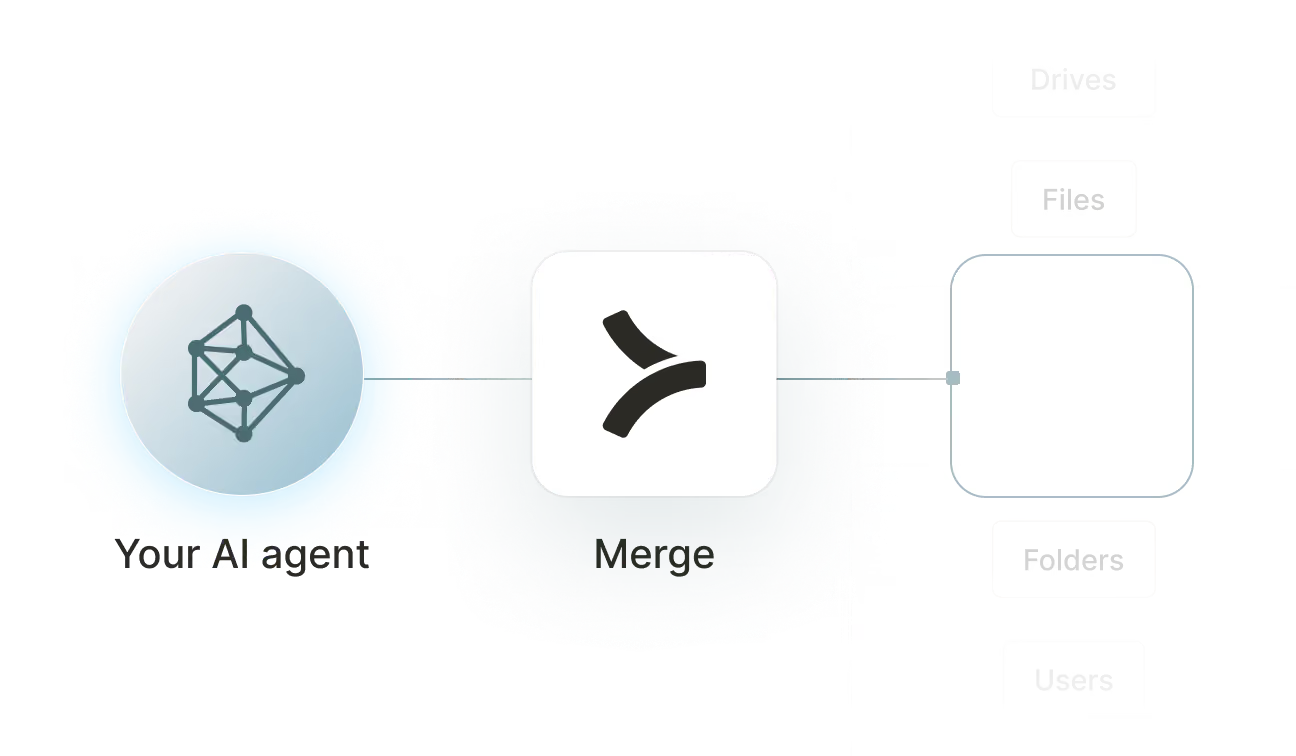

Available tools

How to set upMerge Agent Handler
In an mcp.json file, add the configuration below, and restart Cursor.
Learn more in the official documentation ↗
1{
2  "mcpServers": {
3    "agent-handler": {
4      "url": "https://ah-api-develop.merge.dev/api/v1/tool-packs/{TOOL_PACK_ID}/registered-users/{REGISTERED_USER_ID}/mcp",
5      "headers": {
6        "Authorization": "Bearer yMt*****"
7      }
8    }
9  }
10}
Copy Code
Open your Claude Desktop configuration file and add the server configuration below. You'll also need to restart the application for the changes to take effect.
Make sure Claude is using the Node v20+.
Learn more in the official documentation ↗
1{
2  "mcpServers": {
3    "agent-handler": {
4      "command": "npx",
5      "args": [
6        "-y",
7        "mcp-remote@latest",
8        "https://ah-api-develop.merge.dev/api/v1/tool-packs/{TOOL_PACK_ID}/registered-users/{REGISTERED_USER_ID}/mcp",
9        "--header",
10        "Authorization: Bearer ${AUTH_TOKEN}"
11      ],
12      "env": {
13        "AUTH_TOKEN": "yMt*****"
14      }
15    }
16  }
17}
Copy Code
Open your Windsurf MCP configuration file and add the server configuration below.
Click on the refresh button in the top right of the Manage MCP server page or in the top right of the chat box in the box icon.
Learn more in the official documentation ↗
1{
2    "mcpServers": {
3      "agent-handler": {
4        "command": "npx",
5        "args": [
6          "-y",
7          "mcp-remote@latest",
8          "https://ah-api.merge.dev/api/v1/tool-packs/<tool-pack-id>/registered-users/<registered-user-id>/mcp",
9          "--header",
10          "Authorization: Bearer ${AUTH_TOKEN}"
11        ],
12        "env": {
13          "AUTH_TOKEN": "<ah-production-access-key>"
14        }
15      }
16    }
17  }
Copy Code
In Command Palette (Cmd+Shift+P on macOS, Ctrl+Shift+P on Windows), run "MCP: Open User Configuration".
You can then add the configuration below and press "start" right under servers. Enter the auth token when prompted.
Learn more in the official documentation ↗
1{
2  "inputs": [
3    {
4      "type": "promptString",
5      "id": "agent-handler-auth",
6      "description": "Agent Handler AUTH_TOKEN", // "yMt*****" when prompt
7      "password": true
8    }
9  ],
10  "servers": {
11    "agent-handler": {
12      "type": "stdio",
13      "command": "npx",
14      "args": [
15        "-y",
16        "mcp-remote@latest",
17        "https://ah-api-develop.merge.dev/api/v1/tool-packs/{TOOL_PACK_ID}/registered-users/{REGISTERED_USER_ID}/mcp",
18        "--header",
19        "Authorization: Bearer ${input:agent-handler-auth}"
20      ]
21    }
22  }
23}
Copy Code
FAQ on integrating with Google Drive’s API
Heading

What is a HiBob MCP?
It's an MCP server that connects your agents to HiBob via tools. Your agents can invoke these tools to search and retrieve employee records, manage time off requests, track task completion, generate workforce reports, and more.
HiBob offers an official MCP server, but you can also use one from a third-party platform, like Merge Agent Handler.
How can I use the HiBob MCP server?
The use cases naturally depend on the agent you've built, but here are a few common ones:
- Onboarding task automation: When a new hire is created in an ATS like Greenhouse, an agent calls <code class="blog_inline-code">
create_employee</code>to provision the HiBob record, then calls <code class="blog_inline-code">list_tasks</code>to surface pending onboarding tasks and routes them to the right team members via Slack
- Daily coverage summary: Each morning, an agent calls <code class="blog_inline-code">
get_whos_out</code>to check which employees are out of office, cross-references team rosters, and posts a structured coverage summary to a manager Slack channel so the team can plan without logging into HiBob
- Workforce reporting digest: On a weekly schedule, an agent calls <code class="blog_inline-code">
download_report</code>for headcount and turnover data, formats the output into a structured summary, and posts it to a leadership channel so stakeholders have current workforce metrics without manual exports
- Offboarding record update: When an employee departure is confirmed in a ticketing system, an agent calls <code class="blog_inline-code">
terminate_employee</code>to initiate the offboarding process in HiBob and calls <code class="blog_inline-code">list_employee_documents</code>to surface any outstanding documents the people team needs to collect
What are popular tools for HiBob's MCP server?
Here are some of the most commonly used tools:
<code class="blog_inline-code">search_employees</code>queries the HiBob employee directory by name, department, or other fields and returns matching records. Use this when an agent needs to look up a specific person or build a filtered list before taking an action
<code class="blog_inline-code">get_employee</code>retrieves the full profile for a specified employee, including personal details, role, and employment status. Call this when an agent needs complete employee context before updating a record or routing a request
<code class="blog_inline-code">create_employee</code>adds a new employee record to HiBob with the provided field values. Useful for agents that automate onboarding by syncing new hire data from an ATS or HRIS into HiBob without manual entry
<code class="blog_inline-code">submit_time_off_request</code>files a time off request in HiBob on behalf of a specified employee. Good for agents that handle time off workflows triggered by a form submission or a calendar event in another system
<code class="blog_inline-code">get_whos_out</code>returns a list of employees currently out of office based on approved time off records. Helpful when an agent needs to assess coverage, route work to available team members, or generate a daily absence report
<code class="blog_inline-code">download_report</code>generates and retrieves a HiBob workforce report by report ID. Use this when an agent needs structured headcount, turnover, or compensation data to deliver to a stakeholder or feed into a downstream analytics tool
What makes Merge Agent Handler's HiBob MCP server better than alternative HiBob MCP servers?
Here is what makes Merge Agent Handler's HiBob MCP server a stronger choice than building or using an alternative:
- Enterprise-grade security and DLP: Merge Agent Handler includes built-in data loss prevention controls that let you block or redact sensitive fields before they reach an agent. For HiBob, this means you can prevent salary data, personal identifiers, employment status, and document contents from being exposed even when the agent has broad read access to employee records
- Managed authentication and credentials: Merge stores and refreshes HiBob credentials on your behalf. You never expose service user tokens to an agent or handle re-authentication when credentials rotate
- Real-time observability and audit trail: Every tool call made against HiBob is logged with timestamp, tool name, input parameters, and response metadata. You can audit exactly which employee records an agent read, updated, or terminated without adding any instrumentation to your own infrastructure
- Tool Packs and controlled access: Tool Packs let you bundle specific HiBob tools with tools from other connectors into a single MCP endpoint, scoped to a specific use case. An agent gets exactly the tools it needs, nothing more
How can I start using Merge Agent Handler's HiBob MCP server?
You can take the following steps:
1. Create or log into your Merge Agent Handler account and navigate to Tool Packs (collections of connector tools scoped to a specific use case).
2. Create a new Tool Pack, then find and enable the HiBob connector. Choose which tools to include: enable read tools like <code class="blog_inline-code">search_employees</code> and <code class="blog_inline-code">get_whos_out</code> for reporting use cases, or add write tools like <code class="blog_inline-code">create_employee</code> and <code class="blog_inline-code">terminate_employee</code> if your agent needs to manage employee lifecycle events.
3. Add a Registered User inside the Tool Pack. This is the identity context under which your agent operates. Merge generates a unique MCP URL scoped to this user once it's created.
4. From the Registered User detail page, authenticate HiBob by completing the credential flow. Merge stores and manages the credentials going forward.
5. Copy the MCP URL from the Tool Pack detail page and generate an API key from Settings. You'll need both to connect your agent.
6. Add the MCP server to your agent or IDE using the MCP URL and API key. Your HiBob tools are now accessible through that endpoint.
Can employees use Merge Agent Handler to connect their AI tools to HiBob?
Yes, Agent Handler for Employees lets your employees connect Claude, ChatGPT, Microsoft Copilot, Cursor, and other MCP-compatible AI tools to HiBob without bypassing IT governance.
Instead of setting up direct connections with personal credentials that IT can't monitor or revoke, each employee authenticates through Agent Handler and gets individual credentials tied to their identity.
IT also provisions access by role or group via SCIM. An HR business partner, for example, gets HiBob access to manage employee records and lifecycle events, Greenhouse to cross-reference recruiting pipelines, and Slack to coordinate with managers on onboarding tasks; while a people operations manager gets HiBob access to track workforce metrics and time off, Google Sheets to report on headcount data, and BambooHR to reconcile HR records across systems.
Every tool call an employee's AI makes to HiBob is also inspected against your DLP rules and logged to a searchable audit trail, giving security teams full visibility into what data was accessed and by whom.
Explore other MCP servers built and managed by Merge
View Docs

























Ready to try it out?
Whether you're an engineer experimenting with agents or a product manager looking to add tools, you can get started for free now
