


Box
Merge lets you securely connect your agents to Box and thousands of tools instantly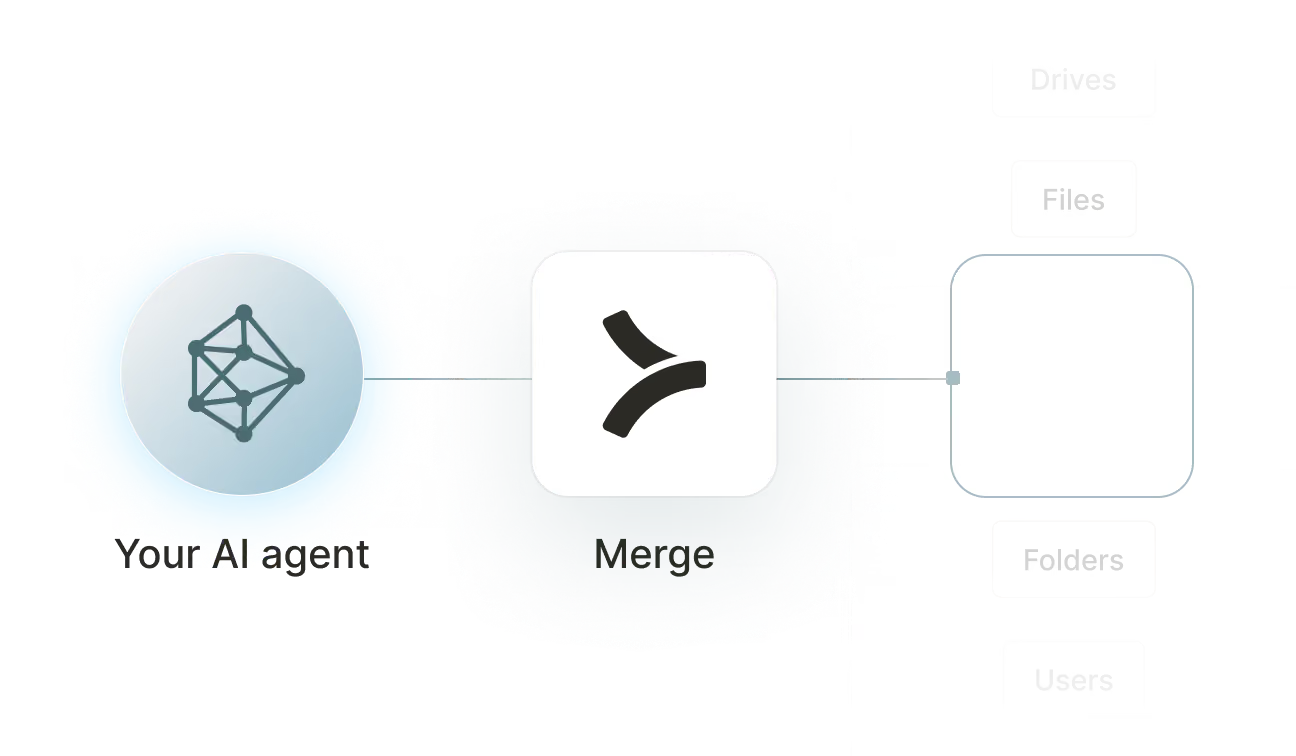

Available tools

How to set upMerge Agent Handler
In an mcp.json file, add the configuration below, and restart Cursor.
Learn more in the official documentation ↗
1{
2  "mcpServers": {
3    "agent-handler": {
4      "url": "https://ah-api-develop.merge.dev/api/v1/tool-packs/{TOOL_PACK_ID}/registered-users/{REGISTERED_USER_ID}/mcp",
5      "headers": {
6        "Authorization": "Bearer yMt*****"
7      }
8    }
9  }
10}
Copy Code
Open your Claude Desktop configuration file and add the server configuration below. You'll also need to restart the application for the changes to take effect.
Make sure Claude is using the Node v20+.
Learn more in the official documentation ↗
1{
2  "mcpServers": {
3    "agent-handler": {
4      "command": "npx",
5      "args": [
6        "-y",
7        "mcp-remote@latest",
8        "https://ah-api-develop.merge.dev/api/v1/tool-packs/{TOOL_PACK_ID}/registered-users/{REGISTERED_USER_ID}/mcp",
9        "--header",
10        "Authorization: Bearer ${AUTH_TOKEN}"
11      ],
12      "env": {
13        "AUTH_TOKEN": "yMt*****"
14      }
15    }
16  }
17}
Copy Code
Open your Windsurf MCP configuration file and add the server configuration below.
Click on the refresh button in the top right of the Manage MCP server page or in the top right of the chat box in the box icon.
Learn more in the official documentation ↗
1{
2    "mcpServers": {
3      "agent-handler": {
4        "command": "npx",
5        "args": [
6          "-y",
7          "mcp-remote@latest",
8          "https://ah-api.merge.dev/api/v1/tool-packs/<tool-pack-id>/registered-users/<registered-user-id>/mcp",
9          "--header",
10          "Authorization: Bearer ${AUTH_TOKEN}"
11        ],
12        "env": {
13          "AUTH_TOKEN": "<ah-production-access-key>"
14        }
15      }
16    }
17  }
Copy Code
In Command Palette (Cmd+Shift+P on macOS, Ctrl+Shift+P on Windows), run "MCP: Open User Configuration".
You can then add the configuration below and press "start" right under servers. Enter the auth token when prompted.
Learn more in the official documentation ↗
1{
2  "inputs": [
3    {
4      "type": "promptString",
5      "id": "agent-handler-auth",
6      "description": "Agent Handler AUTH_TOKEN", // "yMt*****" when prompt
7      "password": true
8    }
9  ],
10  "servers": {
11    "agent-handler": {
12      "type": "stdio",
13      "command": "npx",
14      "args": [
15        "-y",
16        "mcp-remote@latest",
17        "https://ah-api-develop.merge.dev/api/v1/tool-packs/{TOOL_PACK_ID}/registered-users/{REGISTERED_USER_ID}/mcp",
18        "--header",
19        "Authorization: Bearer ${input:agent-handler-auth}"
20      ]
21    }
22  }
23}
Copy Code
FAQ on integrating with Google Drive’s API
Heading

What is a Box MCP server?
It’s an MCP server that exposes data and functionality from a specific Box instance via tools. Your agents can invoke these tools to perform a wide range of actions in Box, such as creating new folders and retrieving specific files.
How can I use the Box MCP server?
Here are just a few use cases:
- Ticket and file handoff workflows: When a ticket is created or escalated, automatically create a Box folder for the case, upload artifacts, and keep links in the ticket updated
- Sales enablement and deal rooms: Spin up a Box “deal room” folder, keep collateral current, and share the right docs with the right internal or external stakeholder
- Contract and security review workflows: Route documents through review stages, add metadata, and ensure access is properly gated (permissioning and auditing are commonly expected here)
- Trigger workflows from third-party events into Box: Use a webhook-driven approach where events in other systems (like CRM updates) kick off workflows that ultimately organize or update content in Box
What are popular tools for Box’s MCP server?
Here are just a few popular tools across data types:
Folders
- <code class="blog_inline-code">GET /folders/{folder_id}</code> to get folder info
- <code class="blog_inline-code">GET /folders/{folder_id}/items</code> to list contents
- <code class="blog_inline-code">POST /folders</code> to create folders
- <code class="blog_inline-code">PUT /folders/{folder_id}</code> to update a folder
- <code class="blog_inline-code">DELETE /folders/{folder_id}</code> to delete a folder
Files
- <code class="blog_inline-code">POST /files/content</code> to upload file (simple upload)
- <code class="blog_inline-code">GET /files/{file_id}</code> to get file info
- <code class="blog_inline-code">GET /files/{file_id}/content</code> to download a file
- <code class="blog_inline-code">PUT /files/{file_id}</code> to update metadata like name/parent
Tasks
- <code class="blog_inline-code">POST /tasks</code> to create a task on a file
- <code class="blog_inline-code">GET /tasks/{task_id}</code> to get a task
- <code class="blog_inline-code">PUT /tasks/{task_id}</code> to update a task
- <code class="blog_inline-code">DELETE /tasks/{task_id}</code> to delete a task
What makes Merge Agent Handler’s Box MCP server better than alternative Box MCP servers?
With Merge Agent Handler’s Box MCP server, you’ll also get robust platform-level capabilities for building agents:
- Enterprise-grade security and DLP: All Box tool inputs and outputs pass through Merge Agent Handler’s security gateway, where they can be scanned, blocked, redacted, or masked based on configurable data loss prevention rules
- Centralized authentication and credential management: Merge Agent Handler supports guided authentication flows and handles credential storage, refresh, and validation so agents never manage Box credentials directly
- Real-time observability and audit trails: Every Box tool call is logged with a fully searchable activity log, enabling teams to audit, debug, and optimize agent behavior across environments
- Pre-deployment validation: Box tools can be tested in the Evaluation Suite to ensure they return the expected outcomes before being promoted to production
Can I set custom security rules for Box tool calls in Merge Agent Handler?
Yes, Merge Agent Handler allows you to define custom security and data loss prevention rules that apply to all tool calls, including Box. These rules can block, redact, or mask sensitive data in tool inputs or responses based on conditions you configure.
Here are a few examples:
- Block sensitive identifiers from leaving Box. Block any tool call that returns content containing SSNs, credit card numbers, or API keys before it’s sent back to the agent
- Prevent “exfiltration” via uploads. If an agent tries to upload a file to Box that contains secrets (API keys, private keys, tokens), block the upload tool call
- Log (don’t block) risky access for audit. Log whenever an agent accesses files containing keywords like “confidential,” “legal,” “SSN,” or a specific customer name, so you can review behavior without breaking workflows
- Stop public sharing workflows. Block tool calls that create or update shared links to “anyone with the link,” or require links to be “company only
How can I start using Merge Agent Handler’s Box MCP server?
You can follow these steps:
1. Create an Agent Handler account. Sign in to Merge Agent Handler and grab your API key from the dashboard.
2. Create a Tool Pack. Create a Tool Pack for the workflow you want (for example, “Box + Salesforce workflows”).
3. Add the Box connector. In that Tool Pack, add Box from the connector list.
4. Authenticate Box. Choose individual auth (each end user authenticates) or shared auth (one org-level connection).
5. Complete the Box authentication flow. You’ll need to create a Registered User to represent the identity that will execute tool calls.
6. Connect your agent to the MCP entry URL. You can copy the MCP entry URL for the Tool Pack + Registered User, and add it to your agent’s MCP client config.
7. Test in the Playground. Use the Playground to run Box tool calls end-to-end before going live.
8. Set security rules (recommended). Enable default rules and add custom DLP/security rules to block, redact, or mask sensitive data in Box tool inputs/outputs.


























Ready to try it out?
Whether you're an engineer experimenting with agents or a product manager looking to add tools, you can get started for free now
