

Table of contents


How to connect a Workday MCP with Claude Code (4 steps)



Jon Gitlin
Headcount by department, reporting hierarchies, job levels, compensation bands, start dates, termination records: all of it lives in Workday, and developers building HR automation, workforce analytics, or internal people tooling need to reference it constantly.
The problem is that Workday's API is complex to set up. It requires tenant-specific URLs, Integration System User (ISU) configuration, and a working knowledge of Workday's data model before you can retrieve a single employee record.
To help your developers query Workday employee data and org structure directly from the terminal with ease, we'll show you how to connect Workday with Merge Agent Handler's Workday MCP server.
How it works
Merge Agent Handler connects Claude Code to the Workday API through a single CLI setup. You install the Merge CLI, authenticate once, and register the connection with one command. Agent Handler manages your ISU credentials and handles the tenant-specific API complexity so you don't store Workday credentials locally or deal with its API versioning directly.
Here's the command that registers the connection:
Related: The steps for connecting a Workday MCP with Codex
Prerequisites
Before getting started, you'll need the following:
- A Merge Agent Handler account
- Claude Code installed (run
claude --versionto confirm) - pipx installed (run
pipx --versionto confirm, or install viapip install pipx) - Workday admin access to generate integration credentials for your tenant
If you want to connect Merge Agent Handler's Workday MCP with internal or customer-facing agentic products, you can follow the steps in our docs.
1. Install the Merge CLI
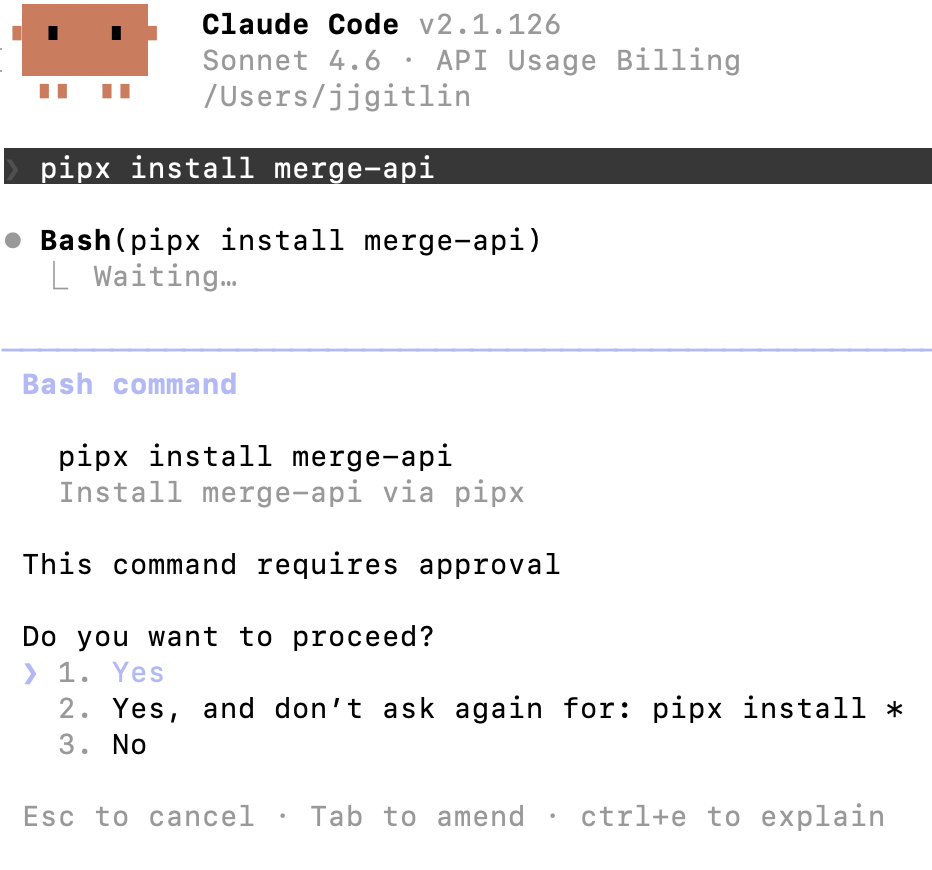
Install with pipx: pipx install merge-api
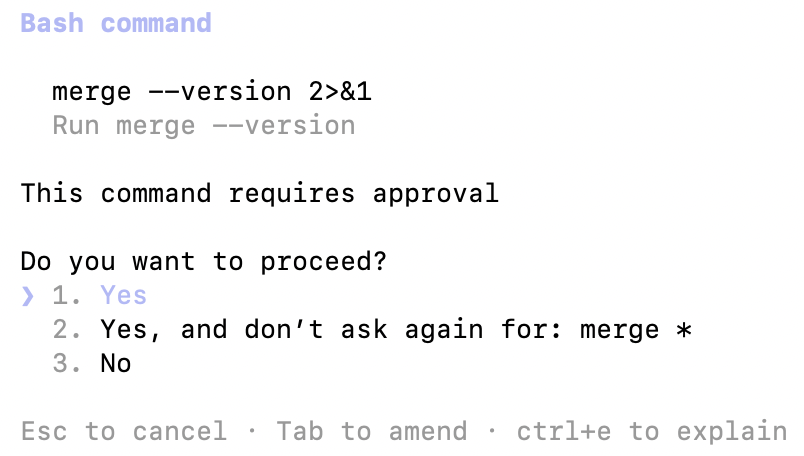
Verify your installation: merge --version
Related: How to use a Workday MCP in Cursor
2. Configure Merge CLI and log in
Authenticate the CLI with your Merge Agent Handler account: merge login
Once complete, the CLI can make authorized API requests on your behalf.
3. Add Agent Handler to Claude Code
Register the Agent Handler MCP server with Claude Code:
Or manually:
Verify the connection registered. Open Claude Code and run: /mcp
agent-handler should appear under Local MCPs with a connected status.

Related: A guide to connecting a UKG Pro MCP with Claude Code
4. Authenticate Workday
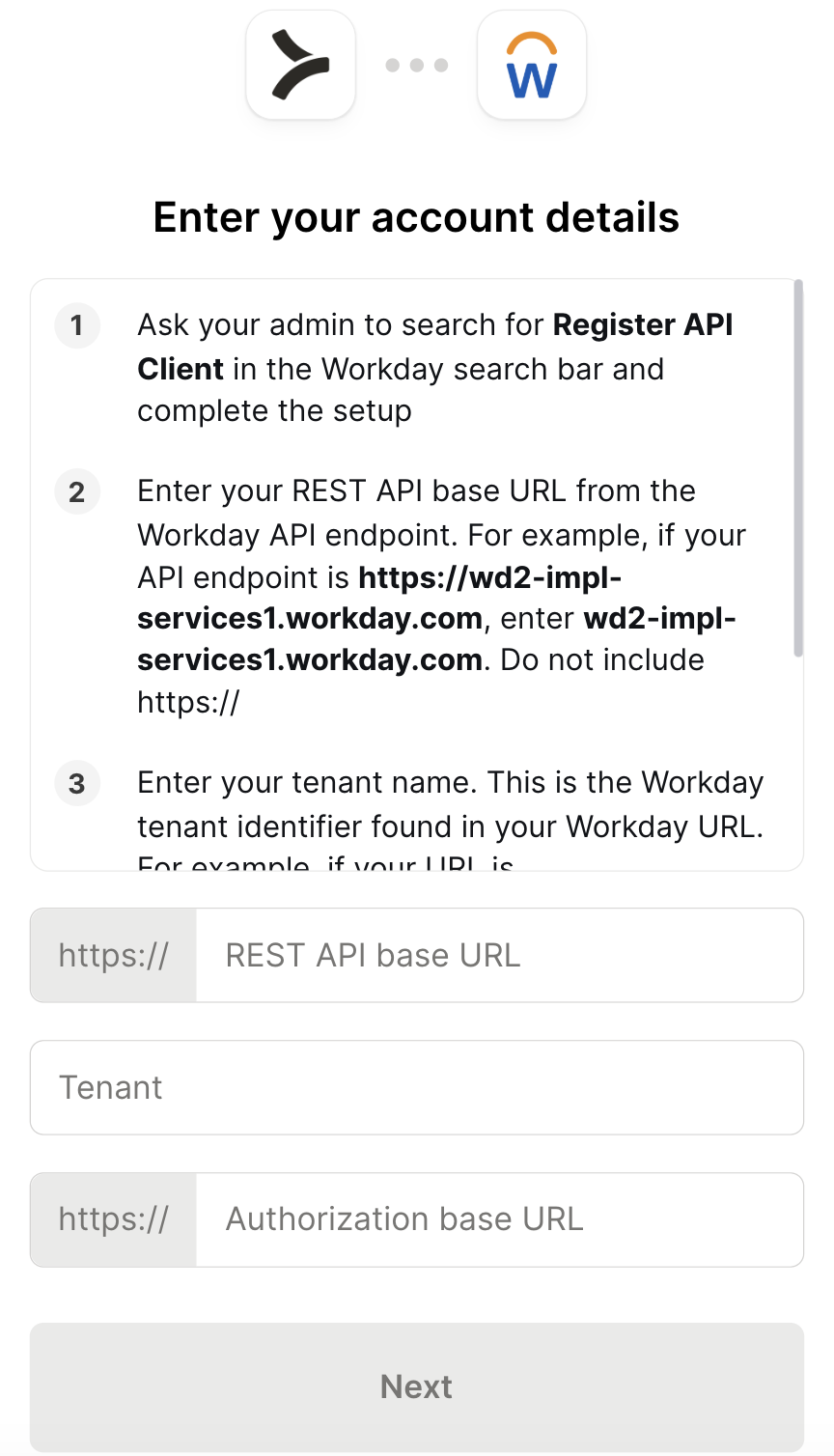
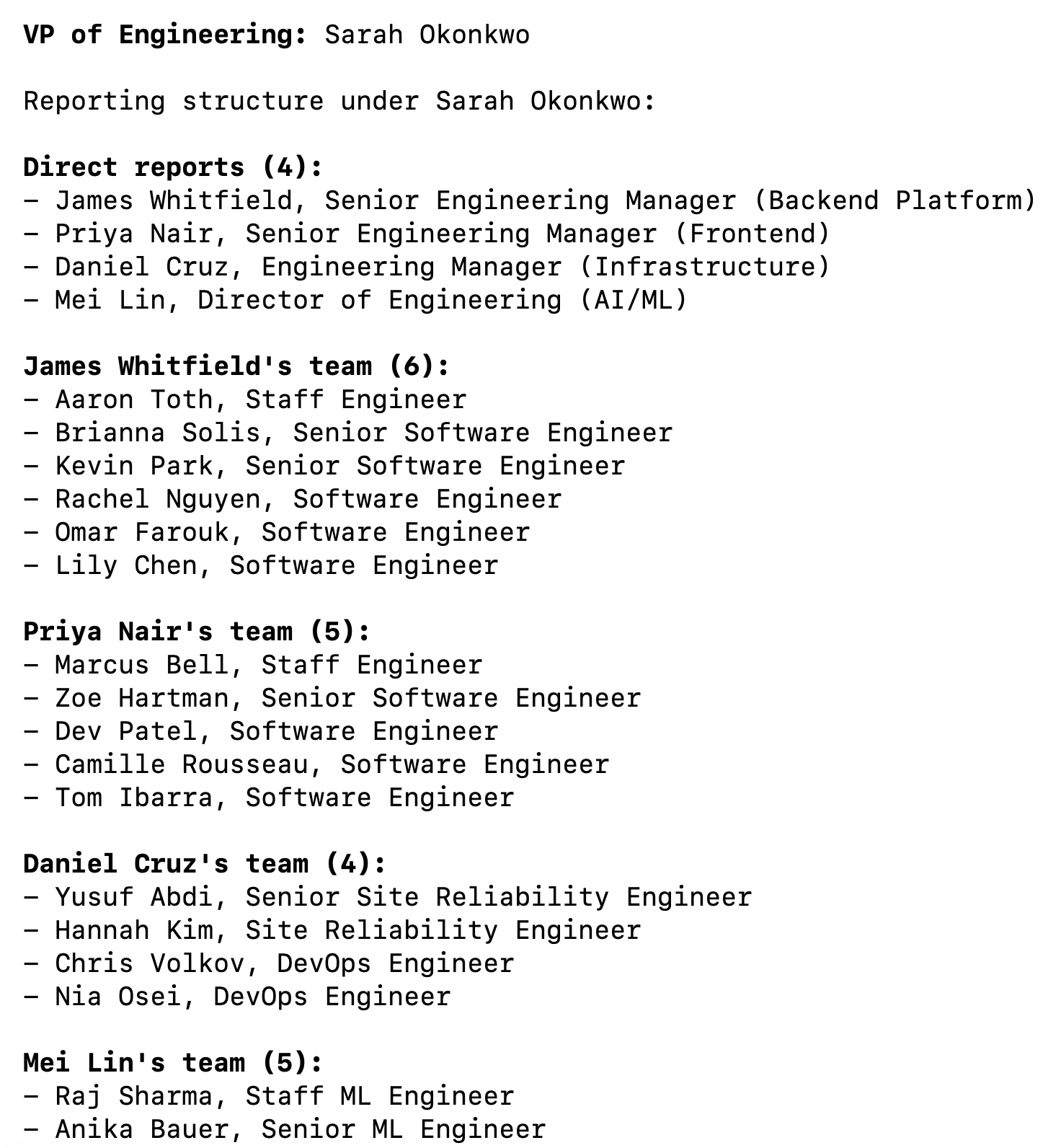
Open Claude Code and test the connection with a prompt like: "List all active employees in the Engineering department and show me the reporting structure under the VP of Engineering."
A Magic Link will appear on first use to complete connector authentication.
You should then see an output that looks something like the following:
{{this-blog-only-cta}}
Workday MCP FAQ
In case you have more questions on setting up and using the Workday MCP in Claude Code, we've addressed several more commonly-asked questions below.
What can you do once the Workday MCP is connected to Claude Code?
With Workday connected, Claude Code can:
- Query employee records: retrieve active workers by department, location, job level, or manager without navigating Workday's UI or writing a custom report
- Pull org structure: surface reporting hierarchies and team composition for any part of the organization, useful for headcount analysis or onboarding automation
- Read job and position data: fetch job profiles, compensation grades, and position details to give agents the context they need for HR workflow logic
- Check employment status: look up start dates, termination dates, and worker status to drive downstream automation like access provisioning or offboarding
- List open positions: retrieve unfilled roles and their attributes, useful for recruiting agents that need to match candidates against open headcount
- Cross-reference people data: combine Workday employee records with data from other connected tools, like pulling a worker's Workday profile alongside their Linear or GitHub activity in a single session
Why use Merge Agent Handler vs. a self-hosted Workday MCP server?
You can build a self-hosted MCP server that calls Workday's API directly. For a single developer with an existing ISU and a well-understood Workday tenant, that's a viable starting point. You configure the connection, write tool schemas against the Workday objects you need, and wire it to Claude Code.
Workday's API is one of the more complex surfaces in enterprise software. The tenant-specific base URL, ISU credential model, versioned WSDL schemas for SOAP endpoints, and separate REST API surface for newer objects mean there's meaningful upfront work before you get to the first useful query. Field names in Workday rarely map cleanly to what you'd expect: what most systems call "department" Workday calls an "organization," and hierarchies are modeled differently depending on the organization type.
At team scale, the self-hosted path adds more friction. Each developer managing their own ISU credentials means multiple integration users to maintain in Workday, no central control over which objects agents are allowed to read or write, and no audit trail of what was queried. When ISU credentials are rotated (which Workday admins do periodically), every developer's local setup breaks at once.
Merge Agent Handler abstracts the Workday-specific complexity and adds a control layer on top.
Tool-level scoping means a read-only headcount agent never gets access to write tools. Each Registered User gets isolated credentials, so credential rotation or access revocation doesn't cascade. And every tool call is logged.
For teams building agents against production Workday data, that's a meaningfully different operational posture than a locally stored ISU password.
Why connect Workday to Claude Code?
Workday holds organizational truth that developers need constantly when building HR tooling: who reports to whom, which positions are open, what a worker's employment status is, how departments are structured.
Accessing that data today usually means a browser, a Workday custom report, or a CSV export. None of that integrates naturally into an active coding session.
With the Workday MCP connected, Claude Code can retrieve worker records, traverse org hierarchies, and surface employment data without a context switch. That matters most when the query is part of a larger workflow: checking whether a worker is still active before provisioning access, pulling org structure to seed an onboarding checklist, or validating headcount data before pushing a report downstream.
Jon Gitlin
.png)
.png)

Connect Claude Code to thousands of tools with Merge Agent Handler
Use Merge Agent Handler’s 150+ connectors (including Workday) to power reliable, secure, and powerful agents.


But Merge isn’t just a Unified
API product. Merge is an integration platform to also manage customer integrations. gradient text
But Merge isn’t just a Unified
API product. Merge is an integration platform to also manage customer integrations. gradient text
But Merge isn’t just a Unified
API product. Merge is an integration platform to also manage customer integrations. gradient text
But Merge isn’t just a Unified
API product. Merge is an integration platform to also manage customer integrations. gradient text