


Oracle SCM
Merge lets you securely connect your agents to Oracle SCM and thousands of tools instantly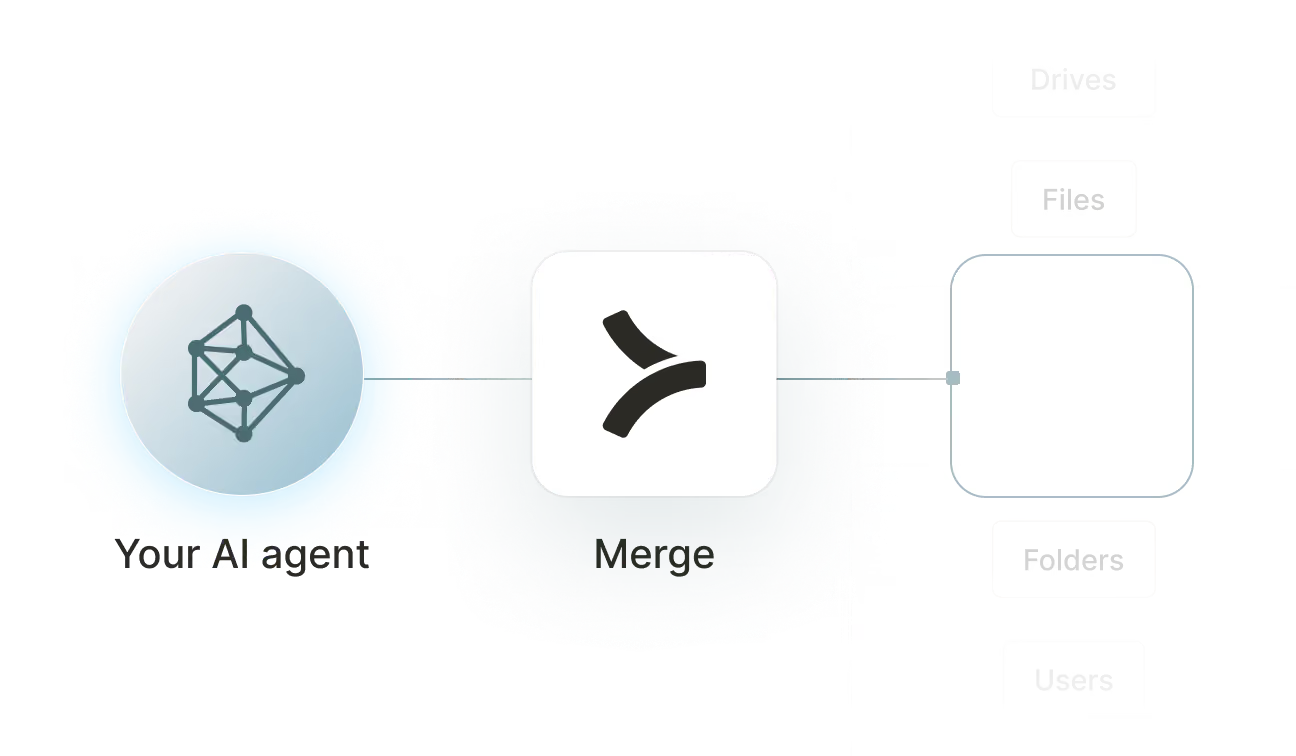
Available tools

How to set upMerge Agent Handler
In an mcp.json file, add the configuration below, and restart Cursor.
Learn more in the official documentation ↗
1{
2  "mcpServers": {
3    "agent-handler": {
4      "url": "https://ah-api-develop.merge.dev/api/v1/tool-packs/{TOOL_PACK_ID}/registered-users/{REGISTERED_USER_ID}/mcp",
5      "headers": {
6        "Authorization": "Bearer yMt*****"
7      }
8    }
9  }
10}
Copy Code
Open your Claude Desktop configuration file and add the server configuration below. You'll also need to restart the application for the changes to take effect.
Make sure Claude is using the Node v20+.
Learn more in the official documentation ↗
1{
2  "mcpServers": {
3    "agent-handler": {
4      "command": "npx",
5      "args": [
6        "-y",
7        "mcp-remote@latest",
8        "https://ah-api-develop.merge.dev/api/v1/tool-packs/{TOOL_PACK_ID}/registered-users/{REGISTERED_USER_ID}/mcp",
9        "--header",
10        "Authorization: Bearer ${AUTH_TOKEN}"
11      ],
12      "env": {
13        "AUTH_TOKEN": "yMt*****"
14      }
15    }
16  }
17}
Copy Code
Open your Windsurf MCP configuration file and add the server configuration below.
Click on the refresh button in the top right of the Manage MCP server page or in the top right of the chat box in the box icon.
Learn more in the official documentation ↗
1{
2    "mcpServers": {
3      "agent-handler": {
4        "command": "npx",
5        "args": [
6          "-y",
7          "mcp-remote@latest",
8          "https://ah-api.merge.dev/api/v1/tool-packs/<tool-pack-id>/registered-users/<registered-user-id>/mcp",
9          "--header",
10          "Authorization: Bearer ${AUTH_TOKEN}"
11        ],
12        "env": {
13          "AUTH_TOKEN": "<ah-production-access-key>"
14        }
15      }
16    }
17  }
Copy Code
In Command Palette (Cmd+Shift+P on macOS, Ctrl+Shift+P on Windows), run "MCP: Open User Configuration".
You can then add the configuration below and press "start" right under servers. Enter the auth token when prompted.
Learn more in the official documentation ↗
1{
2  "inputs": [
3    {
4      "type": "promptString",
5      "id": "agent-handler-auth",
6      "description": "Agent Handler AUTH_TOKEN", // "yMt*****" when prompt
7      "password": true
8    }
9  ],
10  "servers": {
11    "agent-handler": {
12      "type": "stdio",
13      "command": "npx",
14      "args": [
15        "-y",
16        "mcp-remote@latest",
17        "https://ah-api-develop.merge.dev/api/v1/tool-packs/{TOOL_PACK_ID}/registered-users/{REGISTERED_USER_ID}/mcp",
18        "--header",
19        "Authorization: Bearer ${input:agent-handler-auth}"
20      ]
21    }
22  }
23}
Copy Code
FAQ on integrating with Google Drive’s API
Heading

What is an Oracle SCM MCP?
An Oracle SCM MCP is an MCP server that connects your agents to Oracle Supply Chain Management Cloud via tools. Your agents can invoke these tools to create and track purchase orders, query inventory levels, manage supplier records, log receipts, and more.
Oracle doesn't offer an MCP server purpose built for Oracle SCM Cloud, but you can use one from a third-party platform, like Merge Agent Handler.
How can I use the Oracle SCM MCP server?
The use cases naturally depend on the agent you've built, but here are a few common ones:
- Reorder automation: When inventory for a critical item drops below a safety stock threshold in a warehouse management system, an agent creates a purchase order in Oracle SCM for the appropriate supplier and quantity without manual intervention
- Supplier delivery monitoring: An agent queries open purchase orders and their expected receipt dates, identifies lines that are past due, and posts a summary to a procurement team channel so buyers can follow up before stockouts occur
- Receipt and invoice matching: When a new supplier invoice arrives in an AP system, an agent retrieves the corresponding purchase order from Oracle SCM, compares quantities and unit prices, and flags discrepancies for human review before approval
- Inventory level reporting: An agent pulls on-hand quantities by item and location from Oracle SCM on a scheduled cadence and generates a stock status report for operations or finance teams
What are popular tools for Oracle SCM's MCP server?
Here are some of the most commonly used tools:
list_purchase_orders: retrieves purchase orders filtered by supplier, status, or date range. Use this when an agent needs to audit open orders, identify past-due lines, or match orders against incoming invoices
create_purchase_order: creates a new purchase order in Oracle SCM for a specified supplier, item, quantity, and delivery date. Call this when an agent detects a replenishment trigger and needs to place an order automatically
get_on_hand_quantity: returns current inventory levels for an item across one or more locations. Good for agents that monitor stock positions and need to evaluate whether replenishment or reallocation is required
list_suppliers: retrieves supplier records with contact, site, and status data. Helpful when an agent needs to identify the right supplier before creating a purchase order or validating an invoice
create_receipt: records the receipt of goods against a purchase order line in Oracle SCM. Call this when an agent processes a physical delivery confirmation and needs to update the system of record to close the loop on an open PO
list_work_orders: returns manufacturing work orders with item, quantity, status, and scheduled completion data. Useful for agents that track production progress and need to coordinate materials or flag delays to planners.
What makes Merge Agent Handler's Oracle SCM MCP server better than alternative Oracle SCM MCP servers?
Here is what makes Merge Agent Handler's Oracle SCM MCP server the stronger choice over building a custom integration or using an alternative:
- Enterprise-grade security and DLP: Merge Agent Handler includes built-in data loss prevention controls that let you block or redact sensitive fields before they reach an agent. For Oracle SCM, this means you can prevent supplier pricing, contract terms, and inventory valuation data from being exposed even when the agent has broad read access
- Managed authentication and credentials: Merge stores and refreshes Oracle SCM credentials on your behalf. You never expose raw API keys or OAuth tokens to an agent or manage credential rotation across environments manually
- Real-time observability and audit trail: Every tool call made against Oracle SCM is logged with timestamp, tool name, input parameters, and response metadata. Procurement and operations teams can audit exactly what an agent created, queried, or modified without any additional instrumentation
- Tool Packs and controlled access: Tool Packs let you bundle specific Oracle SCM tools with tools from other connectors into a single MCP endpoint, scoped to a specific use case. An agent handling inventory reporting doesn't need access to purchase order creation or supplier management tools
How can I start using Merge Agent Handler's Oracle SCM MCP server?
You can take the following steps:
1. Create or log into your Merge Agent Handler account and navigate to Tool Packs (collections of connector tools scoped to a specific use case).
2. Create a new Tool Pack, then find and enable the Oracle SCM connector. Choose which tools to include: enable read tools for inventory and order monitoring use cases, or add write tools if your agent needs to create purchase orders, log receipts, or update records.
3. Add a Registered User inside the Tool Pack. This is the identity context under which your agent operates. Merge generates a unique MCP URL scoped to this user once it's created.
4. From the Registered User detail page, authenticate Oracle SCM by completing the credential flow. Merge stores and manages the credentials going forward.
5. Copy the MCP URL from the Tool Pack detail page and generate an API key from Settings. You'll need both to connect your agent.
6. Add the MCP server to your agent or IDE using the MCP URL and API key. Your Oracle SCM tools are now accessible through that endpoint.
Explore other MCP servers built and managed by Merge
View Docs


























Ready to try it out?
Whether you're an engineer experimenting with agents or a product manager looking to add tools, you can get started for free now
