


Google Slides
Merge lets you securely connect your agents to Google Slides and thousands of tools instantly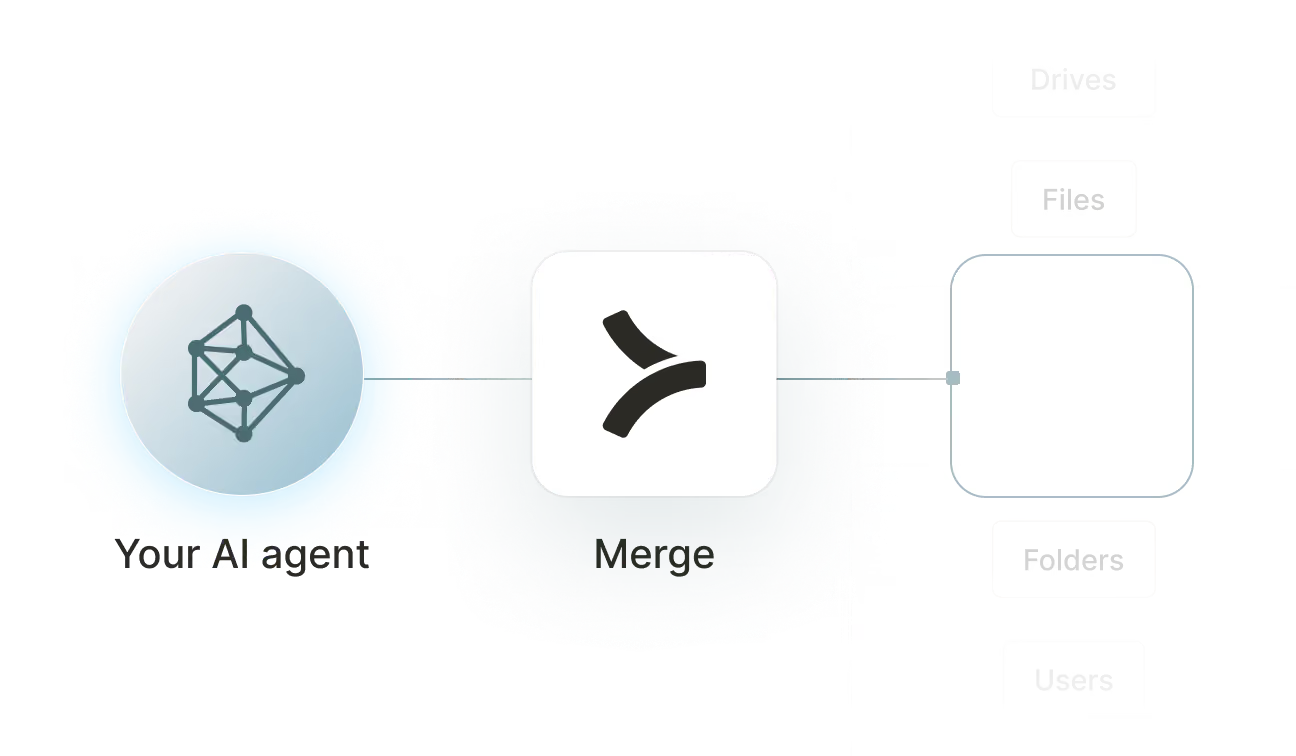

Available tools
create_video
Insert a video (YouTube or Google Drive) onto a page. Requires video ID and source type.
create_line
Create a line or connector between two points. Supports straight, bent, and curved lines.

How to set upMerge Agent Handler
In an mcp.json file, add the configuration below, and restart Cursor.
Learn more in the official documentation ↗
1{
2  "mcpServers": {
3    "agent-handler": {
4      "url": "https://ah-api-develop.merge.dev/api/v1/tool-packs/{TOOL_PACK_ID}/registered-users/{REGISTERED_USER_ID}/mcp",
5      "headers": {
6        "Authorization": "Bearer yMt*****"
7      }
8    }
9  }
10}
Copy Code
Open your Claude Desktop configuration file and add the server configuration below. You'll also need to restart the application for the changes to take effect.
Make sure Claude is using the Node v20+.
Learn more in the official documentation ↗
1{
2  "mcpServers": {
3    "agent-handler": {
4      "command": "npx",
5      "args": [
6        "-y",
7        "mcp-remote@latest",
8        "https://ah-api-develop.merge.dev/api/v1/tool-packs/{TOOL_PACK_ID}/registered-users/{REGISTERED_USER_ID}/mcp",
9        "--header",
10        "Authorization: Bearer ${AUTH_TOKEN}"
11      ],
12      "env": {
13        "AUTH_TOKEN": "yMt*****"
14      }
15    }
16  }
17}
Copy Code
Open your Windsurf MCP configuration file and add the server configuration below.
Click on the refresh button in the top right of the Manage MCP server page or in the top right of the chat box in the box icon.
Learn more in the official documentation ↗
1{
2    "mcpServers": {
3      "agent-handler": {
4        "command": "npx",
5        "args": [
6          "-y",
7          "mcp-remote@latest",
8          "https://ah-api.merge.dev/api/v1/tool-packs/<tool-pack-id>/registered-users/<registered-user-id>/mcp",
9          "--header",
10          "Authorization: Bearer ${AUTH_TOKEN}"
11        ],
12        "env": {
13          "AUTH_TOKEN": "<ah-production-access-key>"
14        }
15      }
16    }
17  }
Copy Code
In Command Palette (Cmd+Shift+P on macOS, Ctrl+Shift+P on Windows), run "MCP: Open User Configuration".
You can then add the configuration below and press "start" right under servers. Enter the auth token when prompted.
Learn more in the official documentation ↗
1{
2  "inputs": [
3    {
4      "type": "promptString",
5      "id": "agent-handler-auth",
6      "description": "Agent Handler AUTH_TOKEN", // "yMt*****" when prompt
7      "password": true
8    }
9  ],
10  "servers": {
11    "agent-handler": {
12      "type": "stdio",
13      "command": "npx",
14      "args": [
15        "-y",
16        "mcp-remote@latest",
17        "https://ah-api-develop.merge.dev/api/v1/tool-packs/{TOOL_PACK_ID}/registered-users/{REGISTERED_USER_ID}/mcp",
18        "--header",
19        "Authorization: Bearer ${input:agent-handler-auth}"
20      ]
21    }
22  }
23}
Copy Code
FAQ on integrating with Google Drive’s API
Heading

What is a Google Slides MCP server?
It’s an MCP server that lets you access data and functionality from a particular instance of Google Slides via tools. Your agents can invoke these tools to retrieve specific presentations, update an image on a specific slide, create a shape with text on a slide, and more.
While Google provides an official MCP server for some of its products (e.g., Google Maps), it doesn’t provide one for Google Slides.
That said, your agents can access a Google Slides MCP server from a 3rd-party platform, like Merge Agent Handler.
What are some common ways to use a Google Slides MCP server?
Here are a few ways your agents can use the server:
- Auto-generate QBR decks from metrics: Pull KPIs from dashboards or spreadsheets and render a ready-to-present deck on a schedule
- Personalized sales decks at scale: Create prospect-specific pitch decks by merging CRM fields, industry slides, and case studies into a consistent template
- One-click “doc to deck” conversion: Turn a PRD, memo, or Notion/Google Doc outline into slides with consistent headings, sections, and speaker notes
- Launch enablement deck automation: Generate and refresh product launch decks when source-of-truth content changes, keeping GTM materials current
- Weekly leadership updates without manual formatting: Compile team updates into a standardized slide format and export to PDF before the meeting
What are some common tools from a Google Slides MCP server?
Here are some common tools:
Presentations
- <code class="blog_inline-code">create_presentation</code>
- <code class="blog_inline-code">get_presentation</code>
- <code class="blog_inline-code">batch_update_presentation</code>
Text
- <code class="blog_inline-code">insert_text</code>
- <code class="blog_inline-code">delete_text</code>
- <code class="blog_inline-code">replace_all_text</code>
- <code class="blog_inline-code">update_text_style</code>
Shapes
- <code class="blog_inline-code">create_shape</code>
- <code class="blog_inline-code">update_shape_properties</code>
What makes Merge Agent Handler’s Google Slides MCP server better than alternative Google Slides MCP servers?
Here are just a few reasons:
- Production-oriented connector management: Merge Agent Handler’s Google Slides connector is fully maintained, tested, and extensible for any agentic use case
- Built-in authentication and credential handling. Merge Agent Handler handles guided authentication flows through Merge Link, stores credentials against Registered Users, and supports both query-time auth prompts and ad hoc auth flows. That reduces the amount of auth plumbing you need to build around the MCP server yourself.
- Security controls around every tool call. Merge’s security gateway scans both outbound tool inputs and inbound responses for sensitive data, and can warn, redact, or block traffic based on configured rules. This is a platform-level control layer, not just a connector feature
- Real-time observability and auditability. Every tool call is logged, giving your team a complete audit trail for debugging, governance, and operational review
- Tool Pack control and evaluation workflows. Merge lets you package only the connectors and tools needed for a use case, test them before going live, and run evaluations against prompts and expected outcomes. This helps reduce unnecessary tool exposure and improve tool-call quality before production rollout
Can I set custom security rules for Google Slides tool calls in Merge Agent Handler?
Yes, Merge Agent Handler’s security gateway lets you activate security rules and configure how flagged content is handled on both outbound requests and inbound responses.
Here are some rules you can set:
- Block external sharing:
- Block any Google Slides </code class="blog_inline_code">share_*</code> tool call if any recipient email domain is outside an allowlist (e.g., only @merge.dev and @customer.com)
- Block public link settings: Block any sharing change that sets visibility to “anyone with the link” or “public” (if exposed by the tool), unless the deck is explicitly allowlisted.
- Redact emails from read responses: Redact email addresses from any Slides “get content” or “search” response so the agent only sees masked values (e.g., j*@merge.dev)
- Restrict decks by folder: Block read/update calls unless the file id belongs to an allowlisted Drive folder (e.g., only AI Approved Decks/)
- Block exports/downloads: Block “export” or “download” style tool calls (e.g., exporting Slides to PDF) unless the destination and requester are allowlisted
How can I start using Merge Agent Handler’s Google Slides MCP server?
Take the following steps:
1. Create (or sign into) your Agent Handler account and get an API key that your MCP client will send as a bearer token when calling the Agent Handler MCP endpoint.
2. Create a Tool Pack for your Google Slides workflow, since Tool Packs are the entry point and define what tools your agent is allowed to use.
3. Add the Google Slides connector to that Tool Pack and keep the tool set narrow at first (e.g., start read-only, then expand).
4. Create a Registered User for the identity that will run tool calls, since Registered Users are the credential container and also scope audit logs.
5. Authenticate Google Slides for that Registered User (typically via Merge Link in your product) so the Slides tools become available for that user’s credentials.
6. Copy the MCP URL for “Tool Pack ID + Registered User ID” and add it to your MCP client (Cursor, Claude Desktop, VS Code, Windsurf, etc.).
7. Configure your MCP client to send your Agent Handler API key in the header as <code class="blog_inline-code">Authorization: Bearer <YOUR_AGENT_HANDLER_API_KEY></code> (or the equivalent setting in your client).
8. Test and verify in logs by running <code class="blog_inline-code">list_tools</code> and a simple low-risk tool call first, then confirming the calls look correct in Agent Handler’s logs.
Can employees use Merge Agent Handler to connect their AI tools to Google Slides?
Yes, Agent Handler for Employees lets your employees connect Claude, ChatGPT, Microsoft Copilot, Cursor, and other MCP-compatible AI tools to Google Slides without bypassing IT governance.
Instead of setting up direct connections with personal credentials that IT can't monitor or revoke, each employee authenticates through Agent Handler and gets individual credentials tied to their identity. A marketing manager can, for example, ask their AI to update a slide with the latest metrics, generate a new deck from a template, or pull content from a presentation for review.
IT provisions access by role or group via SCIM. This means marketing manager gets Google Slides to update campaign decks, Figma to access design assets, and Google Sheets to pull performance data; while a sales rep can get Google Slides to update sales presentations, Salesforce to pull deal data, and Google Drive to access supporting documents.
Every tool call an employee's AI makes to Google Slides is inspected against your DLP rules and logged to a searchable audit trail, giving security teams full visibility into what data was accessed and by whom.

























Ready to try it out?
Whether you're an engineer experimenting with agents or a product manager looking to add tools, you can get started for free now
