


Google Sheets
Merge lets you securely connect your agents to Google Sheets and thousands of tools instantly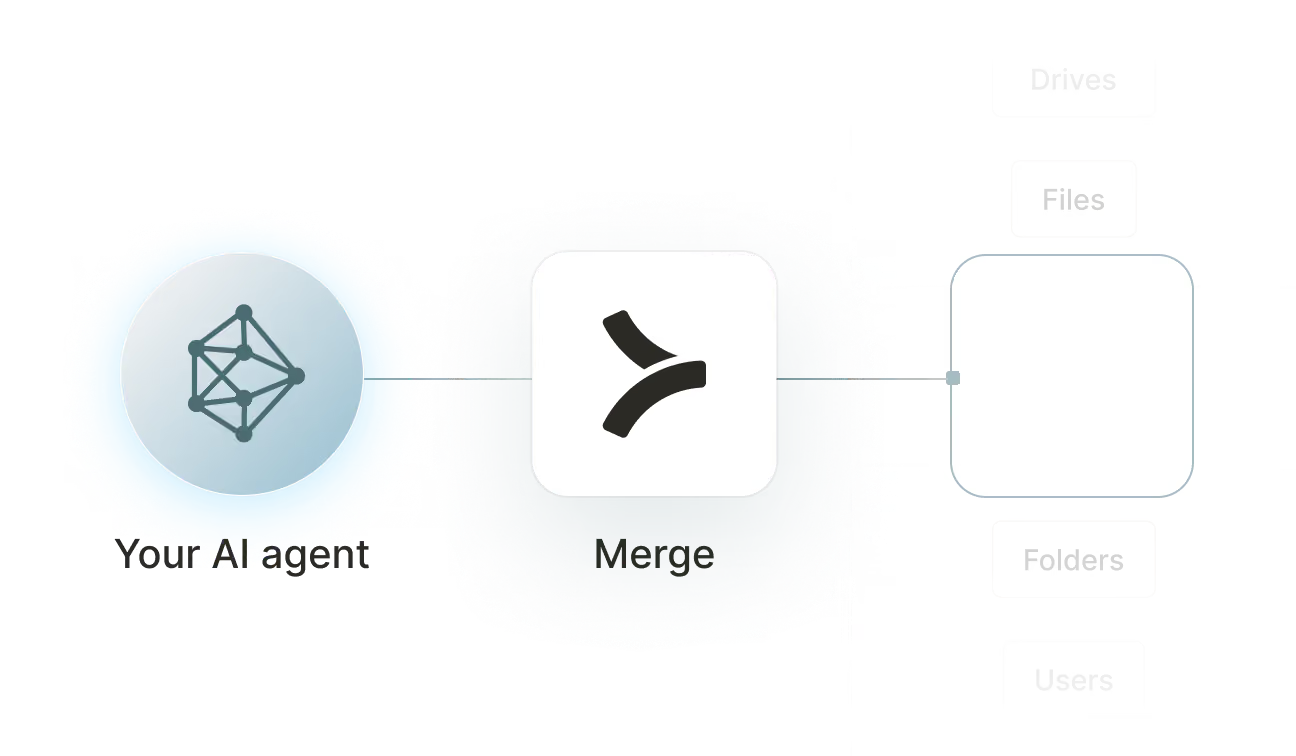

Available tools

How to set upMerge Agent Handler
In an mcp.json file, add the configuration below, and restart Cursor.
Learn more in the official documentation ↗
1{
2  "mcpServers": {
3    "agent-handler": {
4      "url": "https://ah-api-develop.merge.dev/api/v1/tool-packs/{TOOL_PACK_ID}/registered-users/{REGISTERED_USER_ID}/mcp",
5      "headers": {
6        "Authorization": "Bearer yMt*****"
7      }
8    }
9  }
10}
Copy Code
Open your Claude Desktop configuration file and add the server configuration below. You'll also need to restart the application for the changes to take effect.
Make sure Claude is using the Node v20+.
Learn more in the official documentation ↗
1{
2  "mcpServers": {
3    "agent-handler": {
4      "command": "npx",
5      "args": [
6        "-y",
7        "mcp-remote@latest",
8        "https://ah-api-develop.merge.dev/api/v1/tool-packs/{TOOL_PACK_ID}/registered-users/{REGISTERED_USER_ID}/mcp",
9        "--header",
10        "Authorization: Bearer ${AUTH_TOKEN}"
11      ],
12      "env": {
13        "AUTH_TOKEN": "yMt*****"
14      }
15    }
16  }
17}
Copy Code
Open your Windsurf MCP configuration file and add the server configuration below.
Click on the refresh button in the top right of the Manage MCP server page or in the top right of the chat box in the box icon.
Learn more in the official documentation ↗
1{
2    "mcpServers": {
3      "agent-handler": {
4        "command": "npx",
5        "args": [
6          "-y",
7          "mcp-remote@latest",
8          "https://ah-api.merge.dev/api/v1/tool-packs/<tool-pack-id>/registered-users/<registered-user-id>/mcp",
9          "--header",
10          "Authorization: Bearer ${AUTH_TOKEN}"
11        ],
12        "env": {
13          "AUTH_TOKEN": "<ah-production-access-key>"
14        }
15      }
16    }
17  }
Copy Code
In Command Palette (Cmd+Shift+P on macOS, Ctrl+Shift+P on Windows), run "MCP: Open User Configuration".
You can then add the configuration below and press "start" right under servers. Enter the auth token when prompted.
Learn more in the official documentation ↗
1{
2  "inputs": [
3    {
4      "type": "promptString",
5      "id": "agent-handler-auth",
6      "description": "Agent Handler AUTH_TOKEN", // "yMt*****" when prompt
7      "password": true
8    }
9  ],
10  "servers": {
11    "agent-handler": {
12      "type": "stdio",
13      "command": "npx",
14      "args": [
15        "-y",
16        "mcp-remote@latest",
17        "https://ah-api-develop.merge.dev/api/v1/tool-packs/{TOOL_PACK_ID}/registered-users/{REGISTERED_USER_ID}/mcp",
18        "--header",
19        "Authorization: Bearer ${input:agent-handler-auth}"
20      ]
21    }
22  }
23}
Copy Code
FAQ on integrating with Google Drive’s API
Heading

What is a Google Sheets MCP server?
It’s an MCP server that exposes data and functionality from Google Sheets via tools. Your agents can invoke these tools to add sheets, sort data in a row within a sheet, copy a sheet to a new spreadsheet, and more.
How can I use the Google Sheets MCP server?
Here are some common use cases:
- Automated reporting and dashboards: Your agent can pull data from various sources and automatically populate Google Sheets reports with the latest metrics. For example, when weekly sales data is updated in your CRM, your agent can calculate totals, generate trend analyses, and update your executive dashboard spreadsheet with formatted charts and insights
- Data validation and cleanup: Your agent can scan your spreadsheets for inconsistencies, duplicates, or formatting errors and automatically correct them. For instance, when new contact information is added to your lead tracking sheet, your agent can validate email formats, standardize phone number formatting, and flag duplicate entries for review
- Cross-system data synchronization: Your agent can keep data synchronized between Google Sheets and other tools in your workflow. For example, when a task status changes in your project management sheet, your agent can update the corresponding record in your project management platform and notify relevant team members via Slack
- Budget tracking and alerts: Your agent can monitor spending across your budget sheets and trigger alerts when thresholds are reached. For instance, when department expenses approach 80% of their quarterly budget, your agent can notify finance managers, create a summary of top spending categories, and suggest areas for cost optimization based on historical patterns
What are popular tools for Google Sheets’ MCP server?
Here are some popular tools across data types:
Sheets
- <code class="blog_inline-code">copy_sheet</code>
- <code class="blog_inline-code">delete_sheet</code>
- <code class="blog_inline-code">add_sheet</code>
Cell values
- <code class="blog_inline-code">get_values</code>
- <code class="blog_inline-code">batch_get_values</code>
- <code class="blog_inline-code">append_values</code>
- <code class="blog_inline-code">clear_values</code>
Spreadsheets
- <code class="blog_inline-code">create_spreadsheet</code>
- <code class="blog_inline-code">get_spreadsheet</code>
- <code class="blog_inline-code">update_spreadsheet_properties</code>
What makes Merge Agent Handler’s Google Sheets MCP server better than alternative Google Sheets MCP servers?
Merge Agent Handler provides platform-level capabilities that apply to all connectors, including Google Sheets:
- Enterprise-grade security and DLP: Tool inputs and outputs are scanned for sensitive data, with rules to block, redact, or mask content before execution or return
- Authentication and credential management: Supports guided user authentication flows and manages credentials on behalf of your agents
- Tool Pack management: Lets you bundle connectors and tools into Tool Packs and control which agents and users can access them
- Real-time observability and audit trails: Every tool call is logged, with fully-searchable logs to audit, debug, and optimize agent behavior
Can I set custom security rules for Google Sheets tool calls in Merge Agent Handler?
Yes, Merge Agent Handler allows you to configure custom data loss prevention (DLP) rules for Google Sheets tool calls.
Here are examples of security rules you can set:
- Sensitive data redaction: Block or redact tool calls that attempt to read or write sensitive information (e.g., social security numbers). For example, if your agent tries to update a cell with a value matching a credit card pattern, the rule can automatically redact the numbers or block the operation entirely
- External sharing restrictions: Prevent your agent from sharing spreadsheets with email addresses outside your approved domains. For instance, you can block any share_spreadsheet tool calls that attempt to grant access to recipients not on your organization's allow list
- Password and credential protection: Automatically detect and block tool calls that attempt to write passwords, authentication tokens, or other credentials into spreadsheet cells. For example, if your agent tries to log API keys or database passwords in a tracking sheet, the security rule can intercept and block the write operation
- PII masking: Configure rules to mask personally identifiable information when your agent reads from sheets containing customer data. For instance, when your agent retrieves employee information from an HR spreadsheet, phone numbers and addresses can be automatically masked while still allowing the agent to process other fields like department and role
How can I start using Merge Agent Handler’s Google Sheets MCP server?
You can follow these steps:
1. Create your Agent Handler account. Sign up for a free account here.
2. Create a Tool Pack. Navigate to "Tool Packs" in the left sidebar and click "Create New Tool Pack." Give it a descriptive name (e.g., "Google Sheets Automation Pack").
3. Add the Google Sheets connector. Browse the available connectors and add Google Sheets to your Tool Pack.
4. Configure authentication. Choose your authentication method:
- Individual authentication: Each user connects their own Google Sheets account
- Shared authentication: Use one set of organization-level credentials for all users
5. Select specific tools. Choose which Google Sheets tools you want to make available to your agent, or enable all tools by default.
6. Register a User. Navigate to "Registered Users" in the sidebar and create a new registered user. This represents the identity that will perform actions through your agent.
7. Save your Tool Pack. Review and save all your Tool Pack settings.
8. Connect to your agent or IDE. Copy the MCP entry URL from your Tool Pack settings. The URL format will be: https://ah-api.merge.dev/api/v1/tool-packs/{TOOL_PACK_ID}/registered-users/{REGISTERED_USER_ID}/mcp. Then add it to your IDE configuration (Cursor, Windsurf, Claude Desktop, or Visual Studio Code) using the authentication token provided.
Can employees use Merge Agent Handler to connect their AI tools to Google Sheets?
Yes, Agent Handler for Employees lets your employees connect Claude, ChatGPT, Microsoft Copilot, Cursor, and other MCP-compatible AI tools to Google Sheets without bypassing IT governance.
Instead of setting up direct connections with personal credentials that IT can't monitor or revoke, each employee authenticates through Agent Handler and gets individual credentials tied to their identity.
IT also provisions access by role or group via SCIM. A finance analyst gets Google Sheets access to build financial reports, NetSuite to close books, and Expensify to track spend; while a sales rep gets Google Sheets to track custom metrics, Salesforce to manage pipeline, and Gong to review call recordings.
Every tool call an employee's AI makes to Google Sheets is also inspected against your DLP rules and logged to a searchable audit trail, giving security teams full visibility into what data was accessed and by whom.
Explore other MCP servers built and managed by Merge
View Docs

























Ready to try it out?
Whether you're an engineer experimenting with agents or a product manager looking to add tools, you can get started for free now
